Group Settings
This is a field-by-field reference for the Edit Group screen, organized by its tabs: General · Community · Members · Sessions · Media · About Us · Delete Group.
The same tabs and fields apply whether you're creating a new group or editing an existing one, so this reference covers both.
Jump to:
How to create a group
How do I create a group? How do I make a Group Page? How do I set up a group? Where do I make a new group? How do I start a group? What is Quick Setup vs Advanced Setup for a group? How do I connect sessions to my group? How do I get a custom group link?
1 Open Groups
Log in and go to your Host Dashboard, click Groups in the left menu, then click New Group.
2 Choose Quick or Advanced Setup
At the top, pick Quick Setup for just the essentials, or Advanced Setup to set everything up front. Either way you can edit more later.
3 Fill in the main settings
On the General tab, set at least your Group Name, Group Location, and Website URL (your custom dailypb.com/group/your-custom-link address).
4 Save and connect your sessions
Click Save to create the group. Then link it to your existing sessions and they'll automatically appear on your group calendar. Share your custom link with your community.
General
What are the general group settings? How do I set my group name and image? What is the group location for? How do I set my group's web address? Can I change my group URL? What is the primary venue setting? What is the subheadline? How do I link my group to a venue? How do I get my group to show on a venue page? Why isn't my group showing on the venue page?
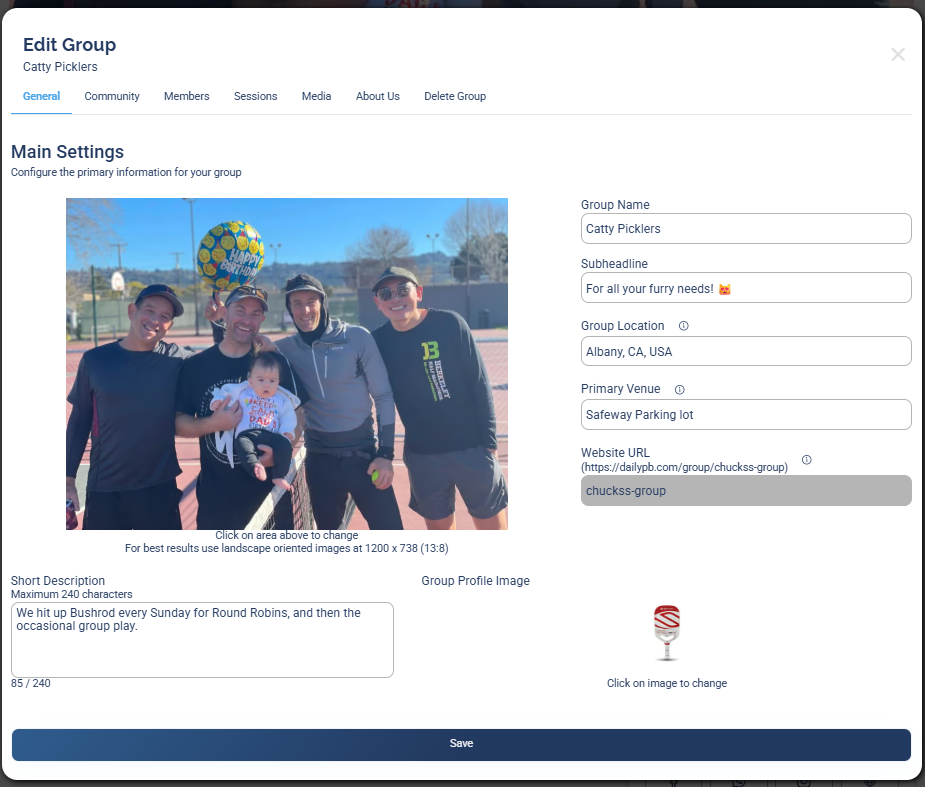
The General tab.
Fields on this tab:
- Group Name: the name of your group.
- Subheadline: appears in the main bar that's visible on every page of your group.
- Group Location: one of the most important settings. If your group is public, your Group Location is what makes it show up when people search for groups near them. It is how DailyPB matches your group to a searcher's location (DailyPB shows your group to users within about 50 miles).
- Primary Venue: link your group to a venue, and if your group is public and active, it shows up on that venue's page. So anyone browsing that venue can find your group.
- Website URL: the custom web address you want for your group (
dailypb.com/group/your-custom-link). You can't change it yourself after it's set, so choose carefully. To change it later, email DailyPB. - Short Description: shows up in the info section on the Home tab of your group.
- Group Profile Image: shows up in a few places. It's the icon on your main group page, it's the image shown when people are browsing or searching groups, and if you've linked a Primary Venue, it's the image used for your group's listing on that venue's page.
Community
What are the community group settings? How do I make my group private? What is a private vs public group? How do I link an Interest List to my group? How do I add my social media to my group? Can I link WhatsApp or Facebook to my group?
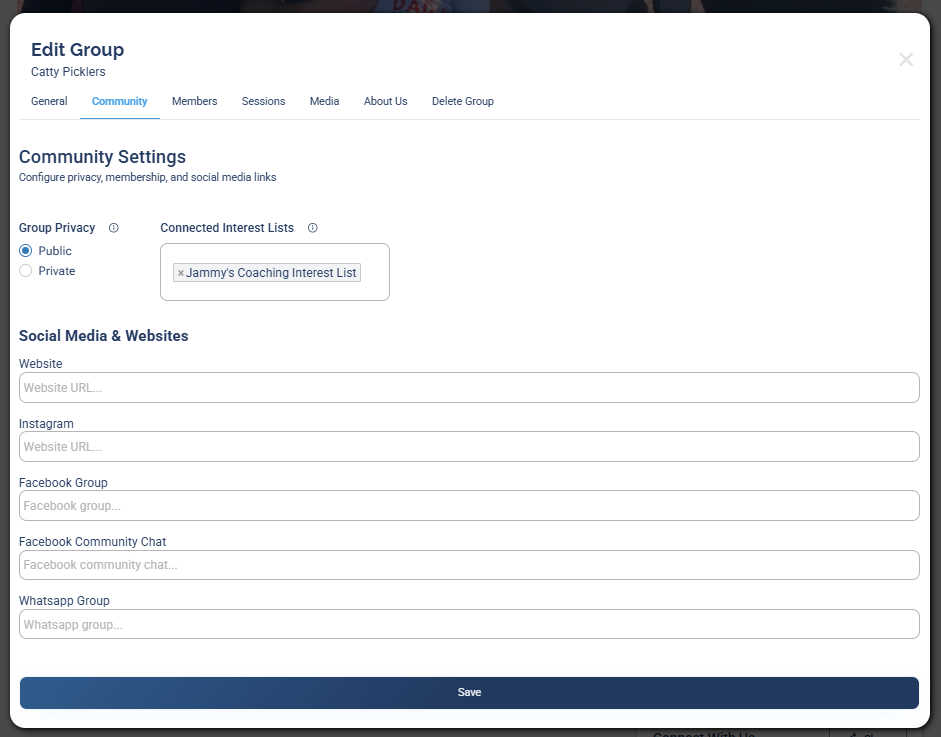
The Community tab.
Fields on this tab:
- Group Privacy (Public / Private): controls whether people can find your group. A Public group shows up on the groups page when people are looking for a group, and shows on a linked venue's page. A Private group does neither. It won't appear on the groups page, and even if it's linked to a venue, it won't show there.
- Connected Interest Lists: the interest lists that appear on your group's main page, so people can see which ones they can sign up for.
- Social Media and Websites (Website, Instagram, Facebook Group, Facebook Community Chat, Whatsapp Group): each link you add shows up as an icon in the Connect with Us area of your group page, linking out to that profile.
Members
What are the member settings? How do members join my group? What is a welcome email? How do I set membership options? Does a welcome email send when I add someone manually? How do I control who can join my group?
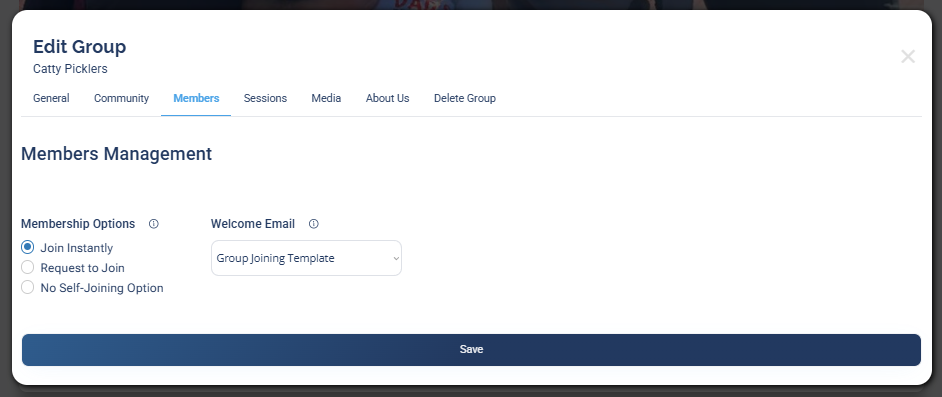
The Members tab.
Fields on this tab:
- Membership Options: how players can join your group.
- Join Instantly: anyone can join right away (for a public group).
- Request to Join: people who want to join stay pending until you accept or decline them.
- No Self-Joining Option: nobody can join on their own. You add members manually.
- Welcome Email: the email automatically sent when someone joins on their own. It is not sent when you add a member manually. This uses DailyPB's email templates, so any template you've tagged to this group shows up here for you to select.
Sessions
What are the session settings for a group? How many sessions show on my group page? What is auto-promote session? How do I feature a session on my group page? How do I highlight a specific session? Why do players only see one session on my group page? How do I show more upcoming sessions on my home page? Players are missing my other sessions. How do I get more of my sessions to show up right away? Only some of my sessions are visible when people land on my group.
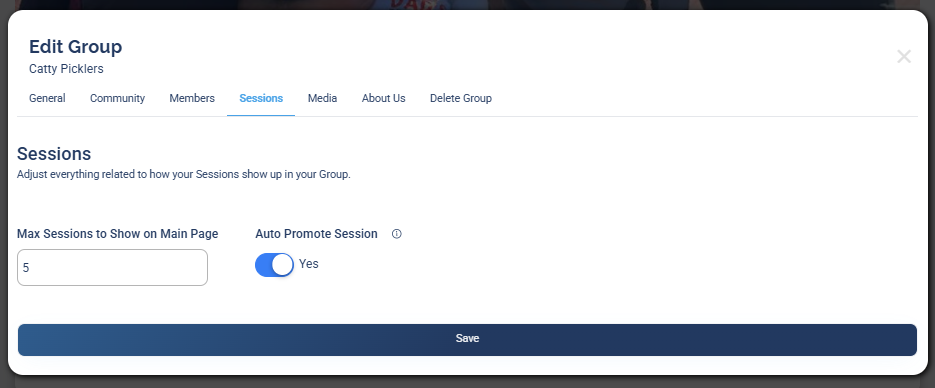
The Sessions tab.
These settings control the two session areas on your group's home page: a single promoted session card at the top, and the Upcoming Sessions row right below it. The settings here are separate, one for each area.
Fields on this tab:
- Max Sessions to Show on Main Page: how many sessions appear in the Upcoming Sessions row below the promoted card (the row that scrolls left to right). You can show up to 10. Set this higher so players landing on your page see your full upcoming schedule right away, not just the one promoted session. This setting does not change the promoted card at the top, only the row underneath it.
On your live group page
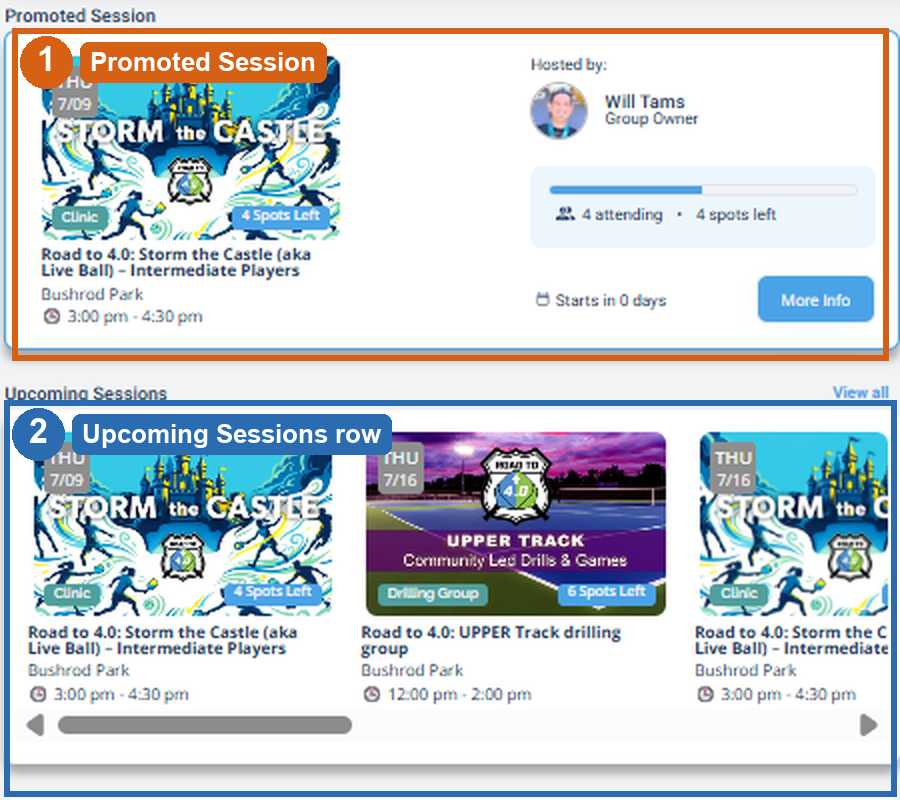
Your home page has two session areas: (1) the Promoted Session card at the top (always one session), and (2) the Upcoming Sessions row below it. Max Sessions to Show on Main Page controls only area 2, players can scroll that row or click View all for the full schedule.
- Auto Promote Session: when on, DailyPB automatically finds the next upcoming session that has at least one open spot and puts it in the promoted spot, front and center on your page.
- Promoted Session: appears only when Auto Promote Session is off. Pick any upcoming session to feature in the promoted spot. Once that session ends, it's removed automatically. You don't have to do anything.

The Promoted Session picker appears when Auto Promote Session is off.
Media
How do I add photos to my group? What is the Media tab? Where do group photos go? Can I add a photo gallery to my group? How many images can my group have?
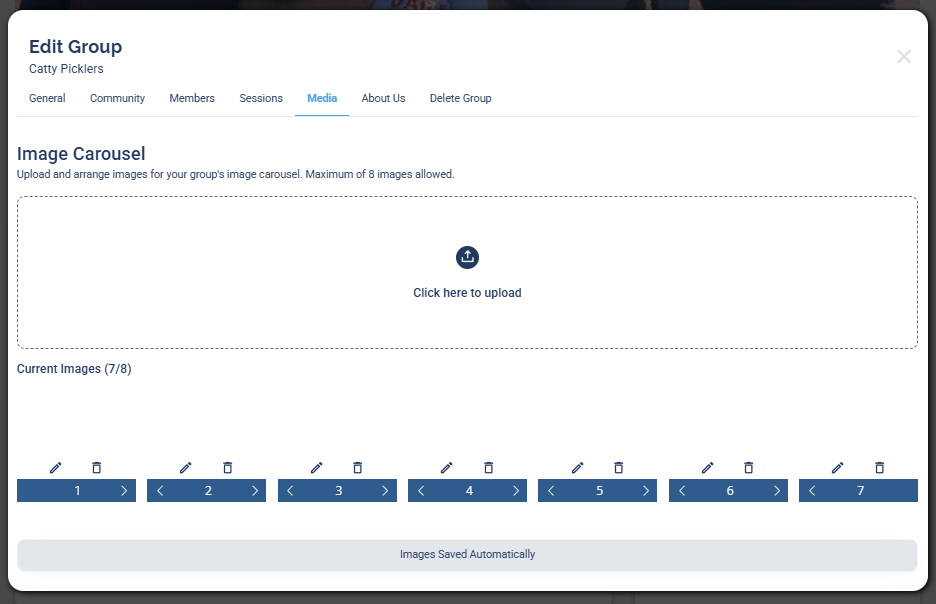
The Media tab.
Fields on this tab:
- Image Carousel: upload and arrange the images you want to show off (up to 8). As soon as you add any, a Media tab appears on your group page where people can browse your group's photos.
About Us
Where do I write my group's story? What is the About Us tab? How do I add a long description to my group?
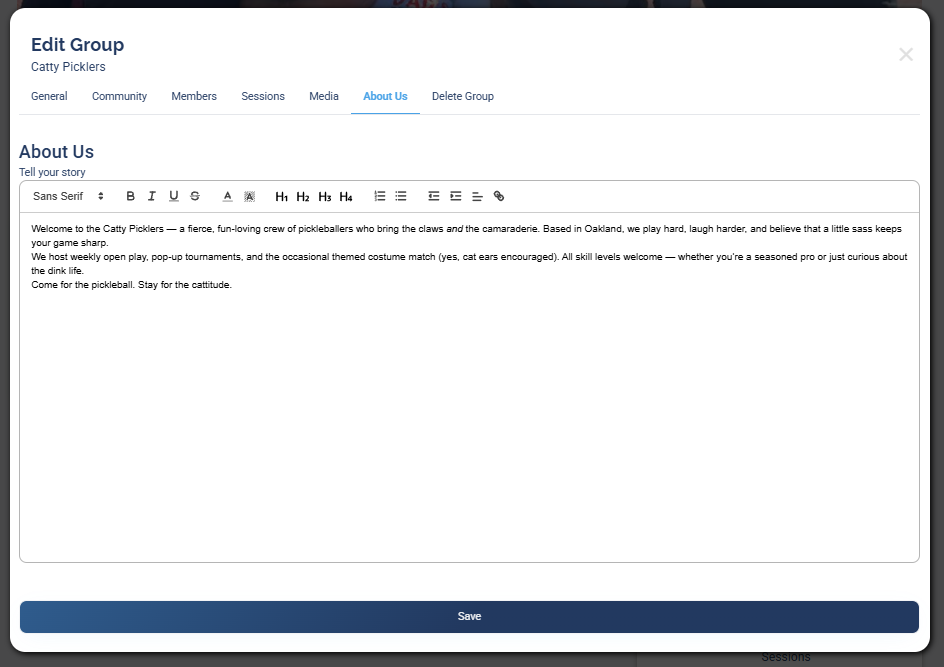
The About Us tab.
Fields on this tab:
- About Us: a rich-text editor where you can write a long, formatted description telling your group's story.
Delete Group
How do I delete a group? How do I remove a group? Where is the delete group option? Can I delete my group page? How do I get rid of a group?
The Delete Group tab permanently removes the group.
Deleting a group is permanent. Make sure you no longer need the group page or its member list before deleting.
More in Groups