DUPR Game Mode
DUPR Game Mode adds structure and accuracy to any session where you want to capture results for DUPR. It helps ensure every game meets DUPR's rules, keeps track of player IDs, and gives you a ready-to-upload CSV after the session.
Jump to:
- Enable DUPR Game Mode
- Required DUPR ID at Signup
- DUPR-Valid Game Rules
- Export DUPR-Ready Results
- Upload to DUPR
How to Enable DUPR Game Mode
How do I turn on DUPR Game Mode? How do I enable DUPR for a session? Where is the DUPR setting? How do I set up a DUPR session? How do I make my session submit games to DUPR? Where do I check the DUPR box when creating a session? How do I add DUPR mode to an existing session?
DUPR Game Mode is a setting you turn on for a session. Where you find it depends on whether you're editing an existing session or creating a new one.
If you're editing an existing session, open the session's Access menu and check the box for DUPR Game Mode.
If you're creating a new session:
1 Switch to Advanced Setup
Make sure you're using Advanced Setup so the full set of session options is available.
2 Open the Recording Games Tab
Go to the fourth tab, Recording Games.
3 Check DUPR Game Mode
Check the box for DUPR Game Mode.
Once enabled, the rules below are automatically applied to the session.
Required DUPR ID at Signup
Do players need a DUPR ID to sign up? How do players enter their DUPR ID? What if a player typed the wrong DUPR ID? Can I edit a player's DUPR ID? Does DailyPB check that a DUPR ID is valid? How many digits is a DUPR ID?
When a player signs up for a DUPR session, they must enter their DUPR ID. The DUPR ID field is required — the signup can't be completed until it's filled in.
- The system checks that the ID contains exactly six digits, but it does not confirm whether the ID itself is valid (a player can still enter the wrong six-digit number).
- That's why you (as the host) can edit any player's DUPR ID at any time — to fix a mistyped or incorrect entry after signup.
- Once entered, the ID is saved with the signup so it's attached before any games are recorded.
DUPR-Valid Game Rules Automatically Enforced
What are DUPR's rules for a valid game? Why is my game not DUPR-valid? Can a DUPR game end in a tie? What's the minimum score for a DUPR game? Why am I getting a warning on my round robin? Will an invalid game still save?
Whether you're running a round robin or simply entering game results, DUPR Game Mode checks each game against DUPR's validity rules:
- No ties allowed
- At least one team must reach 6 points
If a game breaks these rules:
- The system still saves the score, so your local records stay complete
- A warning appears next to that game so you know it won't count toward DUPR
This allows you to maintain accurate local records while still being alerted to anything that won't qualify for DUPR.
Exporting DUPR-Ready Game Results (CSV)
How do I export my games for DUPR? How do I download the DUPR CSV? Do I need to edit the CSV before uploading to DUPR? How do I get my session results into DUPR? Where do I download the file to submit to DUPR? What format is the DUPR export?
After all games are completed, you can download a CSV that includes:
- All games from the session
- The correct players
- Their submitted DUPR IDs
- Scores and game data in DUPR's required format
This file is built specifically for DUPR's bulk-upload system.
DUPR now accepts the DailyPB export as-is. Just download the CSV and upload it directly to your DUPR club — no spreadsheet edits required.
How to Upload to DUPR
How do I upload my games to DUPR? How do I import matches into DUPR? Where do I add matches in DUPR? How do I submit my CSV to DUPR? Why can't I upload games to my DUPR club? Do I need to be a club organizer to upload?
You must be an organizer of your DUPR Club to upload games.
1 Log into DUPR
Log into the DUPR website.
2 Open Clubs
Click Clubs from the main menu, then click on your Club.

The DUPR dashboard — open Clubs and select your Club.
3 Import Matches via CSV
Click Matches, then click Add Matches and select Import Matches via CSV.
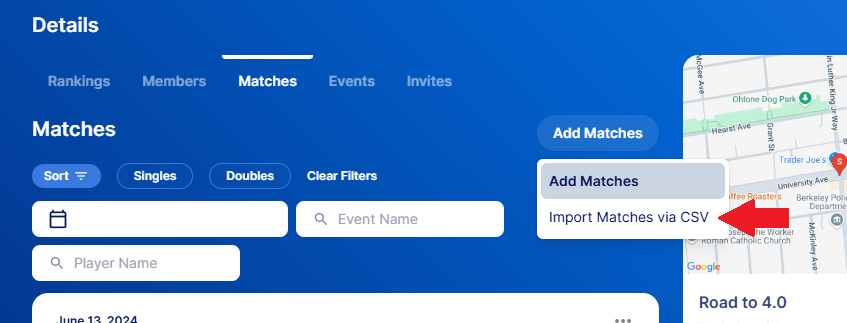
The Matches tab — choose Import Matches via CSV.
4 Select and Upload Your File
Drag in or browse to select the CSV you downloaded from DailyPB. The next screen will let you know if there are any issues with your file.
More in Session Apps