Adding Teammates
As a Team Captain, you can add players to your team for an upcoming Team Session. This guide shows you how to add existing DailyPB users, brand-new players who don't have an account yet, and teammates who are already on your team but sitting on the bench.
Only a Team Captain can add players to a team. If you're not a Captain yet, ask the Session Host to make you one, or have the Host add players directly. Session Hosts can also add players using this same process.
How do I add a player to my team?
How do I add a teammate to my team? How do I add a player to my pickleball team? How do I invite someone to my team? How do I add an existing DailyPB user to my team? How do I add someone who doesn't have a DailyPB account? How do I add a non-DailyPB user to my team? How do I sign up a friend for a team session? How do I recruit players to my team?
To add a teammate, you open your team in the Teams view and use the Add Teammate button.
1 Open the Teams view
Go to the Team Session you're playing in and click the Join or Create Team button. The Teams modal opens, showing every team in the session along with your own team card.
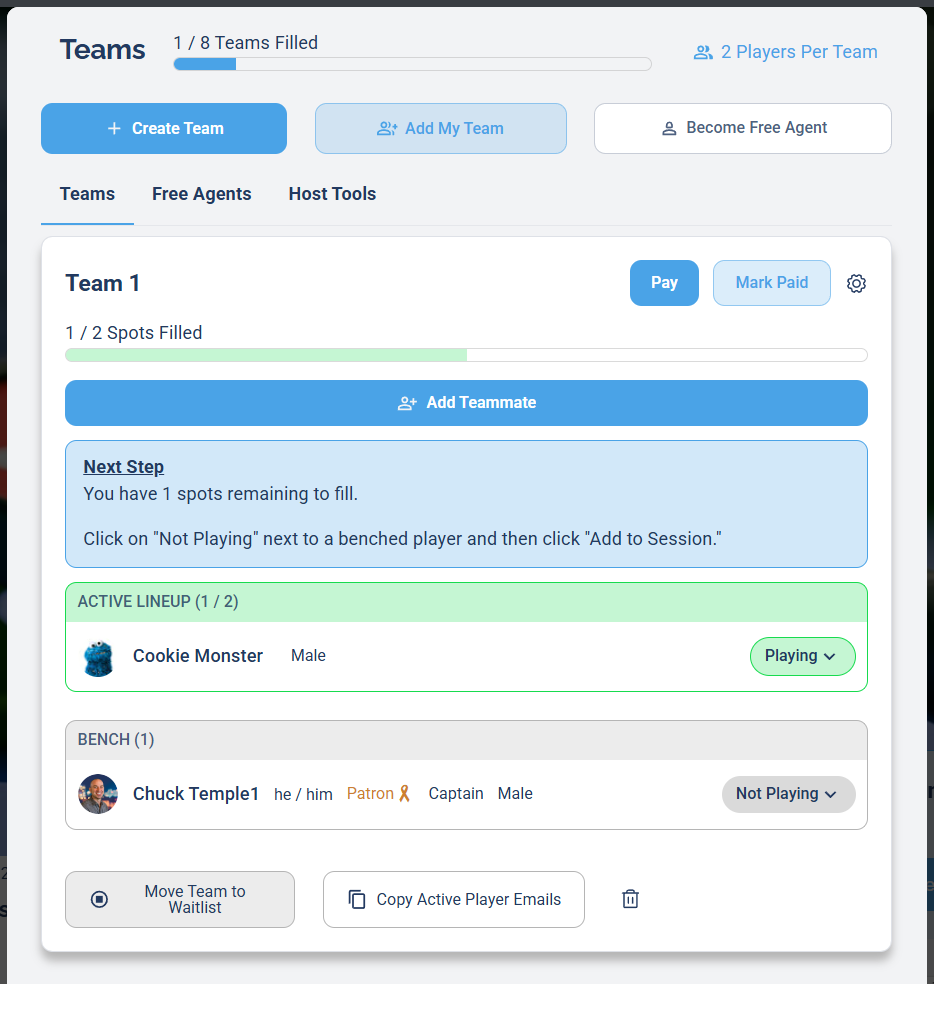
Your team card shows how many spots are filled, your Active Lineup, your Bench, and an Add Teammate button.
2 Click Add Teammate
On your team card, click the blue Add Teammate button. This opens the Add Player to Team dialog.
3 Search for an existing player, or add someone new
The Add Player to Team dialog gives you two ways to add a teammate.
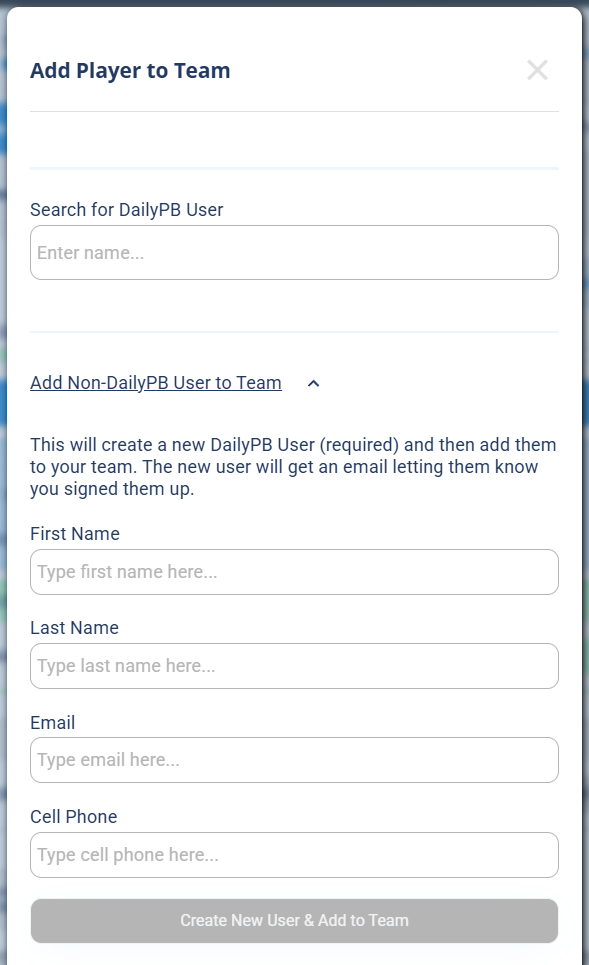
Search for an existing DailyPB user, or expand "Add Non-DailyPB User to Team" to create a new player.
Add an existing DailyPB user: type the player's name in the Search for DailyPB User field. When they appear in the results, click their name to add them.
Add someone new to DailyPB: if the person doesn't have a DailyPB account yet, click Add Non-DailyPB User to Team to expand that section, fill in their First Name, Last Name, Email, and Cell Phone, then click Create New User & Add to Team. They'll receive an email letting them know you signed them up.
A new teammate starts on your Bench. To actually register them to play, you still have to move them into the session (see below). Until you do, they're on the team but not in the lineup.
How do I add a benched player to the session?
How do I add a benched player to the session? How do I move someone from the bench into the game? How do I activate a teammate to play? What does Not Playing mean? How do I change a player from Not Playing to Playing? How do I put a bench player in the lineup? My teammate is on the team but not in the session, how do I add them? How do I use the Add to Session button? Why does my teammate show up on the bench in other sessions? If I remove a player from my team in one session are they removed everywhere? Does my team carry across sessions? Why was someone removed from my team in another session? Is my team the same across every session? Is the active lineup the same for every session? What's the difference between the team roster and the lineup? Does adding someone to the lineup in one session add them to other sessions?
If you already have teammates on your team marked Not Playing (on the bench), move them into the session so they're registered to play.
1 Find the benched player
In your team card, look in the BENCH section for a player whose status shows Not Playing.

A benched player with a Not Playing status, not yet registered for this session.
2 Open the Not Playing dropdown
Click the Not Playing dropdown next to the player's name. An Actions menu appears with options including:
- Become Captain, make this player a Team Captain (for a player who is already a Captain, this shows Become Member instead, which steps them back down to a regular member)
- Add to Session, add the player to this session's lineup
- Remove from Team, remove the player from the team entirely
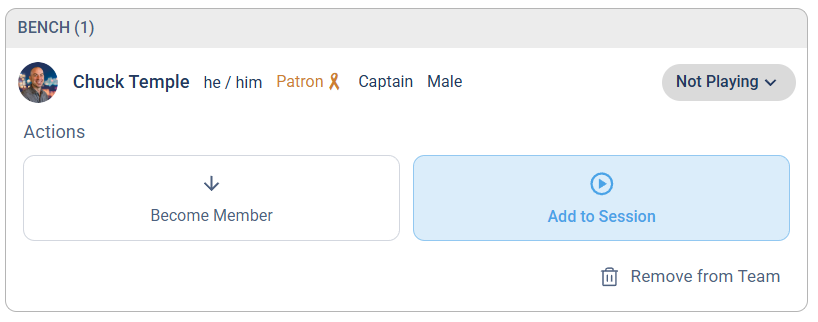
Open the Not Playing dropdown and choose Add to Session.
3 Click Add to Session
Click Add to Session. You'll be asked to confirm the player's details (including their cell phone number) before they're added. Make sure the information is correct, then confirm.
4 Confirm they're in the lineup
The player moves from the BENCH to the ACTIVE LINEUP section and their status changes to a green Playing. Your Spots Filled count goes up, and the Team Rating may update.

The player is now in the Active Lineup with a green Playing status, registered to play.
A player is in the session when they appear in Active Lineup with a green Playing status. The Spots Filled counter at the top of your team card also increases.
Your team is shared, but who's playing is per session
This trips a lot of people up, so it's worth getting clear. There are two different things going on:
- Your team roster is the same across every session. It's one team that shows up to every event. Add or remove a member, and it changes for all the sessions your team is in.
- At each session, that roster splits into a Bench and an Active Lineup, and that split is per session. Who's actually playing (the Active Lineup) is something you set for each session. Putting a player in the lineup for one session does not put them in the lineup for the others. Anyone you haven't added to that session's lineup sits on the bench for that session.
| Shared across all sessions? | What it is | |
|---|---|---|
| Team roster | ✅ Yes, one team everywhere | Everyone on the team |
| Active Lineup (Playing) | ❌ No, set per session | Who is playing this session |
| Bench (Not Playing) | ❌ No, the per-session leftover | Roster members not playing this session |
So your whole roster is "present" at every session, and at each one you pick who steps into the lineup. The rest sit on that session's bench.
Because the roster is shared, Remove from Team takes that player off your team in every session, not just the one you're looking at. If you only want to sit someone out for a single session, simply don't add them to that session's lineup. They stay on the bench for that session while remaining on your team everywhere else.
Common questions
Why can't I see the Add Teammate button? Do I have to be a captain to add players? What happens when I add a non-DailyPB user to my team? Does adding someone create a DailyPB account for them? Does the new player get an email? How does a new player set their password? Can I add a bench player to multiple sessions? How do I remove a player I added by mistake? How do I remove someone from my team? Does removing a teammate remove them from all sessions?
What if I don't see the Add Teammate button? You need to be a Team Captain to add players. Ask the Session Host to make you a Captain, or ask the Host to add players for you.
What happens when I add someone who doesn't have a DailyPB account? Adding them actually creates a free DailyPB account for them using the name and email you entered. They get an email letting them know they have a new free account, with a link to set a password. Once they set it, they can sign in and manage their own profile, sessions, and teams.
Can I add players from the bench to more than one session? Yes. Players on your team's bench can be added to any session your team is playing in, as long as you're a Captain.
How do I remove someone I added by mistake? Open the Not Playing (or Playing) dropdown next to their name and choose Remove from Team, or move them back to the bench. Note that a player who is currently playing must be benched before they can be removed from the team.