Flex Play
Flex Play lets you build games on the fly instead of locking every player into a pre-set matchup. You create each game when you're ready, score it, and Flex Play keeps the standings updated automatically. It's the app for sessions where you want organized rounds and standings but need to adapt to who actually shows up.
Flex Play is one of the Session Apps. To open it, open your session, click View Attendees, then scroll to Session Apps and click Flex Play. It opens on its own page with four options along the top: Games, Results, Settings, and Share. Players can reach the same page from the session, so everyone can follow along.

The Flex Play top bar: Games, Results, Settings, and Share.
This guide is organized the way you'll use the app: set up first (the Settings tab), then create games and enter scores, then view your results and standings.
Setting up your Flex Play (the Settings tab)
How do I set up Flex Play? What's in the Flex Play Settings? How do I configure Flex Play before a session? What do I turn on first in Flex Play? Where are the Flex Play settings? How do I prepare a session for Flex Play?
Open the Settings tab to set up your session before you start creating games. There are three things you can turn on: Player Brackets, Game Rounds, and DUPR Game Mode.
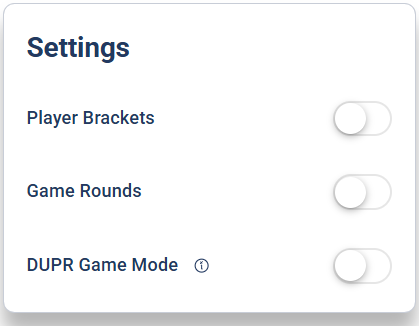
The Settings tab: Player Brackets, Game Rounds, and DUPR Game Mode.
Player Brackets
What are player brackets in Flex Play? How do I split players into groups? How do I create brackets like upper and lower? How do I assign a player to a bracket? Can I filter results by bracket? How do I separate skill groups in a session?
Player Brackets let you split the players in a session into separate groups, for example an Upper and a Lower bracket. Turn on Player Brackets, type a name in the Type bracket name box, and click Add Bracket. Add as many as you need; click the trash-can icon to remove one.
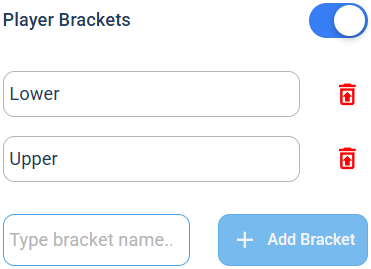
Add a bracket by name; remove one with the trash-can icon.
Once you've created brackets, you assign each player to one from the Roster, using the Bracket dropdown next to their name. The View Session link at the top of the roster jumps you straight back to the session, which is a quick way to add someone who isn't on the roster yet.
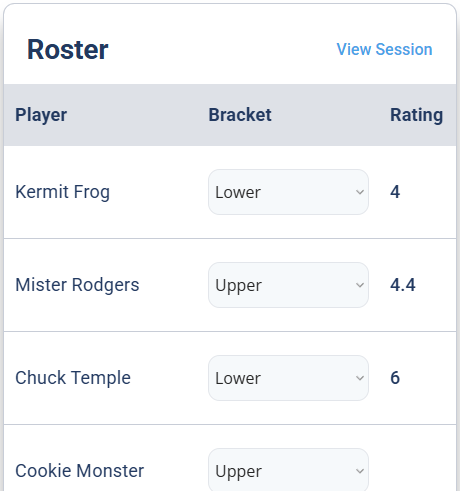
Assign each player to a bracket from the Roster, and use View Session to jump back to the session.
Game Rounds
What are game rounds in Flex Play? How do I add rounds? How do I organize games into rounds? What is a round in Flex Play? How do I delete a round? Why would I use rounds?
Game Rounds are usually time-based: a round is a block where several games run at the same time, so players know who they're playing with and against during that part of the session. Turn on Game Rounds and click Add Round for each round you want. DailyPB numbers them automatically (Round 1, Round 2, Round 3, and so on). Click the trash-can icon to delete a round.
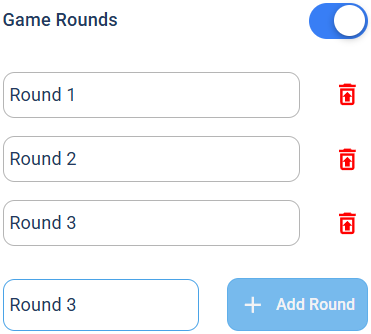
Click Add Round for each round; they're numbered for you. Remove one with the trash-can icon.
Once you've added rounds, they show up in the Games interface too, where players can easily select a round to jump to its games. That makes the session easy for everyone to navigate: a player can tap straight to the round they're in and see their matchups.
DUPR Game Mode
What is DUPR Game Mode in Flex Play? How do I make my Flex Play games count for DUPR? What makes a game DUPR compatible? Why is my game not DUPR compatible? How does Flex Play check DUPR rules?
Turn on DUPR Game Mode to have Flex Play warn you when a game isn't DUPR compatible. For a game to count toward DUPR, one team has to score more than six points and there can be no ties. With this on, you'll be flagged if a game you enter doesn't meet those rules. See DUPR Games for more on DUPR.
Creating Games and Entering Scores
How do I create games in Flex Play? How do I make games in Flex Play? How do I enter scores in Flex Play? What is the Games tab in Flex Play? How do I see my rounds in Flex Play? Which round am I creating a game in? How do I start making games? Do I have to save my Flex Play settings? How do I set up games for a session?
There's nothing to save in Settings: it all saves automatically as you toggle things on. So once you've set up, just click the Games tab. You'll see the rounds you created (Round 1, Round 2, Round 3) along the top, Round 1 already selected, and No Games Created below. Because Round 1 is selected, any game you create now will be created in Round 1. Switch the selected round first if you want to build games in a different one.
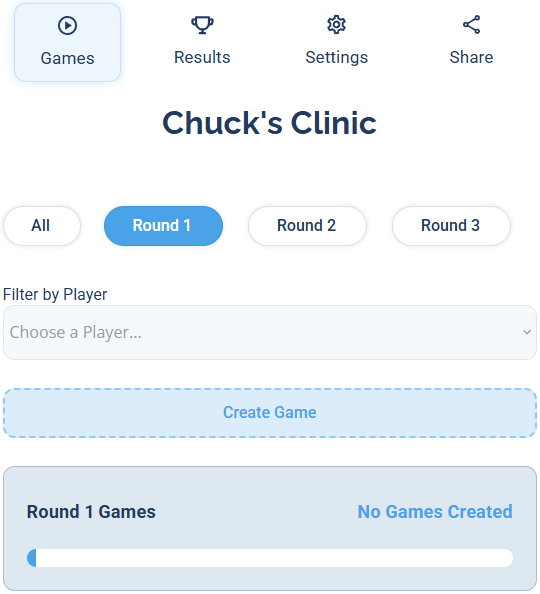
On the Games tab, your rounds sit across the top with Round 1 selected. New games go into the selected round.
Find and navigate games
How do I find a player's game in Flex Play? What does Filter by Player do? How do I jump to a player's game? How do I view games by round? How do I see all games across rounds? How do I switch rounds on the Games tab?
Two tools make it quick to get around as games pile up:
- Round buttons: click Round 1, Round 2, and so on to view that round's games, or click All to see every round's games at once.
- Filter by Player: pick a player from the Filter by Player dropdown and the page jumps straight to the game that player is in for the current round, so you don't have to scroll to find them.
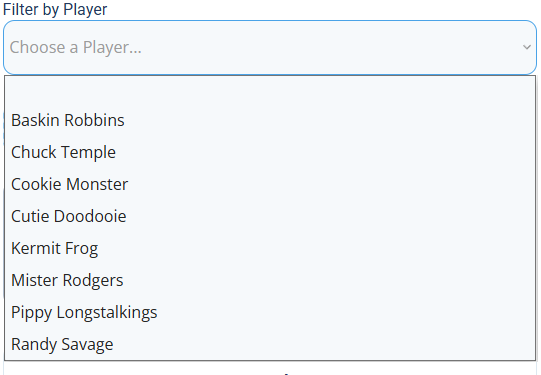
Filter by Player jumps you to the game a player is in for the selected round.
Create a game
How do I create a game in Flex Play? How do I pick a player bracket when creating a game? Why did my available players shrink? How do I build the two teams? How do I choose which players are on which team? What is the score type, rally or sideout? How do I set the round for a game?
Click Create Game to open the Create Game builder for the selected round.
1 If you turned on Player Brackets, choose a bracket from the Player Bracket dropdown. This filters the player list to just that bracket, so in this example the available players drop from 8 to 4 once Lower is picked.
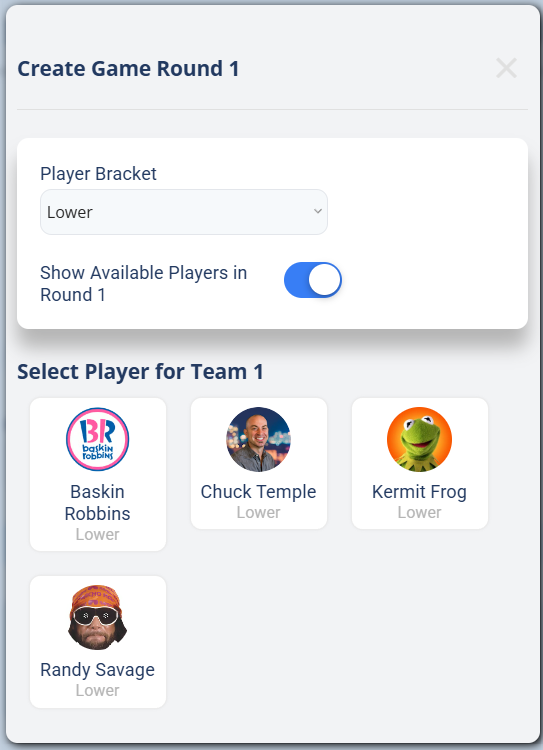
Choosing a Player Bracket filters the available players to that bracket (here, the four Lower players).
2 Tap four players. The order you tap them is the order of the teams: the first two become Team 1, the next two become Team 2.
3 Set the Round and the Score Type. Score Type always defaults to Sideout (rather than Rally). Below that, you'll see the game you've built, with Team 1, Vs, and Team 2.
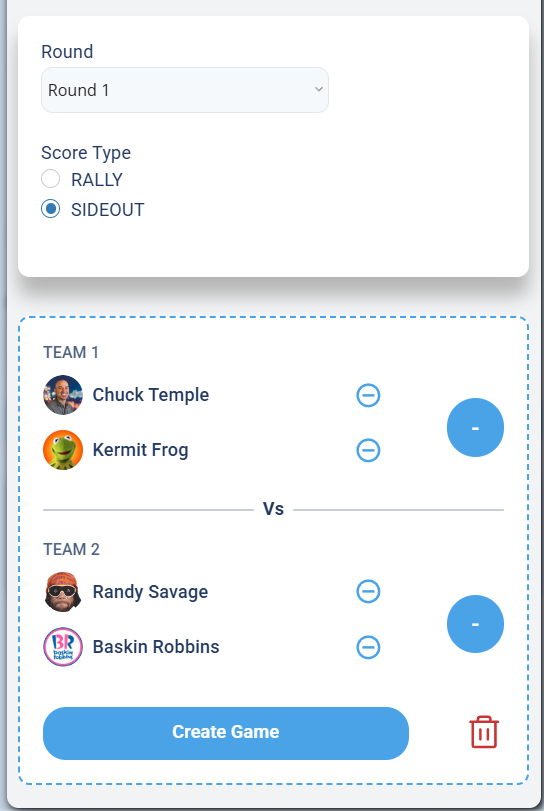
The built game: Round, Score Type (Sideout by default), the two teams, and Create Game.
Building the teams doesn't create the game. You have to click Create Game to save it. You can enter scores now or leave them blank and add them later, but either way the game isn't recorded until you click Create Game.
Adjust a game before you create it
How do I change a player in a Flex Play game? How do I swap two players? How do I remove a player from a team? What if there are no available players to swap? How do I fix a matchup before creating the game? How do I substitute a player?
Before you click Create Game, you can still change the matchup:
- Swap a player: click the player you want to change, then click any available player to put them in.
- Remove a player: if you've used up all the available players and have no one to swap in, click the minus button next to a player to remove them from the team.
For example, to swap Randy Savage and Chuck Temple onto different teams, remove them both, then click the open Team 1 slot and select Randy Savage.
Enter scores
How do I enter a score in Flex Play? Where do I tap to add a score? How do I record who won? How do I submit a game score? What does the progress bar mean? How do I see a game is complete? How do I clear a score?
Once a game is created, it shows on the screen with the round, the two teams, and empty score circles. The Round 1 Games panel above shows 0 / 1 (0%) Complete with an empty progress bar.
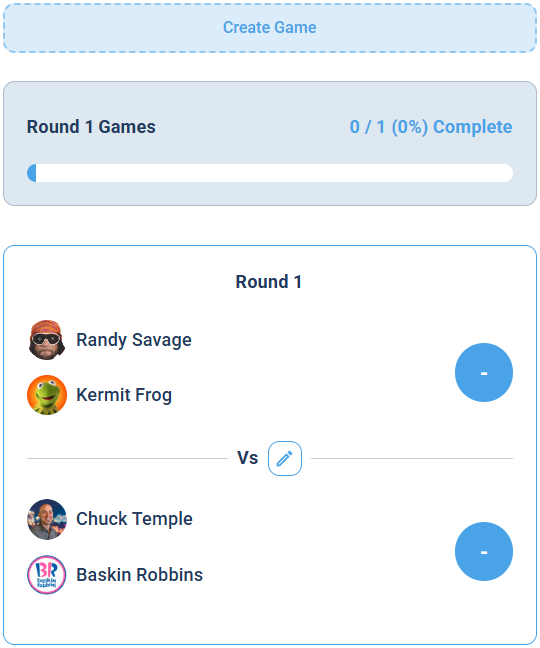
A created game starts empty until its score is submitted.
1 Click the big blue circle next to a team to open the Enter Score popup.
2 Click the team's score once (for example, 11 for the winner). Repeat for the other team (for example, 8). You can also Clear Score or Cancel here.
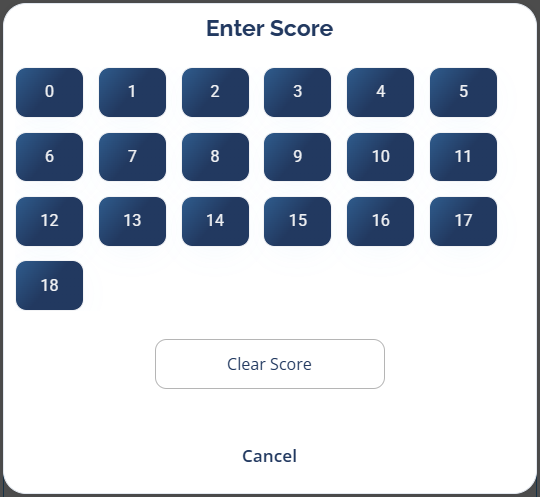
Tap a number once to set that team's score.
3 Click Submit Score. The blue score boxes fill in, and the game now counts as complete: the Round 1 Games panel updates to 1 / 1 (100%) Complete (here there was only one game, so it jumps to 100%), and the progress bar advances.
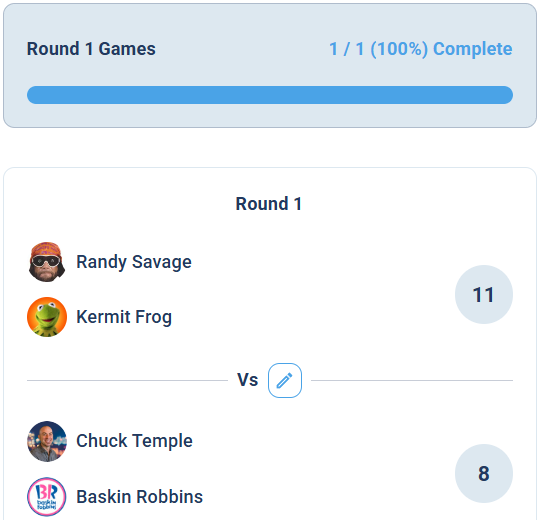
After Submit Score, the game reads 100% complete and the progress bar is full.
If you turned on DUPR Game Mode, a game that isn't DUPR valid (a tie, or neither team reaching 6 points) shows a red box around it with the message "DUPR games require at least one team to score 6 points." You can still submit it, but it won't be DUPR approved. The red warning stays on the game even after you submit it, so you always know which games won't count toward DUPR.
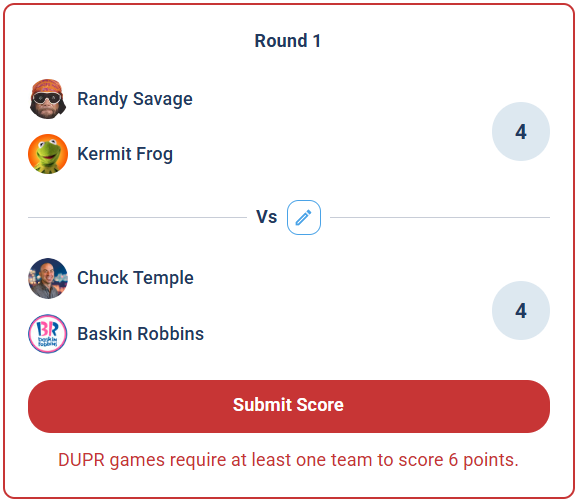
In DUPR Game Mode, a non-qualifying game (here a 4 to 4 tie) is flagged in red. The warning stays once you submit, too.
Who can submit a score
Who can enter scores in Flex Play? Can players enter their own scores? Can anyone submit a score? Why does it say Host Must Submit Score? Why can't I submit the score? Does the host have to confirm scores?
Anyone with the link can create games and enter or edit scores, even if they aren't logged in to DailyPB. Only the host can submit a score, though, and that holds whether or not anyone is logged in. When a non-host opens the game, the button reads Host Must Submit Score instead of Submit Score, and if they tap it, a notification pops up reminding them that only the host can submit.
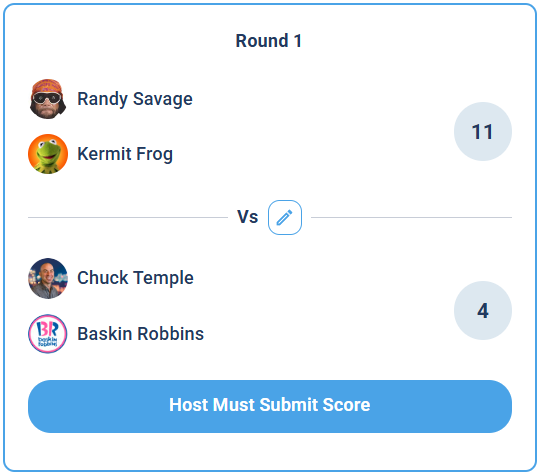
Anyone can edit a score, but the button reads Host Must Submit Score for anyone who isn't the host.
Track round completion
What does the checkmark on a round mean in Flex Play? Why does a round have a check mark? How do I know a round is complete? What does the All Games box show? How many games are complete? How do I jump to an unfinished game? Why is there no checkmark on All?
The round buttons show a checkmark when every game in that round is complete. If a round still has any unfinished game, it shows no checkmark, and the All button only gets a checkmark once every game in every round is complete.

A completed round shows a checkmark; a round with any unfinished game does not.
The All Games box at the top reflects whatever round is selected. With four games total, clicking All shows how many of the four are complete; selecting a single round with two games shows how many of those two are complete.
Viewing Results and Standings
Where do I see standings in Flex Play? How do results work in Flex Play? How do I see the leaderboard? How are Flex Play standings calculated? Do I have to refresh the standings? Can I export the results? How do I upload Flex Play results to DUPR? How do players see where they stand? Where is the leaderboard in Flex Play?
Click Results to see the standings. Each player gets a row with their Rank, record (Wins, Losses, Ties), Win %, and point differentials, ordered by how you've sorted it.
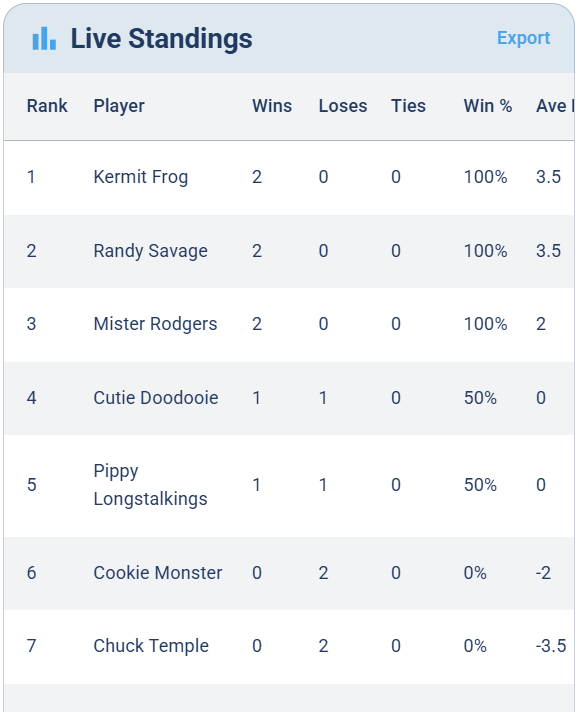
The Live Standings: every player ranked by their record, with an Export button up top.
The Results tab has two parts: a Filters & Sorting panel at the top (you can minimize it) and the Live Standings below it. Here's how each works.
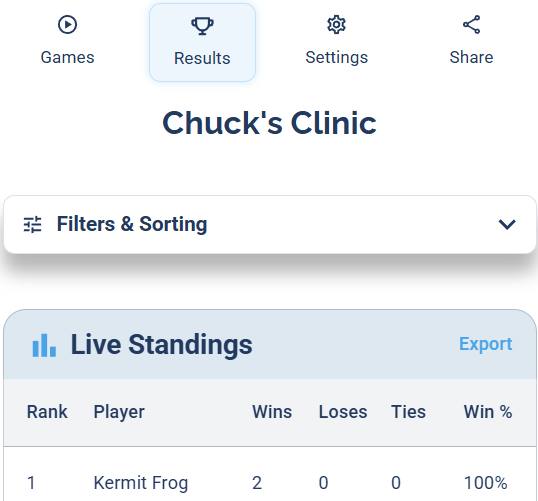
The Results tab: Filters & Sorting up top, Live Standings below.
Filters and sorting
How do I filter the standings in Flex Play? How do I sort the standings? Can I filter results by bracket? What is primary and secondary sort? What stats can I sort by? How do I change how standings are ordered? What does average differential mean?
If you have Player Brackets enabled, you can filter by bracket here, which is usually what you'll want so each bracket's standings show separately.
Sorting has a primary and a secondary sort. They default to Wins (primary) and Average Differential (secondary), but you can choose from several stats for either one.
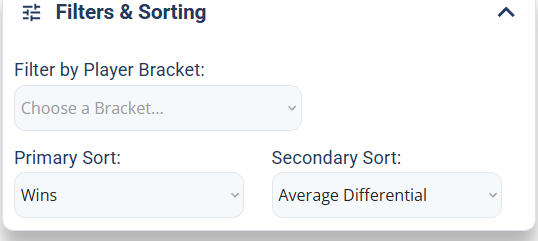
Filter by bracket, and set a primary and secondary sort.
The stats you can sort by:
- Wins: total wins.
- Win Percentage: wins divided by games played.
- Average Differential: total points you scored minus total points scored against you, divided by games played.
- Point Differential: total points you scored minus total points scored against you.
- Points for: total points you scored.
- Points against: total points scored against you.
- Loses: total losses.
- Games Played: total games.
- Ties: total ties.
- Name: alphabetical by player name.
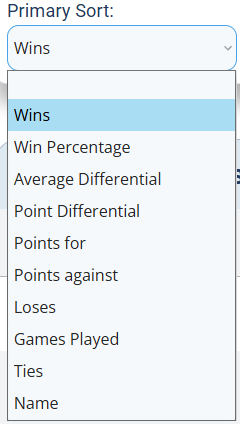
Any of these stats can be your primary or secondary sort.
Live standings
Are the standings live in Flex Play? Do I need to refresh the standings? How often do standings update? Do standings update automatically? Is there a refresh button for results?
The standings are truly live. There's no refresh button and nothing to press: they update automatically, in real time, as scores are entered.
Export results for DUPR
How do I export Flex Play results? How do I upload Flex Play to DUPR? Where is the export button in Flex Play? What format is the Flex Play export? How do I get a CSV of my results? Can I submit Flex Play games to DUPR?
Click Export to download a CSV of the results, already in the format ready to upload to DUPR. See DUPR Games for how to upload the file.
Sharing Flex Play and Who Can Access It
How do I share Flex Play with players? How do I get the Flex Play link? Is there a QR code for Flex Play? Can players see the games and standings? Do players need to log in to use Flex Play? Who can find my Flex Play page? Can anyone create games or enter scores? How do players follow along with the games?
Click Share to copy the Flex Play link to your clipboard. There's also a QR code players can scan. The link is simply the URL of the Flex Play page you're already on, so you can share that page's address directly too.
Sharing the link lets everyone follow the games and standings and pitch in on scoring:
- No login required. Anyone with the link can open Flex Play, create games, and enter or edit scores, even without a DailyPB account. Only the host can submit a score (see Who can submit a score).
- The link is private by default. Flex Play isn't posted or listed anywhere, so no one can find it without the link. The only other way to reach it is through the session itself: open the session, go to Session Apps, and click Flex Play.