Basic Group Info
A Group Page gives your pickleball community a home base. Whether you're a club, an ambassador, or a local crew that plays weekly, your group page keeps everyone connected, informed, and growing together.
Jump to:
- What a Group Page does for you
- What's on your group page
- The Home tab
- The Sessions tab
- The Calendar tab
- The Members tab
- The About Us, Photos, and Share tabs
For step-by-step instructions on creating a group, linking it to a venue, and every setting in the Edit Group screen, see Group Settings.
What a Group Page does for you
What is a Group Page for? What does a DailyPB Group do? Why would I want a group? What are the benefits of a group page? Do I get a website for my group? Can I share a group link? Can I make my group private? Do members get a welcome email? How do sessions show on my group page? As a host, is there a way to put all my sessions in one place? How do I get all my sessions on one page? Is there one place people can go to see all my sessions? How do I give people a single link to all my events? Where can players find all of my sessions at once? How do I put my whole schedule in one place? Can I get a single page that lists every session I run? How do people see all my upcoming sessions in one spot?
The big win is this: every session you run shows up in one place, on a real web page with its own custom URL that you can share anywhere. Instead of scattering your schedule across texts, spreadsheets, and chat threads, you send people one link.
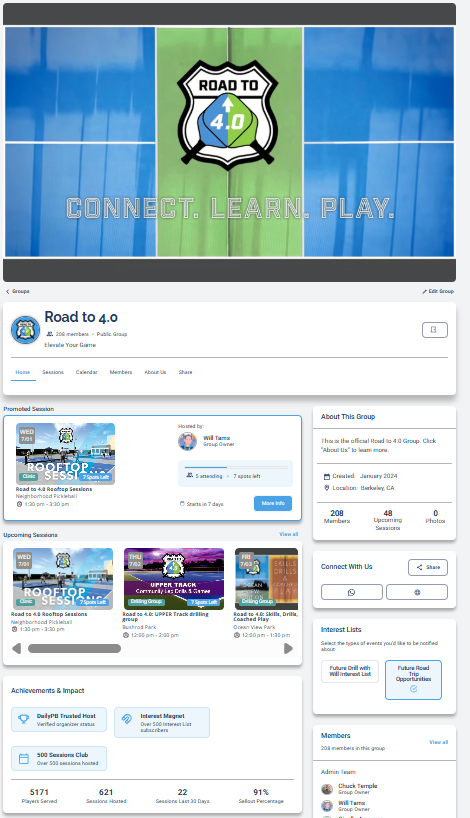
View a live group page: Road to 4.0.
A Group Page also gives you:
- 🗓️ All sessions in one place: once your group is linked to your sessions, every session automatically appears on your Group Page, so members see upcoming play without searching the site.
- 🔗 A shareable custom link: your own
dailypb.com/group/yournameURL to post in chats, on flyers, or anywhere your community gathers. - 🔒 Privacy control: choose Public (anyone on DailyPB can find and view it) or Private (not listed publicly; reachable only via your unique group URL).
- 💬 Community connections: link WhatsApp, Facebook, or other chats so players can coordinate and plan.
- 🧑🤝🧑 Membership building: players can request to join, get automated welcome emails, and immediately start seeing your sessions and updates.
What's on your group page
What does a group page look like? What are the sections of a group page? What tabs are on a group page? How do I leave a group? How do I leave a group I joined? Where is the leave-group button? What is on a DailyPB group page?
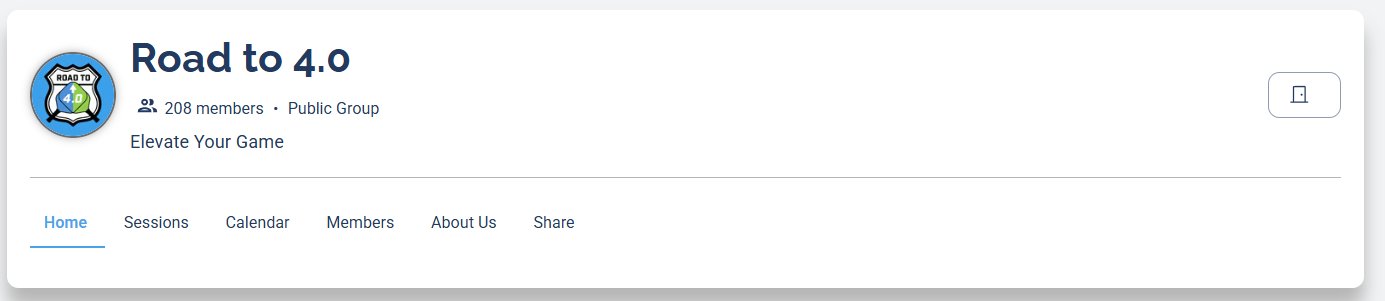
A group page has a header at the top and a row of tabs below it. The header shows your group icon and name, the member count, whether it's a Public Group or private, and your subheadline. Across the bottom are the tabs: Home, Sessions, Calendar, Members, About Us, and Share. The icon at the top-right of the header is how a member leaves the group.
The sections below walk through each tab.
The Home tab
What is on the group home page? What does the group main page show? What is a promoted session on a group? Where do I see a group's upcoming sessions? What are Achievements and Impact? What is a DailyPB Trusted Host? What do the group badges mean? Where do I see a group's stats? What is About This Group?
The Home tab is the group's main page. From top to bottom, here's what's on it.
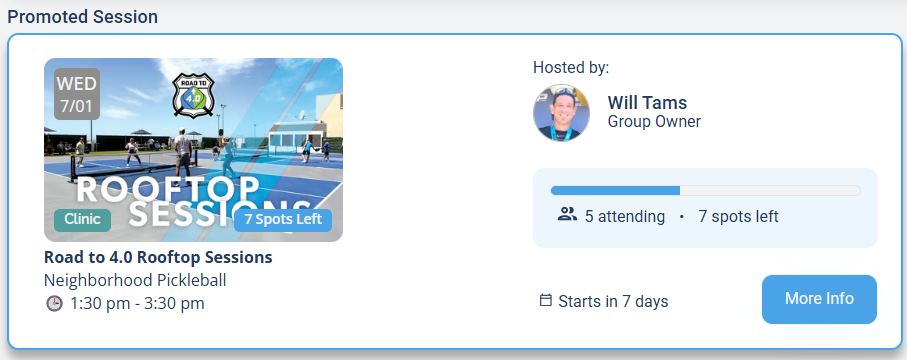
Promoted Session. If the group has a promoted session set, it appears first: a card with the date, type, spots left, session name, who's hosting, how soon it starts, and a More Info button, so the most important upcoming play is front and center.
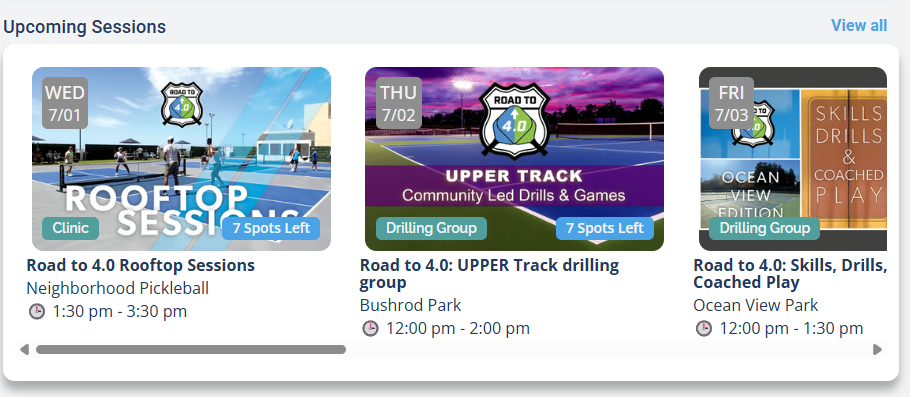
Upcoming Sessions. Below that is a scrollable row of the group's upcoming sessions. Click any card to open that session, or View all to see the whole schedule.
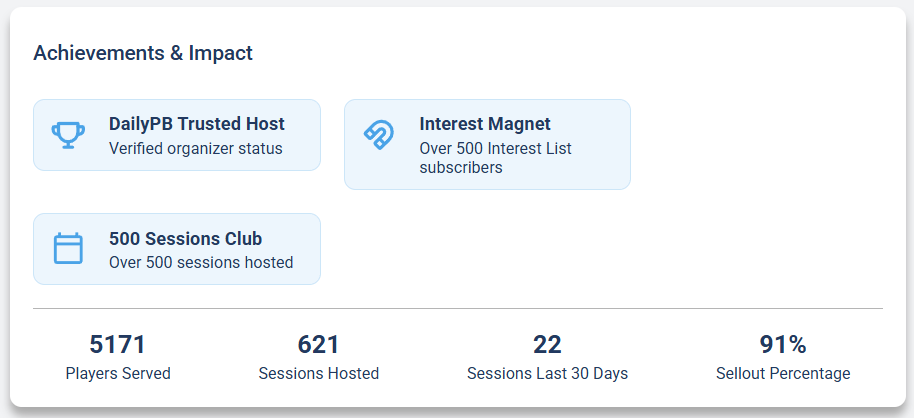
Achievements & Impact. This section shows the group's badges and stats. Badges like DailyPB Trusted Host, Interest Magnet, and the Sessions Club milestones are earned over time by well-run groups; click one to see what it means. Below the badges are the headline numbers: Players Served, Sessions Hosted, Sessions Last 30 Days, and Sellout Percentage.
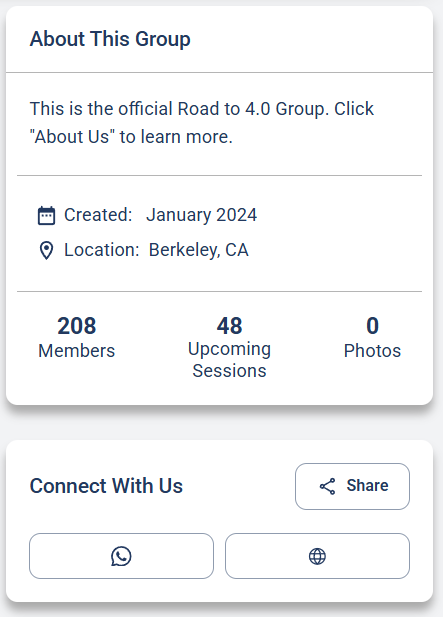
About This Group. On the right (or below, on mobile) is a short summary of the group: a brief description with a link to the full About Us, when the group was Created, its home Location, and quick counts of Members, Upcoming Sessions, and Photos. Underneath, Connect With Us holds the group's social media and website links plus a Share button.
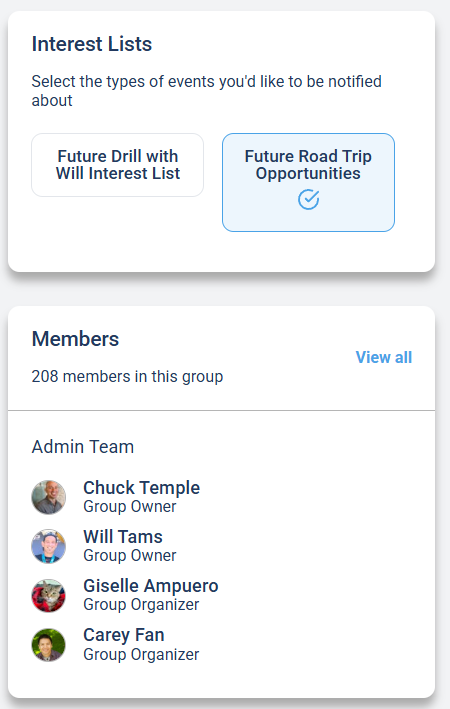
Interest Lists and Members. At the bottom, the Interest Lists section shows any interest lists connected to the group; click one to add yourself, and lists you're already on show outlined in blue with a checkmark. The Members section shows the total member count, a View all link, and the group's Admin Team with each person's role.
The Sessions tab
Where do I see a group's sessions? How do I see a list of group sessions? How do I filter group sessions by date or venue? How many people are signed up for a group's sessions? Where is the group session list?
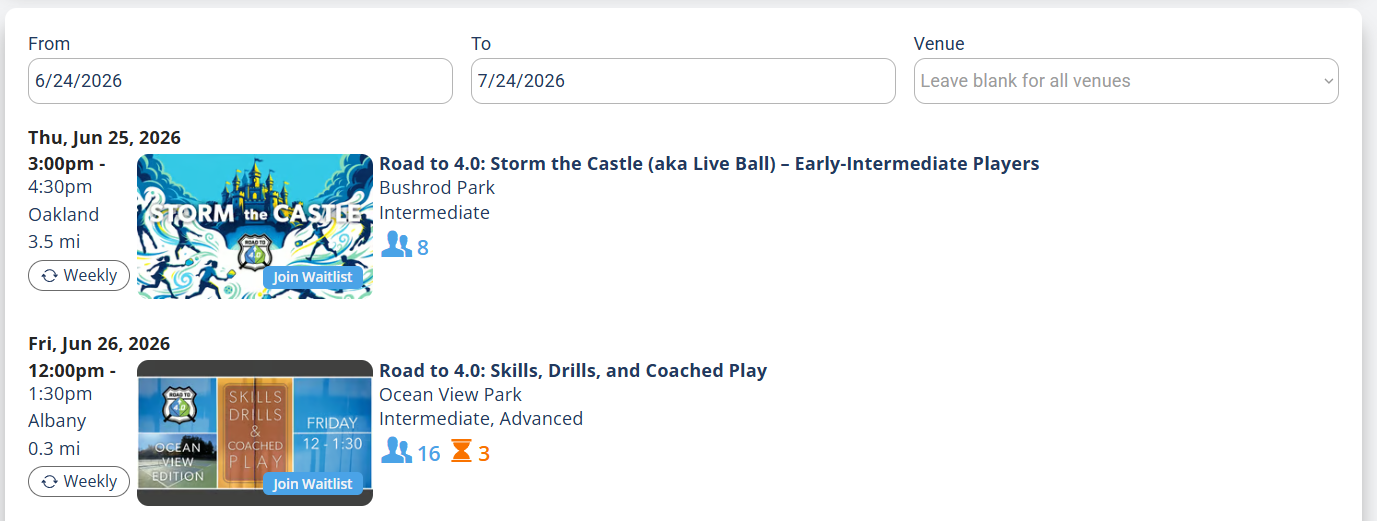
The Sessions tab is a straight list of the group's sessions. Set a From and To date and, if you like, filter by Venue. Each row shows the date, time, venue, distance, skill level, and how many players are signed up and waitlisted, so you can scan what's coming up at a glance. Click any session to open it.
The Calendar tab
Where is the group calendar? How do I see a group's schedule on a calendar? Does a group have a month or week view? How do I view group sessions by day? What is the group calendar view?
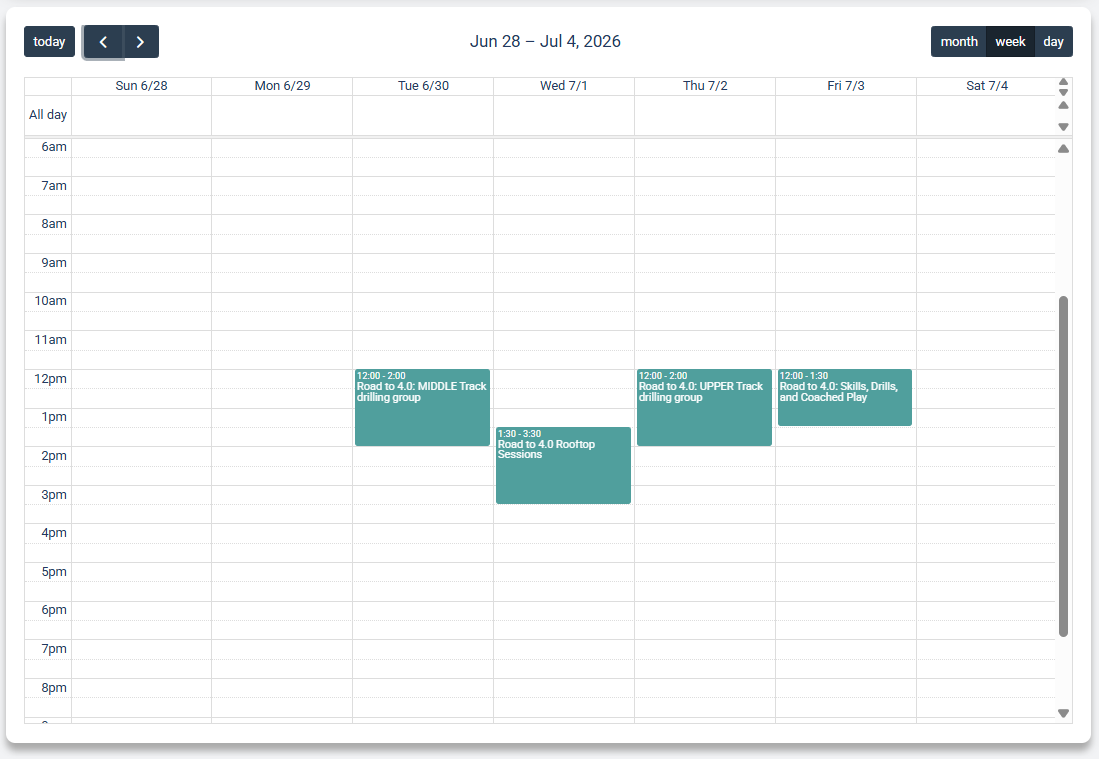
The Calendar tab shows the same sessions in a calendar grid, with month, week, and day views. It's the easier way to see the schedule on a desktop, while the Sessions list works better on mobile. They show the same sessions, just two ways to look at them.
The Members tab
Where do I see a group's members? How do I view all group members? What are the member types in a group? What is a group organizer vs owner? How do I change a member to an organizer? How do I remove a member from my group? How do I export my group members? How do I download group members to CSV? How do I copy my group members' emails? How do I add a member to my group? How do I sort group members by rating or skill?
The Members tab is where you see everyone in the group. Each person shows their Type, Skill Level, Rating, and Location. There are three member types:
- Members: regular members.
- Organizers: like admins, but without full privileges.
- Owners: full privileges.
Click anyone to open their profile. Use the All / Owner / Organizer / Member chips to filter, and Sort by Name, Join Date, Rating, or Skill Level. You can also Add members, download the list to CSV, or copy member Emails, which makes this a handy way to see and contact your members.
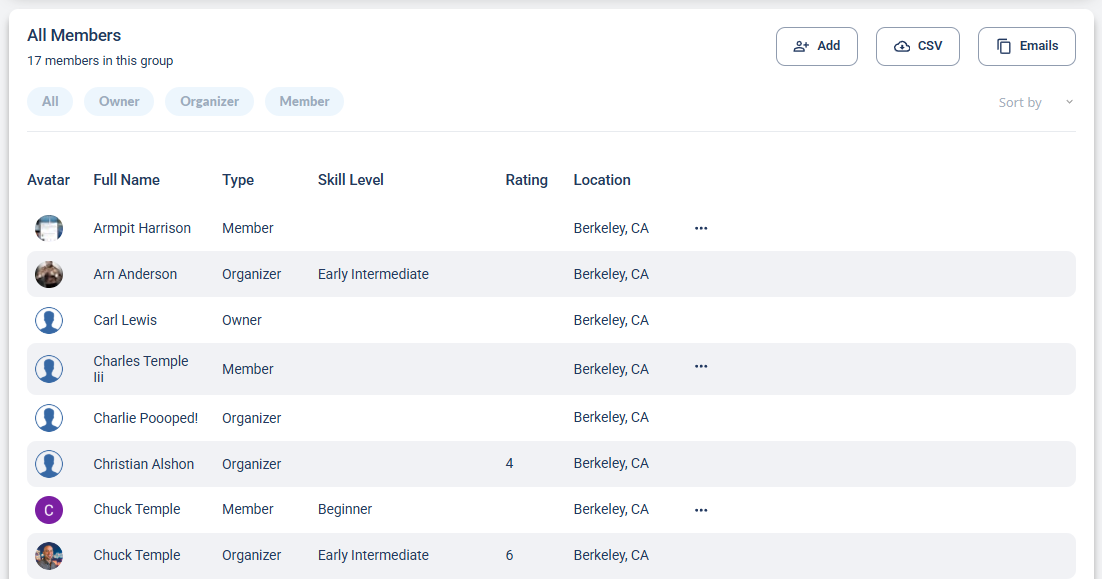

Organizers and owners can manage members below their own level: open the ... menu on a member's row to change their Member Type or Delete Member. An organizer can edit members, and an owner can edit anyone.

The About Us, Photos, and Share tabs
What is the About Us tab on a group? Where are a group's photos? How do I see a group's photo gallery? How do I share a group? How do I get a group's link? Where is the group share link?
The last few tabs are simple:
- About Us: the group's longer text description, where the owner tells the group's story.
- Photos: a photo gallery the owner can fill in if they'd like.
- Share: gives you a sharing link to the group's URL so you can pass it along.
More in Groups