Managing Your Venue
How do I edit a venue? How do I manage my venue? How do I get to the venue editor? How do I add a venue admin? How do I close a venue temporarily? How do I update venue details? Where do I edit court info? What are the venue settings? Where is the Edit Venue button?
A venue is a place where sessions are held. If you're an admin of a venue, you can edit its details, add other admins, link its social channels, and post closures. For a tour of what the venue's public page looks like to players, see Basic Venue Info.
There are two ways to open the Edit Venue editor:
- From the host menu: click Venues to see every venue you administer, then click a venue.
- From the venue's page: if you're an admin, an Edit Venue link appears at the top of the page, just below the venue image.
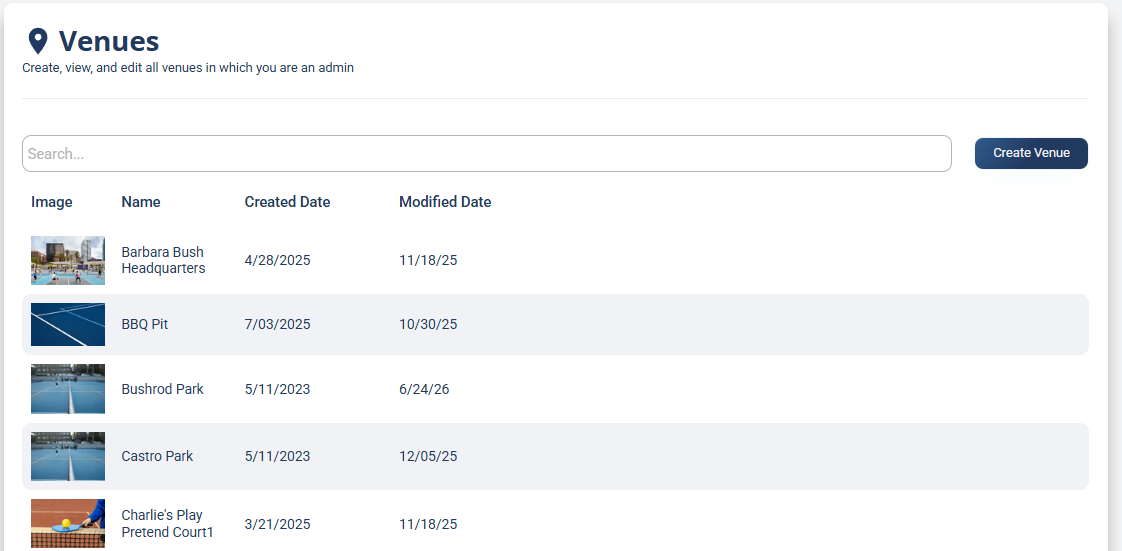
The editor has five tabs: Main, Community, Admins, Announcements, and Closure.
Main: venue details
How do I change a venue's name or address? How do I add a court reservation link? How many courts does a venue have? How do I add a venue photo? What are Other Names for? How do I make a venue findable by a nickname? How do I add an alias to a venue? How do I add search terms to a venue? How do I add an alternate name for a location? Where do I edit the venue's basic info?
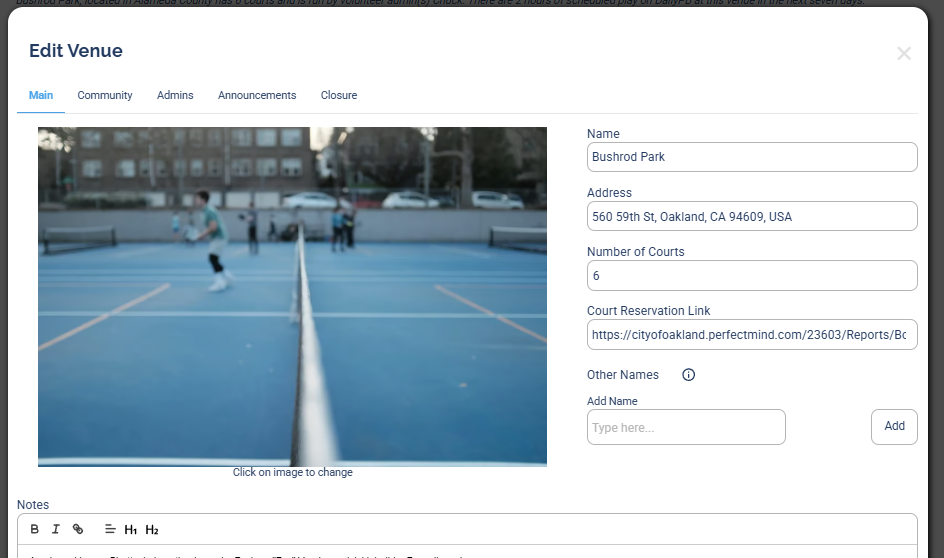
The Main tab holds the core details. Most are self-explanatory, and you can always read the fields right in the app, but a few are worth calling out because they power buttons on the venue's page:
- Name and Address. The address becomes the Directions button at the top of the venue page, so getting it right matters.
- Number of Courts.
- Court Reservation Link: a powerful little feature. If the venue takes reservations, this becomes one of the main links at the top of the venue page, sending players straight to where they book.
- The venue image (click it to change) and Notes.
- Other Names: alternate names players might search for. If people call a court something other than its official name, adding those names here lets them find the venue when they search. Type a name and click Add.
Click Save when you're done.
Community: privacy and social links
How do I make a venue private? What does Private do on a venue? What does the Private toggle actually do? Does a private venue hide my sessions? Will my sessions still show if the venue is private? Does a private venue hide it from the venue finder? How do I make a hidden group with a private venue? How do I add a venue's Facebook or Instagram? How do I link a WhatsApp group to a venue? Where do I add venue social media? Can I add a YouTube video to a venue? Does the YouTube video play in the app?
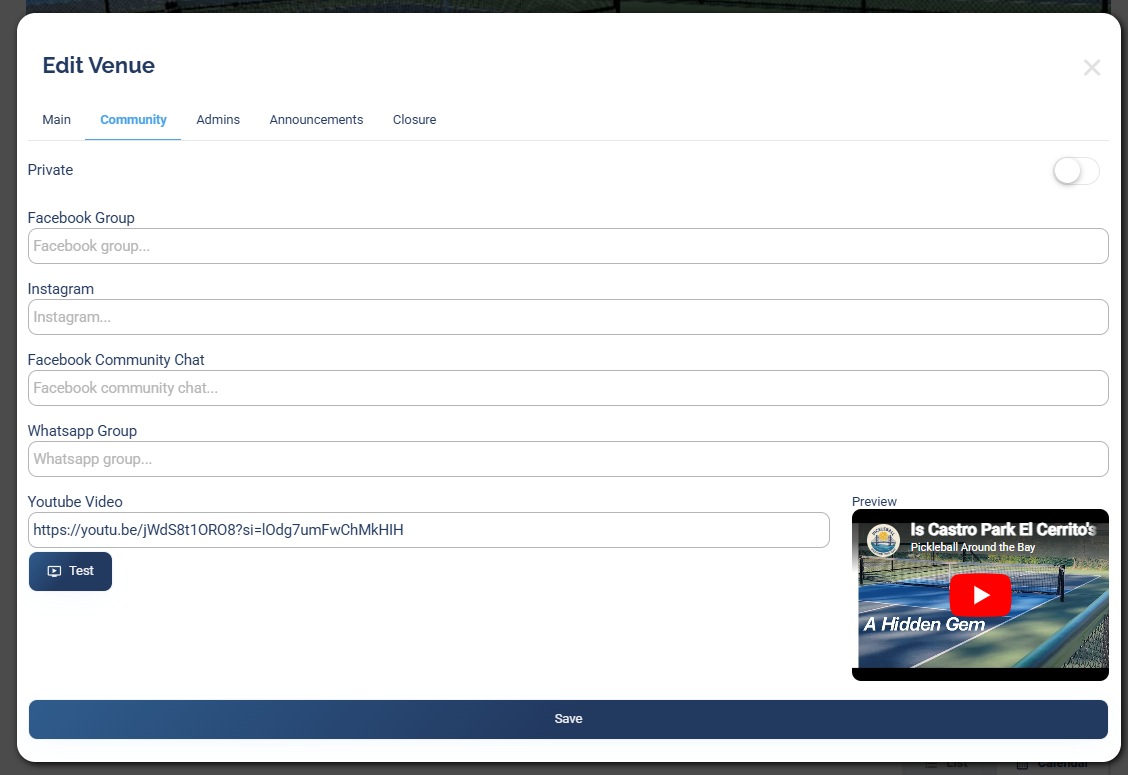
The Community tab is where you control the venue's visibility and link its community channels:
- A Private toggle. Turning it on keeps the venue out of the venue finder, so no one can browse to it. It does not hide the sessions held there. A public session at a private venue still shows up everywhere it normally would. The combination is what's powerful: pair a private venue with private sessions and you get a group nobody else can find, where neither the venue nor its sessions ever surface to outside players.
- Links for Facebook Group, Instagram, Facebook Community Chat, Whatsapp Group, and a Youtube Video. Anything you add here shows on the venue page for players to access, which is a great way to point people to your community. The YouTube video is embedded, so it plays right inside the DailyPB app.
Use Test to check a link, then Save.
Admins: who can manage the venue
How do I add a venue admin? What can a venue admin do? How do I remove a venue admin? Who can edit a venue? Why can't I edit a venue?
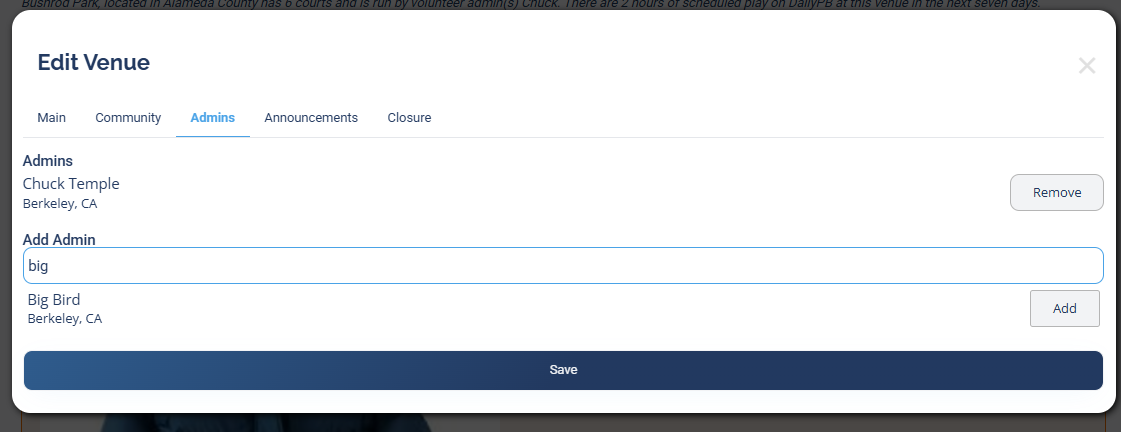
The Admins tab lists the venue's current admins (each with their location) and lets you Add Admin by searching for a player, or Remove one, then Save.
A venue admin can edit the venue, post announcements for it, and manage closures. If you can't edit a venue, you're likely not an admin of it.
Being a venue admin does not let you see other hosts' private sessions at your venue. A private session is visible only to people with its direct link, regardless of venue admin status.
Announcements: notices for players
How do I post a venue announcement? How do I tell players about a court closure or lost item? Where do venue announcements go? Where is the Announcements tab in Edit Venue?
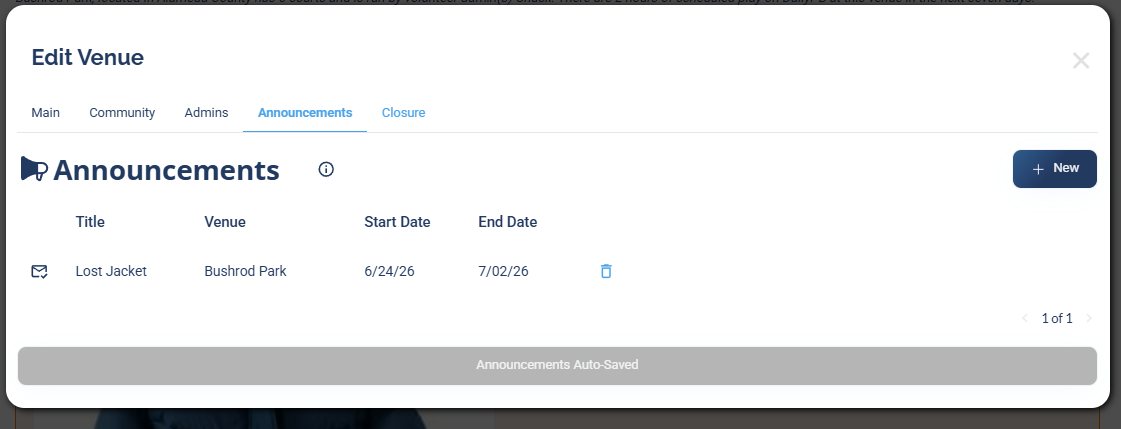
The Announcements tab lets you post notices for the venue, like lost-and-found, parking updates, or a heads-up, that appear on the venue page and in the Weekly Court Report. Click New to add one. This has its own article with the full walkthrough: Venue Announcements.
Closure: marking the venue closed for a stretch
How do I mark my venue closed? How do I close a venue for dates? What is the Closure tab? How do I tell players the courts are closed for a while? How do I set venue closure dates? Does a closure show on my sessions? Does a closure go in the Weekly Court Report?
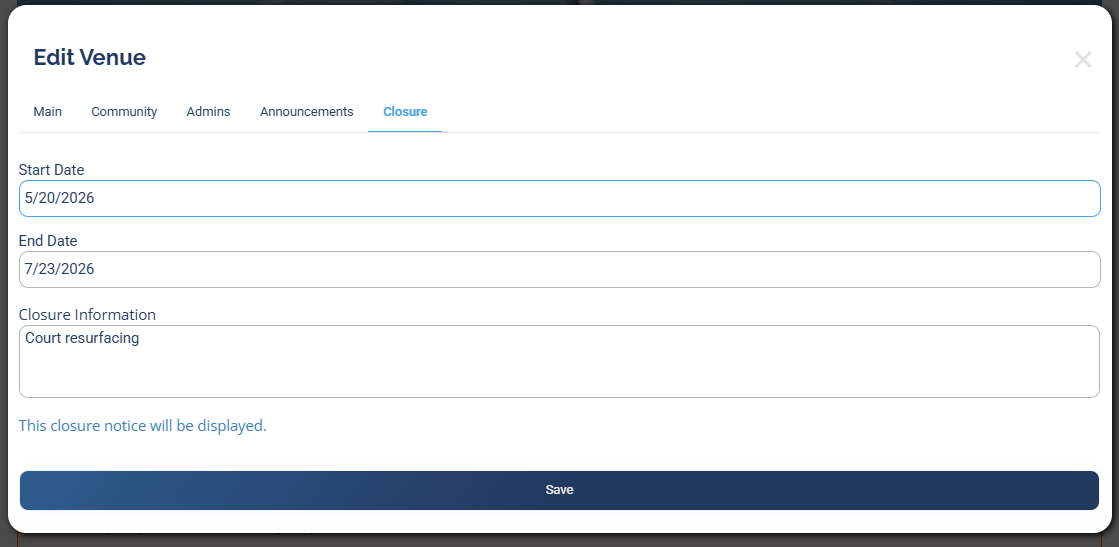
The Closure tab marks the venue as closed for a date range, for resurfacing, weather, an event, or any reason players should know about. Set a Start Date and End Date, add Closure Information describing the closure, and click Save.
A closure is more powerful than a regular announcement in two ways:
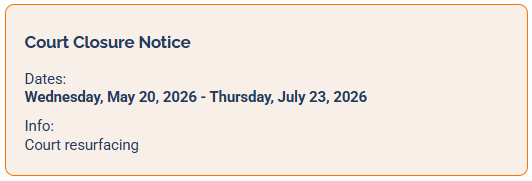
- On the venue page: when a closure is upcoming, a Court Closure Notice with the dates and info displays at the top of the venue page, just above any announcements.
- On every affected session: any session that falls during the closure dates automatically gets a red closure box with the closure information at the very top of its session details, just below the image. So anyone viewing a session at that venue sees the closure heads-up without having to look it up.
Use Closure to flag the venue itself as closed for a stretch of dates (it also flags every session during that window). Use an announcement for shorter notices that aren't a full closure, like a lost item or a parking change.
More in Venues