Marketing Posts
How do I make a marketing post? How do I build a marketing post? How do I share my upcoming sessions? How do I promote my sessions on Facebook? How do I post my sessions to a group chat? How do I copy my post to share? How do I get a list of my session links to share? How do I advertise my events? Is there a tool to build a post of my sessions?
The Marketing Posts tool builds a ready-to-share post of your upcoming sessions, with signup links, that you can copy and paste anywhere: a Facebook group, a group chat, an email, or a text. You pick which sessions to include and the post builds itself, ready to copy. Here's what you get:
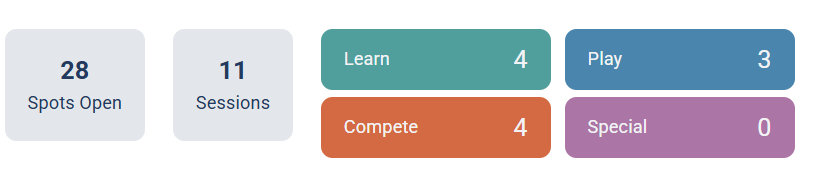
Opening the tool and choosing dates
Where is the marketing posts tool? How do I pick which dates to include? How do I make a post for next week's sessions? Can I post only sessions with openings? How do I choose the date range for my post?
In the host menu, click Marketing Posts. At the top you choose the date range of sessions to include:
- Set a From and To date, or use a quick button: Next 7 Days, Next Week, This Month, or Next Month.
- Check Only Sessions with Openings to leave out sessions that are already full, so you're only promoting where players can still sign up.
You'll see a quick summary: how many Spots Open, how many Sessions, and a breakdown by category (Learn, Play, Compete, Special).
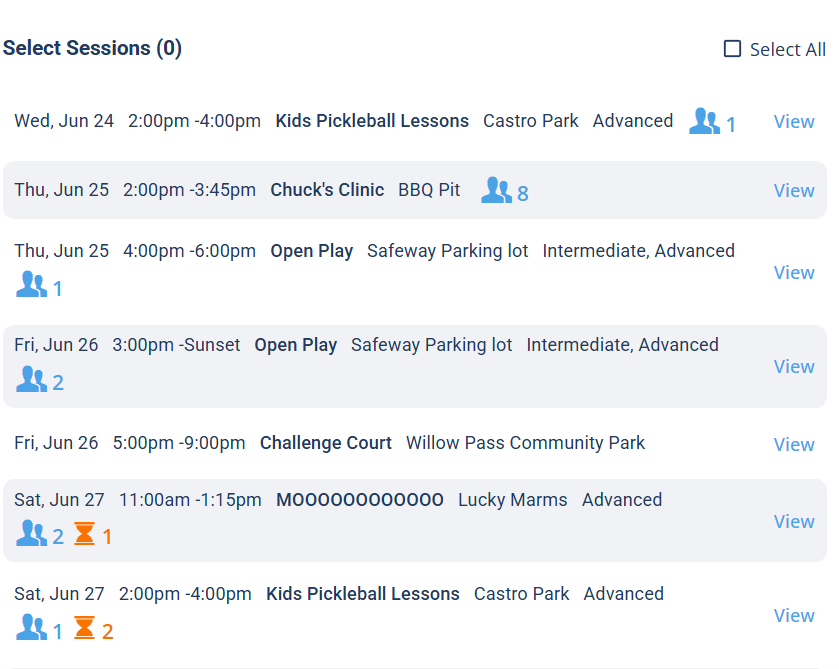
Choosing which sessions to include
How do I pick sessions for my post? How do I select all my sessions? Can I leave a session out of the post? How do I choose what goes in the marketing post?
Below the summary is the Select Sessions list of every session in your date range. Click a session to add it to the post, or use Select All to include them all. Each row also has a View link on the right to open the session itself.
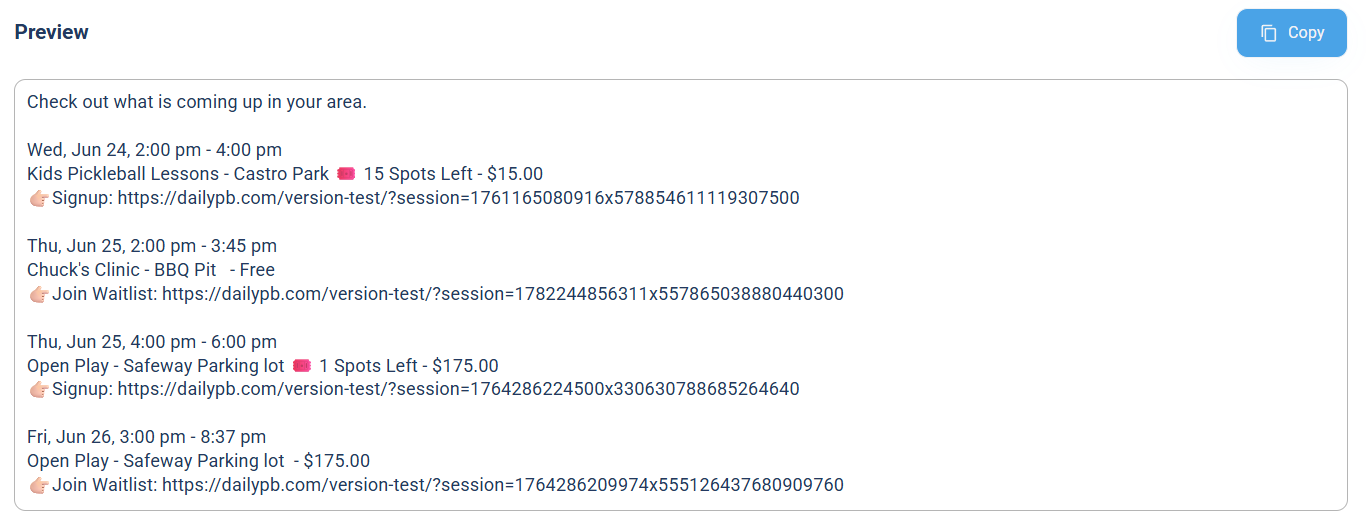
Copying and sharing the post
How do I see what my marketing post looks like? How do I copy my marketing post? How do I copy the post to my clipboard? How do I paste my sessions into Facebook? How do I share my post on WhatsApp or email? Where should I share my marketing post? What does the marketing post look like? How do I get the text to share? Where is the preview?
You don't need to click anything to preview the post. As soon as you select sessions, the Preview builds automatically below the list. Just scroll down to see it. It opens with a friendly line ("Check out what is coming up in your area.") and then lists each session with its date and time, name, venue, price (or "Free"), how many spots are left, and a link:
- Signup: a direct link players can use to sign up.
- Join Waitlist: the link shown instead when a session is already full.
Click Copy to copy the whole post to your clipboard, then paste it into a Facebook group, a WhatsApp or group chat, an email, or a text. The signup links are real direct session links, so anyone who taps one lands right on that session.