Interest Lists
An Interest List is a tool for hosts to capture and stay in touch with players who are interested in their sessions. People can join your Interest List from a linked session, from a linked group, or from a dedicated Interest List webpage, so you can reach them with updates even when they can't attend a specific session.
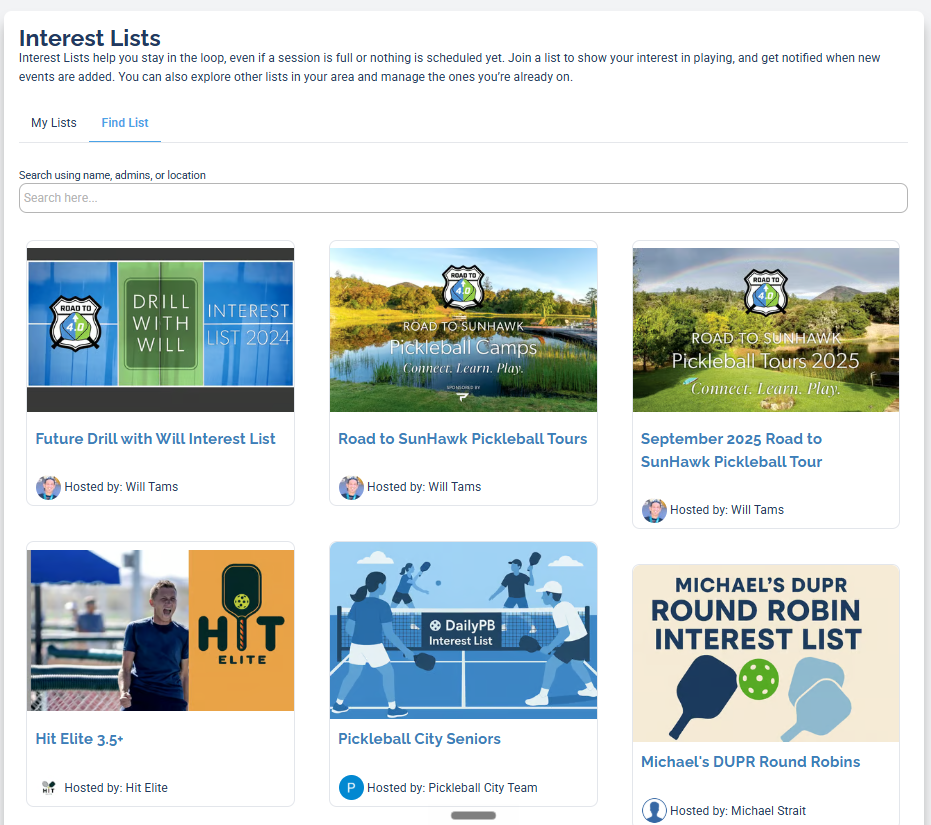
Interest Lists from hosts around DailyPB. Each one has its own shareable page where players can join.
Jump to:
- What Interest Lists do
- Create an Interest List
- Your Interest List website
- Link an Interest List to a session
- Link an Interest List to a group
- Add a subscriber
- Edit or delete a subscriber
- Export your subscribers
What Interest Lists do
What is an Interest List? What is an Interest List for? Why would I use an Interest List? What's the difference between an Interest List and signups? How do I keep a mailing list of interested players? How do I capture leads for my pickleball events? How do I stay in touch with people who can't attend?
An Interest List lets you build a list of people interested in your sessions and communicate with them over time. It's separate from session signups: a player can join your Interest List even if they can't make a particular session.
Each Interest List gets its own shareable webpage with your name, image, and description. You can:
- Manage subscribers: add, edit, delete, and export their info.
- Link the list to a session: so people who can't attend can still ask to be notified about future sessions.
- Share it anywhere: via a unique webpage link or a downloadable QR code.
Create an Interest List
How do I create an Interest List? How do I make a new Interest List? How do I set up an Interest List? How do I make a mailing list for my events? How do I add an Interest List? What fields does an Interest List have? How do I name my Interest List? Why isn't my Interest List showing up when people browse? Why can't people find my Interest List? Does my Interest List location matter? How do players find my Interest List to join?
1 Open Interest Lists
Log in, go to your host console, and click Interest Lists in the left menu. Then click New List.
2 Fill in your list details
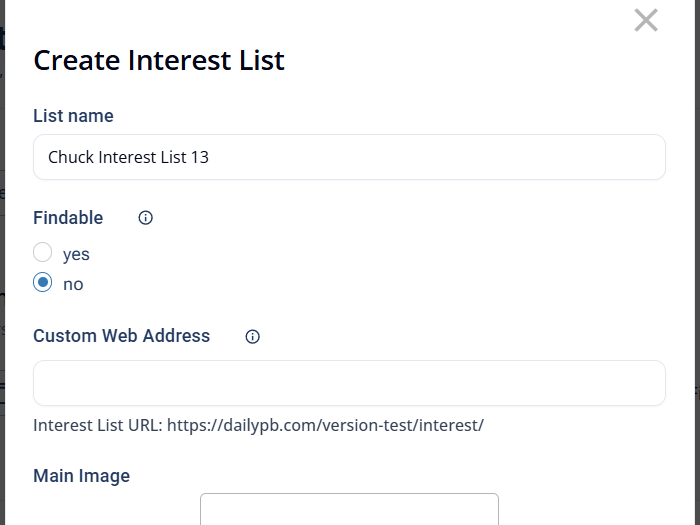
The top of the Create Interest List window. Scroll down for the remaining fields. Only a List name is required to get started.
The form has these fields, top to bottom:
- List name: the public name of your list.
- Findable: choose yes to let your list show up when people browse, or no to keep it accessible by direct link only.
- Custom Web Address: the end of your list's webpage URL. For example, typing
coached-play-chuckmakes your pagedailypb.com/interest/coached-play-chuck. - Main Image: the image shown on your Interest List webpage.
- Description: text shown on your webpage (supports basic formatting).
- Questions to Ask Signups: up to three optional questions people answer when they join. They're shown to users but are never required.
- Admins: add other DailyPB users who can help you manage the list.
- Location: the area your list is associated with. Set this accurately. When players browse to find a list to join, DailyPB only shows lists within a certain radius of their home location, so if your Location is wrong or missing, your list won't show up for the people near you who'd want to join it.
3 Save your list
Click Save Interest List. You'll get an email confirming your new list along with a link to its webpage.
Web addresses must be unique and can only use certain characters, so your final URL may differ slightly from what you typed. You can update the Custom Web Address anytime to get a URL you like.
Your Interest List website
How do I view my Interest List webpage? How do I share my Interest List? How do I find the link to my Interest List? How do I get a QR code for my Interest List? How do people sign up for my Interest List? Where is my Interest List website?
Once a list is created, you can view and share its webpage. With the list selected on your host console, click View to open it. View a sample page here.
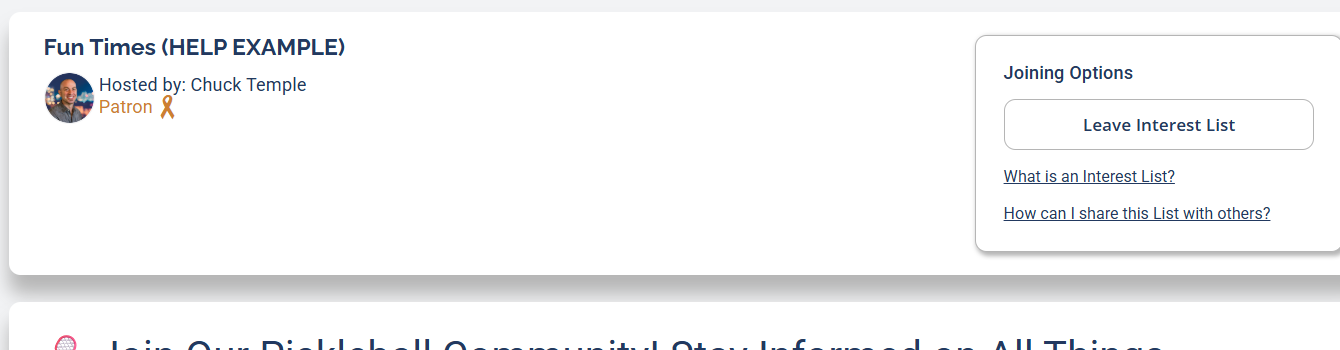
A sample Interest List webpage. Visitors can join the list and find sharing options here.
To get a QR code, open your webpage and click How can I share this List with others? in the Joining Options box. A downloadable QR code appears, and anyone who scans it with their camera opens your Interest List webpage directly.
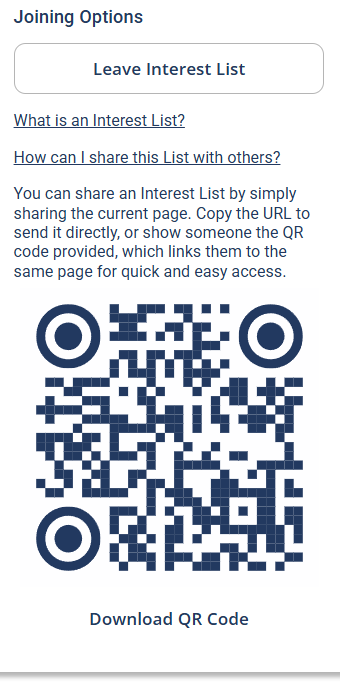
Click "How can I share this List with others?" to reveal a scannable QR code you can download and print.
Link an Interest List to a session
How do I link an Interest List to a session? How do I connect an Interest List to my event? How do I let people who can't attend get notified? How do I add an Interest List signup to my session? Where is the Interest List setting when editing a session? How do I attach an Interest List to a recurring event?
Linking a list to a session lets people who can't attend ask to be notified about your future sessions. The setting lives in the session editor, under Access.
1 Open the session editor
On the session, scroll to Tools and click Edit Session.
2 Open Access and choose a list
Open the Access section, find Interest List, and select the list you want to link.
On a recurring session, the Access settings are shared across the series, so you'll first set Apply changes to → This and ALL following sessions, then click Unlock to Edit under Session-Wide Settings before opening Access. The screenshot below shows this recurring view; on a single-session view you simply open Access and the options are right there.
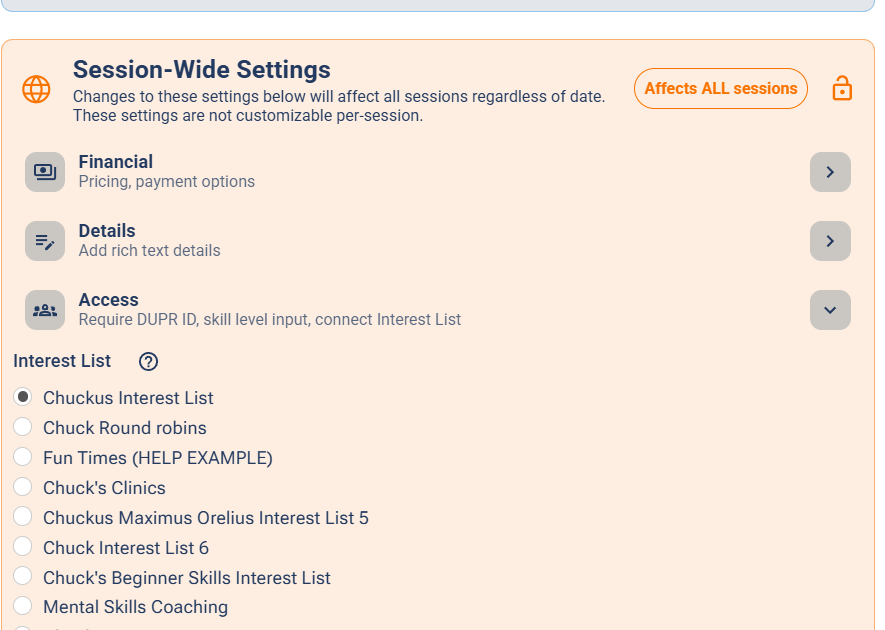
The Interest List selector lives in the Access section of the session editor (recurring view shown).
3 Save
Click Save Changes.
Your session signup area will now show special text for the linked list. Someone who isn't a subscriber sees something like Can't attend? Get notified of future events. Someone already on the list sees You're on the interest list. Click here for details. and clicking it opens your Interest List webpage.
When someone signs up for your linked session, the final confirmation screen includes a Join Interest List checkbox that's checked by default, so attendees are added to your list automatically unless they opt out.
Link an Interest List to a group
How do I link an Interest List to a group? How do I add an Interest List to my group page? Can people join my Interest List from my group? Where do I connect an Interest List to a group? How do I show my Interest List on my group's page?
You can also connect an Interest List to a group, which gives people another place to join it. Connected lists show up on your group's main page, where members and visitors can sign up with one click.
You set this in your group's Community settings, under Connected Interest Lists. For the full walkthrough, see Group Settings and Basic Group Info.
Add a subscriber
How do I add someone to my Interest List? How do I manually add a subscriber? How do I add a player to my Interest List? Can I add someone who isn't on DailyPB to my Interest List? How do I add a non-user to my list? How do I add an email to my Interest List?
With your list selected, click Add Subscriber. You have two ways to add someone:
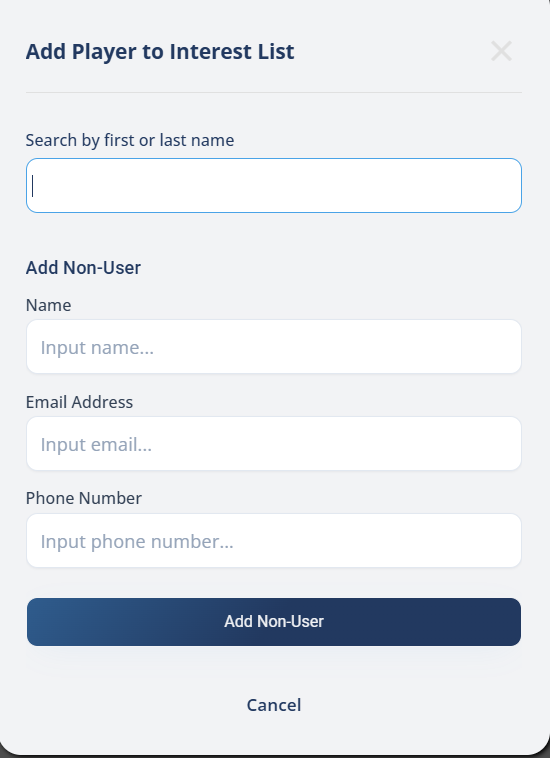
Search for an existing DailyPB user, or add a non-user by name, email, and phone.
- Existing DailyPB user: type a first or last name in Search by first or last name, then click Add next to the right person.
- Someone not on DailyPB: under Add Non-User, enter their Name, Email Address, and Phone Number, then click Add Non-User.
If the person is already on a different one of your Interest Lists, you'll see a warning, but you can still add them to this one.
Edit or delete a subscriber
How do I edit a subscriber? How do I delete someone from my Interest List? How do I remove a subscriber? How do I update a subscriber's info? How do I add a private note about a subscriber? How do I find a specific subscriber?
Find the person in your subscriber list (use the Filter box to search by name), then click Edit next to their name. An Edit Subscriber window opens where you can view and update their info.
- The Notes field is private: only Interest List admins can see it.
- Click Edit Subscriber to save your changes.
- Click Delete Subscriber to remove them from the list.
Export your subscribers
How do I export my Interest List? How do I download my subscribers? How do I get all my subscribers' emails? How do I email everyone on my Interest List? How do I download a CSV of my Interest List? How do I copy all the emails from my list?
In the Tools row you have two export options:
- Copy Emails: copies all subscriber emails to your clipboard.
- Download CSV: downloads a spreadsheet of all subscriber info, including the private Notes field.
To email everyone, click Copy Emails, then paste the addresses into your email program. Most people paste them into the BCC field so subscribers don't see the full list.
This idea is credited to Will Tams!