Why isn't my Session showing up on the main schedule?
This is nearly always one of two things:
- The session's visibility isn't set to Public.
- The viewer's search area (their location preferences) doesn't include the session's venue.
If neither of those is the issue, also check that the session date hasn't already passed, since past sessions drop off the upcoming schedule.
Check the visibility is Public
Why isn't my session on the schedule? Why can't people see my session? How do I make my session public? Where is the visibility setting? My session is hidden, why? How do I check who can see my session?

A session must be Public to show on the main schedule.
To view or change a session's visibility:
1 Open Edit Session
Click Edit Session at the bottom of the session.
2 Open Audience & Display
In the editor, open the Audience & Display section.
3 Check "Who can see it?"
Under Who can see it?, check the current setting. Only Public sessions appear on the main schedule. A Group session only shows on that group's page, and a Private session is reachable only by its direct link, so neither will appear on the main schedule even though it's working as set.
For more, see Privacy Settings.
Check the location preferences match
Why can't I see sessions near me? Why don't sessions show on my schedule? What is the search radius? How does location filtering work? Why are some sessions hidden from me? Why isn't a session in my area showing? How do I change my search area? How do I update my location preferences? How do I widen my search radius to see a session?
Every user has a location and a search area (think of it as a circle on a map centered on the user's location).
- Sessions whose venue falls inside the search area are shown.
- Sessions whose venue is outside it are not.
So if a public session still isn't showing for someone, the session's venue may fall outside their search area.
To update your search area: if a session is too far away to appear, widen your search area or move your location closer to it. Click your Location or Search Radius at the top of the Schedule page to open your Location Preferences. Set Change location to and Search for events within (miles), then click Update.
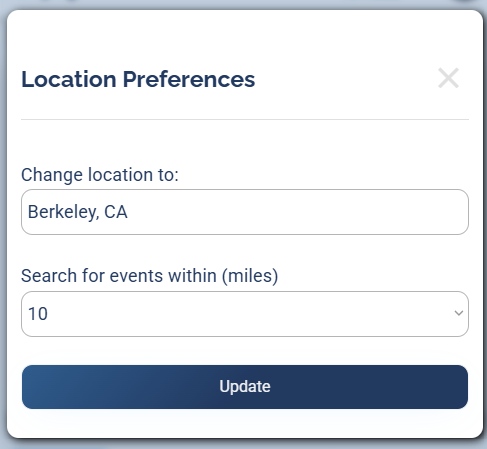
Set your location and how many miles to search, then click Update.
For full details, see Location and Search Radius.