Waitlists
What is a waitlist? How do waitlists work on DailyPB? What happens when my session is full? How do players join the waitlist? Where do I see my waitlist position? How do I get off the waitlist?
When a session fills up, DailyPB automatically opens a Waitlist so additional players can sign up for a chance to join if a spot opens.
Do I get a waitlist? (Yes, automatically)
Do hosts get a waitlist? Does every session get a waitlist? Is a waitlist included with DailyPB? Do I need to turn on the waitlist? Is the waitlist automatic? Do I have to enable a waitlist? Does DailyPB have a waitlist feature? Is a waitlist free? Is the waitlist a host feature?
Yes. Every DailyPB session gets a waitlist automatically, at no extra cost and with nothing to turn on. As soon as a session reaches its attendance cap, the waitlist opens on its own and the Join button becomes Join Waitlist. You don't enable it, and there's no setting to manage: it's a standard part of every session.
How waitlists work
How does a waitlist work? What happens when a session is full? Does the Join button change when full? How do players join the waitlist? How do I see my place in line on the waitlist? Where is my waitlist position shown?
Once a session reaches capacity:
- The Join button automatically changes to Join Waitlist.
- Players can then join the Waitlist.
- A waitlisted player can see their position in line anytime on the session (it shows "You are in position N on the Waitlist").
An attending player can move themselves from attending to the waitlist if they want to give up their spot. They can't move themselves back, though — getting back into a full session takes a host (or an open spot auto-promoting them in turn).
How an open spot fills from the waitlist
What is auto-bumping? Does the next person get promoted automatically when a spot opens? Does the waitlist fill automatically when someone cancels? Can I choose whether to promote the waitlist when I remove a player? Who gets notified when a waitlisted player is bumped up? Does the promoted player get a text? What if no spot is open? How does the waitlist fill an open spot? How does the waitlist work when someone drops out? What happens to the waitlist when a player drops out or backs out? When someone leaves the session, who takes their spot? A spot opened up — how does the next person get in? What happens when an attending player leaves and there's a waitlist?
When a spot opens up, the first person on the Waitlist can move into it. Whether that happens automatically depends on how the spot opened:
- A player cancels their own spot → the first person on the Waitlist is automatically promoted into the open spot.
- A host removes a player → on the Remove Player screen, the host chooses whether to promote the first waitlister into the freed spot. It's optional, so a host can open a spot without filling it from the waitlist.
Notifications that go out when a waitlister is promoted automatically:
- The player who left and the host get an email confirming the removal.
- The promoted player gets an email letting them know they've moved up to "Attending." If the session uses Automatic Payments and payment is due, they also get a text and a reminder to pay promptly to keep the spot.
- The host gets an email confirming who left and who was promoted.
The emails above go out when the system automatically promotes the next waitlister. When you promote someone manually (with Bump to Attending), you get the choice of whether to notify the player — see below.
Auto-bumping only fires when a spot actually opens. If you move a player to the waitlist manually, it does not auto-bump (that's intentional — see below).
Move an attending player to the waitlist
How do I manually move a player to the waitlist? How do I take someone off attending? How do I move an attending player to the waitlist? Does moving someone to the waitlist notify them? How do I open a spot in a full session? What is the Send notification checkbox when moving to the waitlist?
1 Open the attendee list
Open the session and click View Attendees.
2 Open the player's Actions
In the Signups window, click the chevron (the ⌄ arrow) at the right of the player's row to open their Actions.
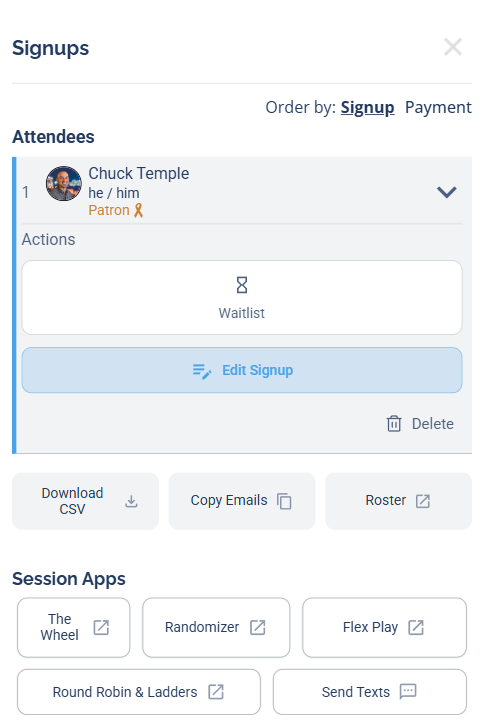
Open an attending player's Actions to find the Waitlist button.
3 Click Waitlist and confirm
Click Waitlist. A Confirm Move box appears with an optional Send notification checkbox — leave it unchecked for a silent move, or check it to email the player that they've moved to the waitlist. Click Confirm Move.
When you move someone to the waitlist manually, the auto-bumping feature does not trigger, and no email goes out unless you check Send notification. That's deliberate: it lets you open a spot and fill it with the exact player you want, instead of the system promoting whoever is next in line.
If a player already paid and you move them to the waitlist, DailyPB does not automatically refund them, and they stay unrefunded if they never get bumped back to attending. If you want to refund a paid player you're moving to the waitlist, refund them first (or do it later from the Finance dashboard: pick the session, click the player's name, then Refund, which works even after the session has ended). This comes up when a venue cuts your court space and you have to move paid attendees off the roster. See Refunds.
Bump a waitlisted player into the session
How do I bump a waitlisted player into the session? How do I move someone from the waitlist to attending? Where is the Bump to Attending button? Does the player get notified when I bump them up? Do they have to pay when bumped from the waitlist?
1 Open the attendee list
Open the session and click View Attendees.
2 Open the waitlisted player's Actions
In the Signups window, find the player under the Wait List section and open their Actions (the chevron).

In the Wait List section, open a player's Actions to find Bump to Attending.
3 Bump them up and confirm
Click Bump to Attending. A Confirm Move box appears with an optional Send notification checkbox — as the host, you decide whether to email the player. Leave it unchecked to bump them quietly, or check it to notify them. Click Confirm Move.
When you do notify them, the email tells the player a spot opened and asks them to confirm by paying (if payment is due) or to cancel if they can't attend. If the session uses Automatic Payments and payment is due, they also get a text. If the host uses Manual Payments, a DailyPB fee accrues (reversed if the player cancels).
Swap an attending player for someone not signed up
How do I replace an attending player with a new person? How do I swap someone in who isn't signed up yet? How do I add a new player into a full session by removing someone? How do I substitute a player? How do I remove a player without bumping the waitlist?
Use this to replace a current attendee with a new player who hasn't signed up yet. The idea is simple: remove the current player without pulling anyone off the waitlist, which leaves the spot open, then add the player you want.
The moment you remove someone, the spot is open to anyone — and on a full session with a waitlist, the first person to sign up grabs it. Add your new player right away so someone else doesn't take the spot first.
1 Remove the current player without bumping the waitlist
Open View Attendees, open the attending player's Actions (the chevron), and click Delete. On the Remove Player screen, leave the promote-the-waitlist option unchecked so no one is automatically bumped up into the spot, then confirm. This leaves the spot open. (See Removing a Player.)
2 Add the new player
Click Add Player and add the new player right away. Because the spot is open, they slot straight into the session. (See Adding a User Manually.)
Swap an attending player for a waitlisted player
How do I swap an attending player with someone on the waitlist? How do I put a waitlisted player into the session and move the current one out? How do I trade a player for a waitlister?
Use this to replace a current attendee with someone already on the waitlist.
- Open the session, find the attending player you want to remove, and click Waitlist to move them out.
- In the Wait List section, open the player you want to promote and click Bump to Attending.
This frees a spot and promotes your chosen waitlisted player into the session.
Can a host reorder the waitlist?
Can a host reorder the waitlist? Can I change the waitlist order? How do I move someone up the waitlist? Can I rearrange who's next on the waitlist? Can I prioritize a player on the waitlist? How do I change waitlist position?
Not right now. There's currently no way for a host to manually reorder the waitlist — it stays in the order players joined. If you want a specific waitlisted player in the session ahead of others, bump them to attending directly instead of trying to move them up the list.
Waitlist reminder emails (24-hour notice)
Do waitlisted players get reminders? Does the waitlist send a 24-hour email? Can a waitlisted player remove themselves from the email? Why does my waitlist fill faster? How does DailyPB keep the waitlist accurate?
When Reminders are enabled for a session (they're on by default), everyone on the Waitlist automatically gets an email 24 hours before the session starts. It reminds them they're still on the waitlist and includes a one-click link to remove themselves if they can't make it.
Because waitlisters are prompted ahead of time to opt out if they can't make it, the waitlist stays accurate — so when a spot opens and the first person is promoted, sessions fill more smoothly with fewer last-minute no-shows.