Text Messaging
DailyPB lets hosts send text messages to anyone in their session: all attendees, just the paid or unpaid players, or the waitlist. This feature is currently free.
How to send a text message
How do I text my players? How do I send a text message to attendees? How do I message everyone in my session? How do I text unpaid players to remind them to pay? How do I text the waitlist? Where is the text messaging app? How do I send a text to my session?
1 Open the attendees list
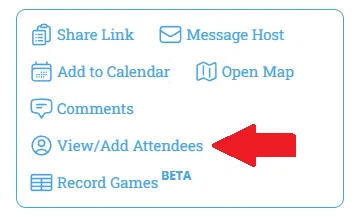
Open the session and click View/Add Attendees to pull up the attendees list.
2 Open Send Texts
Scroll to the Session Apps section and click Send Texts.
3 Start a new message
In the Messages popup, click the plus icon in the top-right corner to start a new message.
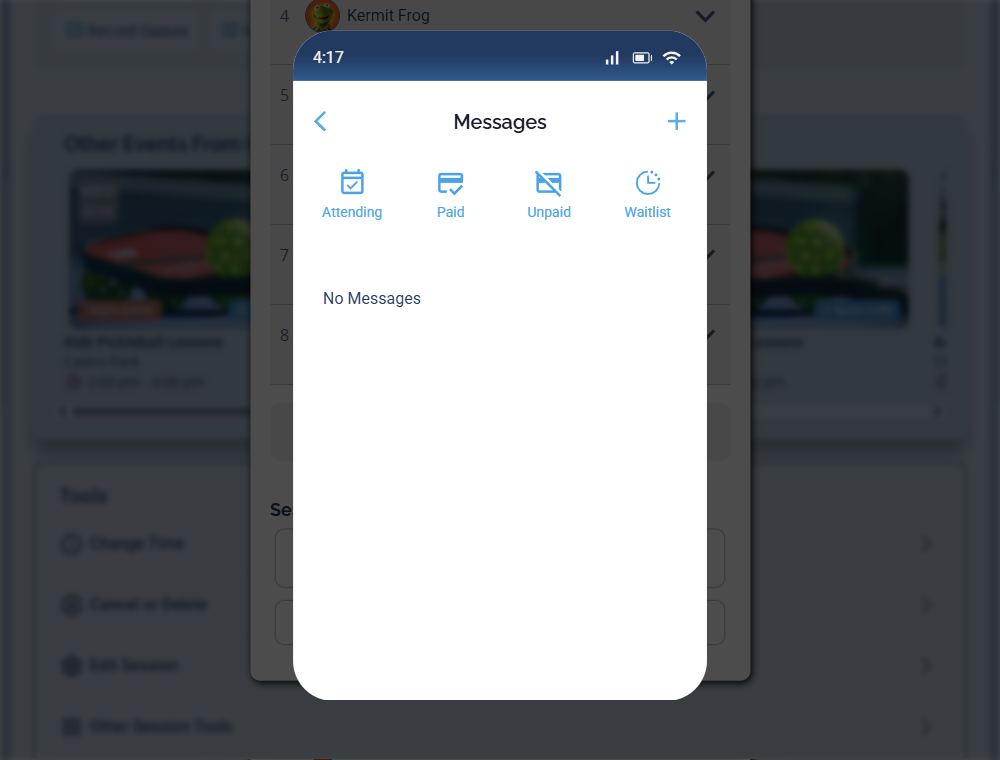
The Messages popup lists your past messages; tap the + in the top-right to start a new one.
4 Choose who to message
On the Select a group to message screen, pick which group to text:
- Attending — everyone signed up and not on the waitlist.
- Paid — everyone attending who's marked paid.
- Unpaid — everyone attending who's marked unpaid.
- Waitlist — everyone on the waitlist.
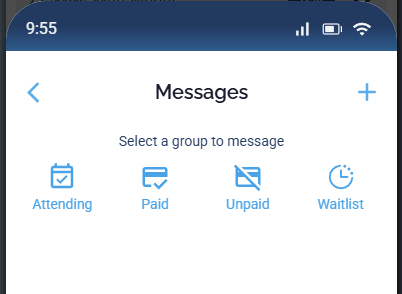
Pick the group you want to text: Attending, Paid, Unpaid, or Waitlist.
5 Write your message
Type your message in the box. A counter shows how many characters you've used out of the 300-character limit, and it updates live as you type, so you'll know the moment you go over. DailyPB automatically adds a session link and your name and cell number (for replies) to every message, so you don't need to include them yourself.
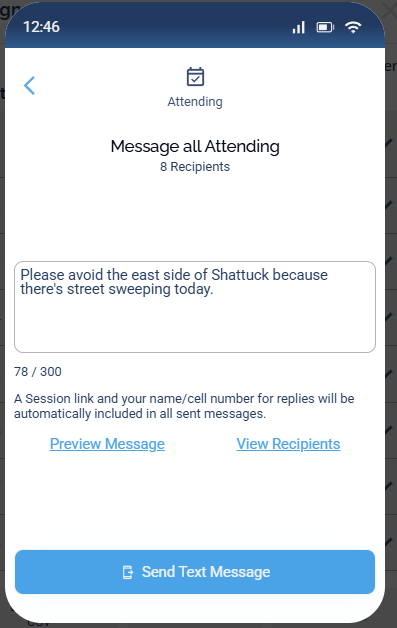
Type your message; the counter keeps you under the 300-character limit.
6 Preview and send
Click Preview Message to see exactly what will go out, or View Recipients to confirm the list of people it's going to. When you're happy with it, click Send Text Message.
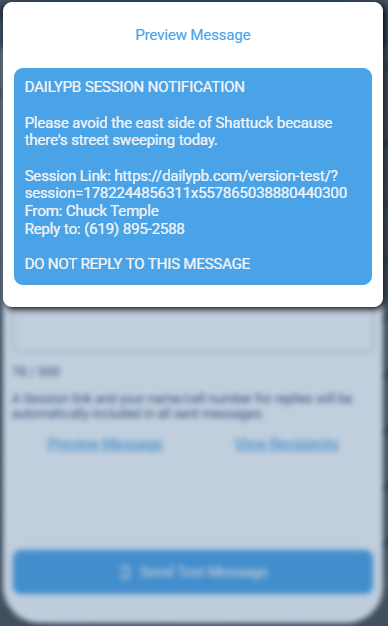
Preview Message shows the full text exactly as it will go out, header and footer included. (The session link in this example is a test URL; real links use dailypb.com.)
What the text looks like to players
What does a DailyPB text look like? What number does the text come from? Can players reply to my text? How do players reply? Is there a header and footer on the text? What does the player see when I text them? Do texts include a link?
The message arrives as a normal text on the player's phone, sent from a 5-digit short code. DailyPB wraps your message in a header and footer:
- A DailyPB Session Notification header.
- Your message text.
- A session link, your name, and a Reply to phone number so players can reach you directly.

A real DailyPB text as it lands on a player's phone. (The session link in this example is a test URL; real links use dailypb.com.)
Because the text is sent from a short code, players don't reply to the text itself. Instead, the message includes your name and cell number, so a player can text you directly at that number to respond.
See who a message went to
How do I see who I texted? Where do my sent texts go? Can I see who received a message? How do I check a past text message? Where is the list of sent messages? Did my text send?
After you send, the message appears in the sent-messages list inside the Messages popup, with its group and time. Click a message to see exactly who it went out to.
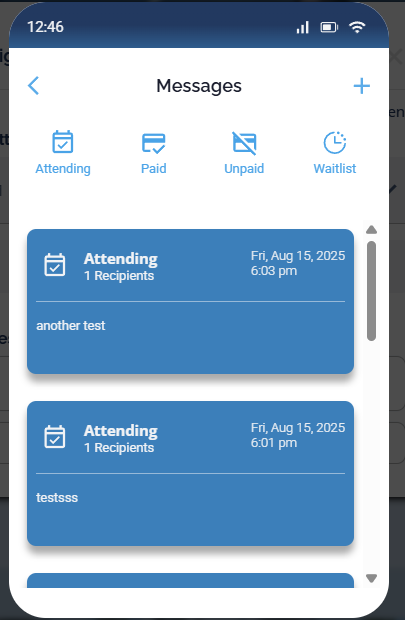
Your sent messages are saved in the popup; click one to see its recipients.
Common questions about texting
Does it cost money to text players? Is texting free on DailyPB? Is there a character limit on texts? Can players text me back? What number do texts come from? Is there a limit on how long my text can be?
- Does it cost anything? Texting is currently free.
- Is there a length limit? Yes, 300 characters, and the counter shows your remaining space as you type.
- What number does it come from? A 5-digit short code. It still arrives as a normal text.
- Can players reply? Every text includes your name and cell number, so a player can text you back at that number.
More in Session Apps