Adding a User Manually
How do I manually add a player to a session? How do I add someone to my session for them? How do I sign up another person? How do I add an attendee manually? How do I add a user who isn't on DailyPB? How do I sign someone up if they can't do it themselves? Where is the Add Player button? How do I add a guest to a session? How do I add a guest? How do I sign up a guest? How do I add a non-member or visitor to my session? How do I manually add an attendee? Where is "View / Add Attendees" or "Manually Add Attendee"? What does "User Already Exists" mean when adding a guest?
You can add any player to a session yourself, whether they already have a DailyPB account or not. Have their cell phone number and email handy, since a working cell phone is required to complete the signup.
How to Add a Player
How do I add a player to a session? How do I search for a user to add? How do I add an existing DailyPB user? How do I sign up a brand new person who isn't on DailyPB? What info do I need to add someone?
1 Open the "Sign Up Someone Else" window
Open the Session and click Add Player (in the session's action panel). The window that opens is titled Sign Up Someone Else.
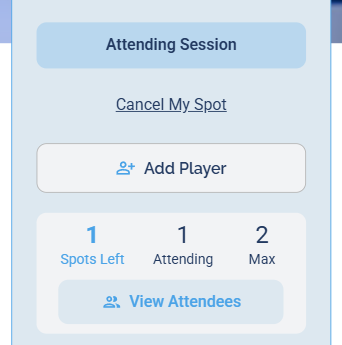
The Add Player button in the session's action panel.
2 Search for the person, then add them
Type a first and/or last name or an email in the search fields. As you type, matching users appear under Search Results, each with their city to help you pick the right one.
- If they already have a DailyPB account: click the Add button next to their name in Search Results.
- If they're not in the results (new to DailyPB): fill in the New Signup section below (First Name, Last Name, Email) and continue from there.

Search by name or email, then click Add next to the right person, or fill in New Signup for someone new.
Names aren't case-sensitive, but a name search can return several people. Searching by email always returns a single, specific user, so use it when you want to be sure you've got the right one.
If you try to create a New Signup with an email that already belongs to a DailyPB account, the button changes to User Already Exists and won't let you continue. That just means they already have an account, so add them the quick way instead: search their email in the box above and click Add next to their name in Search Results.
3 Fill in the signup details
After you click Add, a Session Signup window opens to finish the signup. Fill in the details your session asks for, then click Next.
- A cell phone number is always required (it's visible only to event hosts).
- Other fields appear only if your session asks for them. For example, the DUPR ID field shows up only when your session requires a DUPR rating; if it does, enter the player's six-digit DUPR ID.
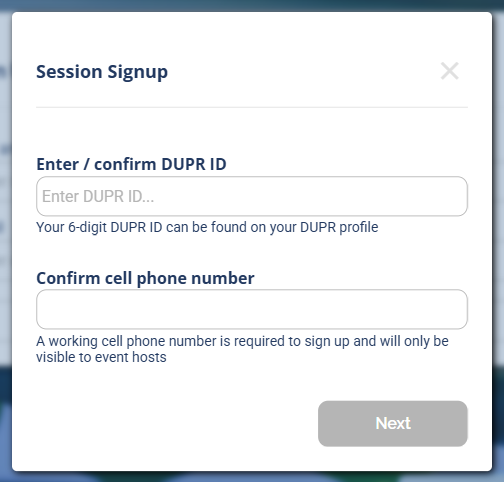
The Session Signup details form. The fields shown depend on what your session asks for.
4 Confirm to finish
A summary screen shows the session details and asks you to confirm the signup. Add an optional message to the host if you like, then click Yes. You'll see a Signup Complete confirmation, and the player now shows up in the session's attendee count.
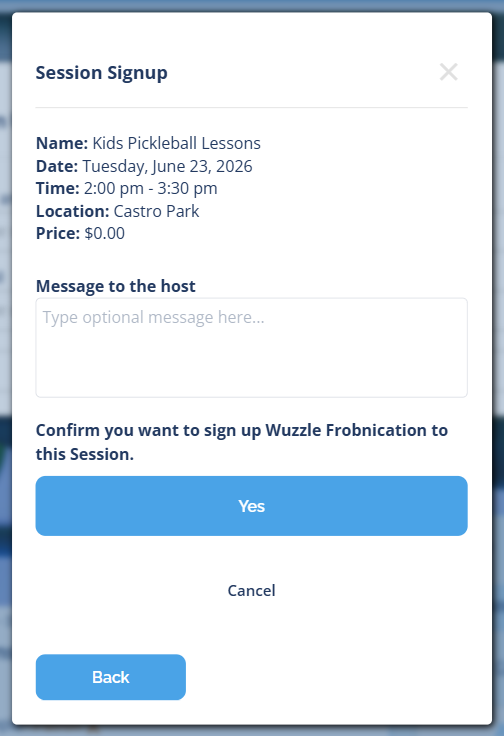
Confirm the signup, then click Yes to finish. (Screenshots are illustrative and may show different example players.)
If the session is full, just add them the same way. DailyPB detects the full session and places the player on the Waitlist automatically.
Common Questions
What if multiple users match the same name? Are names case-sensitive when searching? What if I don't know the user's email? How do I add someone to the waitlist if the session is full? How do I tell two people with the same name apart?
- Multiple people with the same name? Search by their email instead. An email search returns one specific user.
- Don't know their email? Search by name. The results show each user's city to help you identify the right person.
- Names and emails are not case-sensitive in search.