Roster of Signups
How do I print a roster of my players? How do I get a list of who's signed up? How do I make a check-in sheet? Can I print my attendees? How do I see all my signups on paper? How do I group players by skill on a printout?
You can generate a printable roster of your session's players to bring with you on the day. Use it for check-in and, by sorting it by skill, to help you group players onto courts by level.
How to generate a roster
How do I open the roster? Where is the Roster button? How do I create a printable list of signups? How do I get to my session's roster?
- Open the session and click View Attendees.
- In the Signups window, click Roster (below the attendee list).
This opens the roster on its own page, formatted for printing.
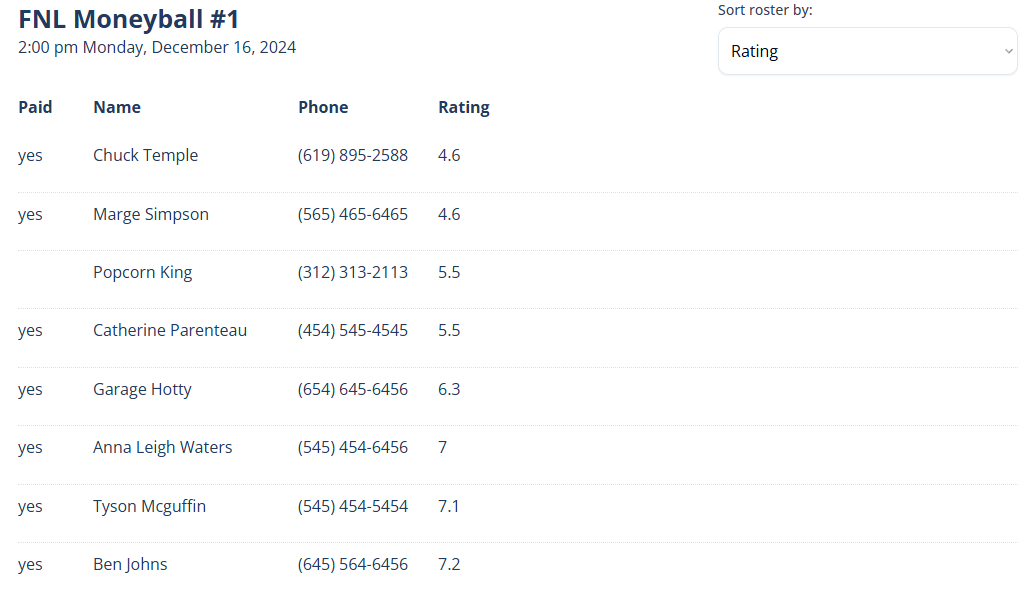
The roster page is built for large screens and printing — it won't look right on a mobile browser.
Sort and print the roster
How do I sort the roster? Can I sort players by skill level or rating? Can I sort by name? Can I see who has paid on the roster? How do I print the roster? Can I add ratings after players already signed up? How do I sort by skill if I didn't ask for it at signup? Can I fill in skill level or rating for existing signups?
- Use the Sort roster by dropdown to order the list. Options include Player Name, Rating, Recreational Level, and Paid status.
- Print using your computer's print function (Ctrl/Cmd + P).
Rating and Recreational Level sorting only helps when your players actually have those values — players without a rating or skill level just won't sort by it. The roster also shows each player's Paid status, handy for collecting at the door.
If a player is missing a rating or skill level, you can fill it in by editing their signup. Once it's set, the roster will sort by it.
This feature was suggested by host Will Tams.