Moving a Signup from one Session to Another
How do I move a player to a different session? How do I transfer a signup from one session to another? How do I switch a player to another date? How do I move someone who already paid? Can I reschedule one player without moving everyone? How do I transfer a player's payment to the new session?
As a host, you can move a player from one session to another, even if they've already paid. There's no single "move" button, so you do it in three steps: remove them from the original session, add them to the new one, then carry over their payment status.
If you're moving everyone because the session itself changed time or date, don't move players one by one. Instead, change the date of the session — that keeps all your signups intact.
How to move a player to another session
How do I move a player to a different session? How do I transfer a signup? How do I remove a player from one session and add them to another? How do I move someone who already paid and not charge them twice? What do I need before moving a player? How do I mark a moved player as paid?
1 Note the player's details
Before you remove the player, note their email so you can find them when you re-add them, and their cell phone number, since the new session's signup form requires it.
2 Remove them from the original session
Open the original session and click View Attendees. In the Signups window, click the chevron (the ⌄ arrow) at the right of the player's row to open their Actions, then click Delete and confirm on the Remove Player screen (you can add an optional reason, which the player and host see in the email). For the full removal steps, see Removing a Player.
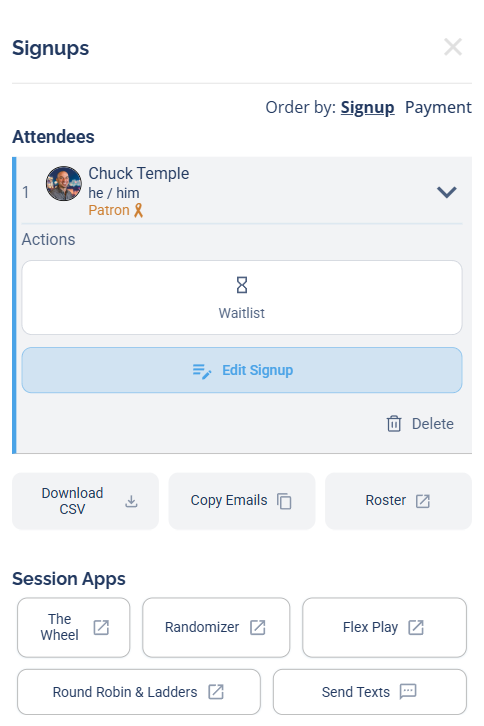
Click the chevron on the player's row, then click Delete.
Both the player and the host get an email confirming the removal.
If the player paid through Stripe and you're outside the refund window, the Remove Player screen will automatically try to refund them. You don't have to let it: as the host you can disable the refund on that screen, so the money stays put. Then when you add them to the new session, just Mark Paid (step 4) — no refunding and re-charging. See Removing a Player for the full refund options.
3 Add them to the new session
Go to the new session and add the player the normal way: click Add Player, search for them by email, click Add, and finish the signup (cell phone is required). Full steps are in Adding a User Manually.
Both the player and the host get an email confirming the new signup.
4 Transfer their payment status
If the player had already paid for the original session, mark them as paid on the new one so you don't double-charge them: in the new session's Signups window, open the player's Actions (the chevron), then open their Payment options and click Mark Paid.
Moving a player doesn't carry their payment across automatically. Marking them paid on the new session keeps your records accurate and avoids asking them to pay twice. (If you let a Stripe refund go through during removal, you'd need to actually collect payment again instead — which is why disabling the refund, above, is usually the smoother move.)