The Signups Console
How do I see all my signups? Where do I view every signup across my sessions? How do I search all my players? How do I find a player across sessions? Where is the Signups page? How do I edit a signup from the console? Can I refund someone from the signups page? How do I see everyone who signed up for any of my sessions?
The Signups page in the host menu is your one place to view, search, filter, refund, and export every signup across all of your sessions at once, without opening sessions one at a time. It's different from a single session's attendee list (which you reach with View Attendees on that session); this is the all-sessions view. Open it by clicking Signups in the host menu.
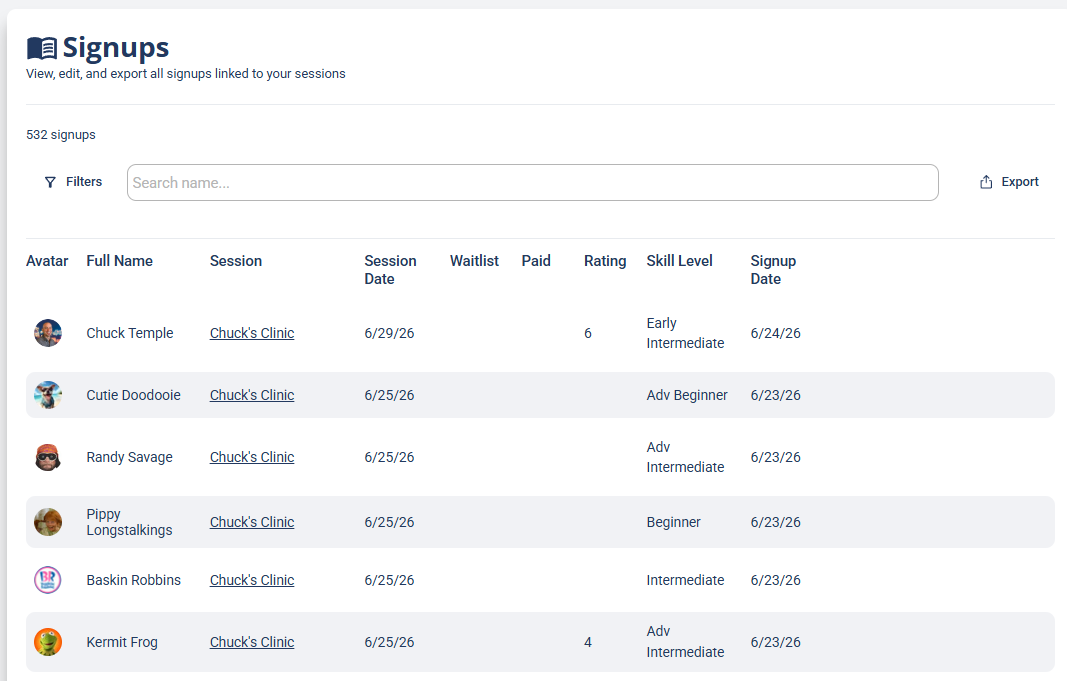
The real power of this page is finding the exact people you want, then doing something with them: editing a signup, issuing a refund, or exporting a list to remarket to.
What the signups list shows
What columns are in the Signups console? What info does the all-signups list show? Does it show who paid? Does it show who's waitlisted? What does a red signup mean? Why is a signup red? What do the icons on a signup mean?
Each row is one signup. Along the row you can see the player's Avatar and Full Name, the Session, the Session Date, their Rating and Skill Level, and the Signup Date. The Waitlist and Paid columns use icons: a clock for waitlisted, and a dollar bill under Paid when they've paid.

At the bottom of the list is pagination for moving through your signups.
Clicking into a signup
How do I edit a signup from the list? How do I open the session for a signup? How do I see a payment from the signups list? How do I refund someone from the signups page? What can I click on a signup row? How do I view a transaction from signups?
You can click a signup in a few ways, depending on what you want to do:
- Click the row to open the Edit Signup menu and edit that signup.
- Click the underlined Session name to open the session attached to that signup, where you can edit anything about the session itself.
- Click the dollar sign under Paid (when it's there) to view the transaction information for that payment, which is also where you can refund them.
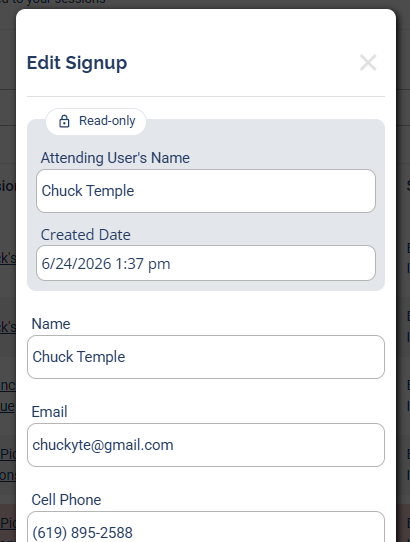
Searching by name
How do I search for a player in signups? How do I find one person's signups? How do I look up a player by name? How do I see every session one player signed up for?
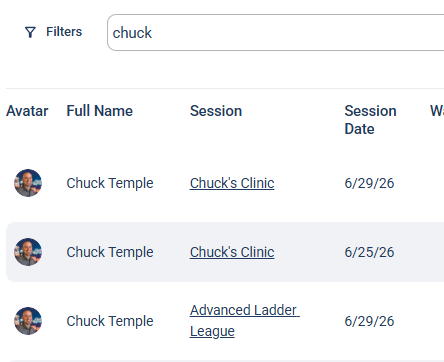
Type a name into the Search name box and press enter to filter the list to that player. It's the fastest way to pull up one person, or to see every session a single player has signed up for.
Filtering to a slice
How do I filter my signups? Can I filter by who paid or who's waitlisted? How do I find waitlisted players across sessions? How do I find players by rating or skill level? How do I find players by email? How do I find everyone who signed up in the last month? Why isn't my filter working?
Click Filters to narrow the whole list. Each filter has its own checkbox that turns it on. This matters: if the box isn't checked, anything you type in that filter does nothing. Check the box, set the values, then click Save Filters.
The filters are:
- Signup Date: a From and To range for when people signed up.
- Email: find by email address.
- Skill: check any number of skill levels.
- Rating: a From and To rating range.
- Waitlisted: only people who were waitlisted.
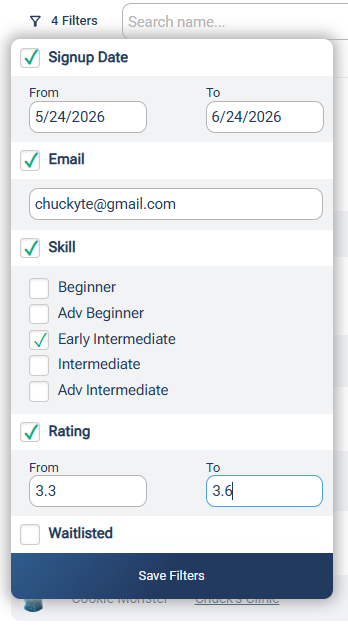
Combine filters to find exactly who you want:
- Filter Signup Date to the last month plus Waitlisted to find everyone who couldn't get in recently, then message them when you open a new session, before your regulars fill it.
- Filter by Rating or Skill to pull the higher-level players for a special advanced session.
Exporting your list
How do I export all my signups? Can I download every signup across sessions? How do I get a spreadsheet of all my players? How do I copy all my players' emails? What columns are in the signups CSV? How do I remarket to my players? How do I get my players' email addresses?
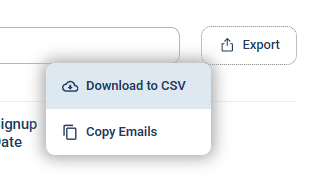
Once you've filtered down to the people you want, Export is how you get the list out. Click Export for two options:
- Download to CSV: the full spreadsheet of the current list.
- Copy Emails: copies just the unique email addresses to your clipboard, ready to paste into Gmail or anywhere else.
The CSV includes, per signup:
- Attending, Name, Email, Cell Phone
- Any message to the host they wrote at signup
- Rating and Skill Level (from what they entered if your session required it, otherwise pulled from their profile)
- Paid or unpaid, and whether they're Waitlisted
- DUPR ID
- Signup Date
- Session Name, Session Start Date, and Session ID (the ID is from the DailyPB database)
- All three Custom Questions, if your session had any