The Finance Dashboard
Where do I see my transactions? How do I view my sales? Where is my Finance dashboard? How much money have I made? Where do I see refunds and fees? How do I find a specific payment? How do I see who paid for a session? Where do I see my earnings on DailyPB?
The Finance dashboard is where you see every transaction across your sessions, find out who paid for what, and initiate refunds, all in one place. Open it by clicking Finance in the host menu.
Choosing your date range
How do I filter my transactions by date? How do I see last month's sales? How do I change the date range on Finance? How do I set a custom date range? How do I see only this week's sales?
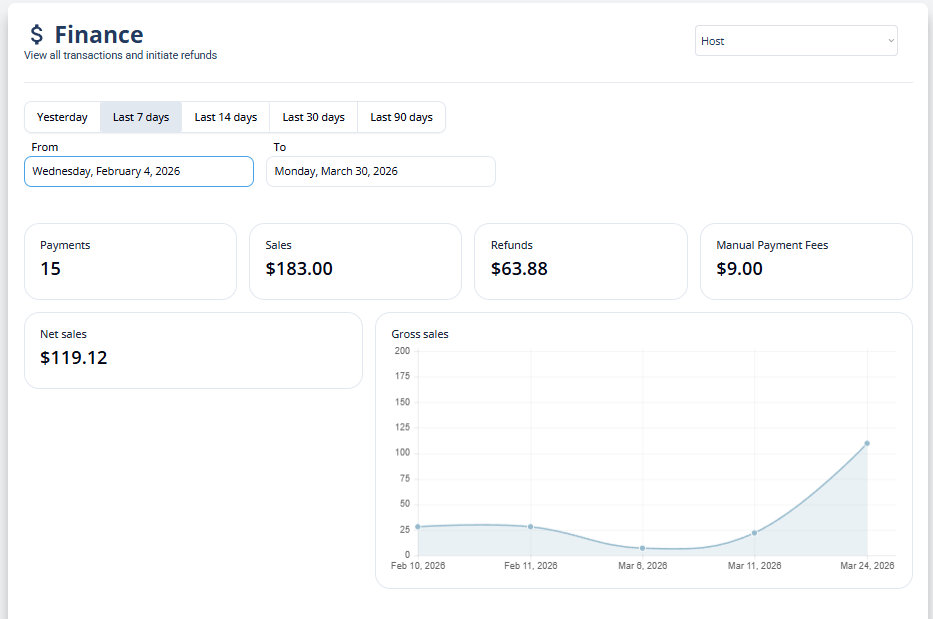
Everything on the dashboard is driven by the date range you pick at the top. Use the quick buttons for Yesterday, Last 7 days, Last 14 days, Last 30 days, and Last 90 days, or set a custom From and To date.
Reading the totals
What's the difference between net sales and gross sales? What does net sales mean? What are manual payment fees? What does the Sales number include? Why is my net sales different from gross sales?
The summary tiles give you the headline numbers for the selected range:
- Payments: how many payment transactions there were.
- Sales: the total collected.
- Refunds: the total refunded back to players.
- Manual Payment Fees: the DailyPB fees on your manual-payment sessions.
- Net sales: your sales after refunds and fees are taken out.
Below the tiles, a Gross sales chart plots your sales over the selected range.
Finding an individual transaction
How do I find a single transaction? How do I see who paid for a session? How do I find one player's payments? How do I narrow down the transaction list? What filters does Finance have? How do I find a specific payment? How do I filter by transaction type? How do I see deleted session payments? How do I sort transactions by date or name? How do I search Finance for one player? How do I see only refunds?
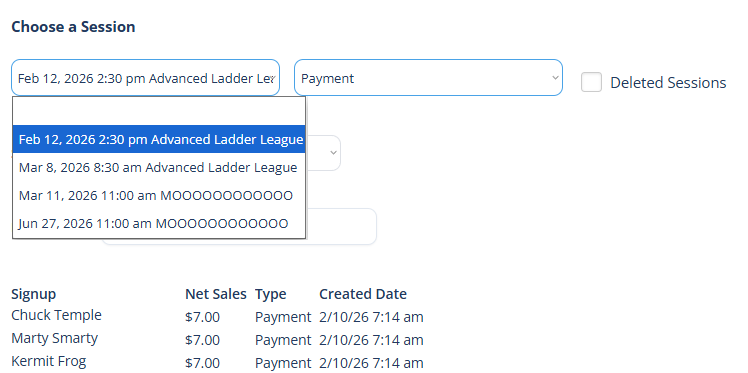
Below the totals is the list of every transaction in the selected range, showing the Signup name, the Net Sales amount, the Type, and the Created Date. To find who paid for what, narrow that list using the five controls above it.
Choose a Session
How do I see only one session's transactions? How do I find payments for one session? Why isn't my session in the Choose a Session list? Why is a session missing from the dropdown?
Pick a session to see only its transactions.
Select a transaction type
How do I see only refunds? How do I filter by transaction type? How do I see only payments? What are the transaction types? How do I find disputes or fees?
The type dropdown filters the list to one kind of transaction. Leave it blank to show all types, or pick one: Payment, Refund, Fees Credit, Dispute, or Dispute Fee.

Include Deleted Sessions
How do I find payments from a deleted session? Where did the signups go when I deleted a session? How do I find transactions for a session I deleted? Where are the payments for a removed session? How do I see deleted session signups?
When you delete a session, its signups and payments become hard to find, because the session is gone. Check the Deleted Sessions box to surface those: the dashboard finds your deleted sessions in the date range and brings up all of their transactions.
Sort by
How do I sort my transactions? Can I sort by date or by name? How do I order the transaction list? How do I sort Finance by player name?
Sort the list by Created Date or by Signup Attending Name.

Player Search
How do I find one player's transactions? How do I search Finance by name? How do I see everything one player paid? How do I filter transactions by player?
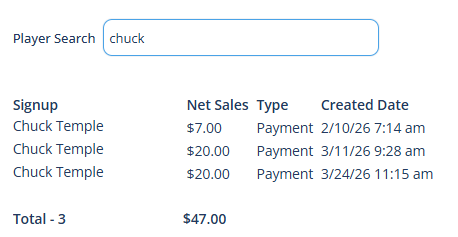
Start typing a name in Player Search to filter the list in real time to that player's transactions. Use it when you just want to see everything one person paid.
Reading the transaction details
What's in the transaction details? How do I see payment details? Where do I find the Stripe ID for a payment? What is the Payment Intent ID or Seller Account ID? What is the Transaction ID? What does Amount Paid or Total Fee mean? How much did the host receive? What is the Stripe Description? Why does the Stripe Description not match my session? Who is the payer versus the payee? What is the Signup Name or Signup ID? How do I refund from the transaction details?
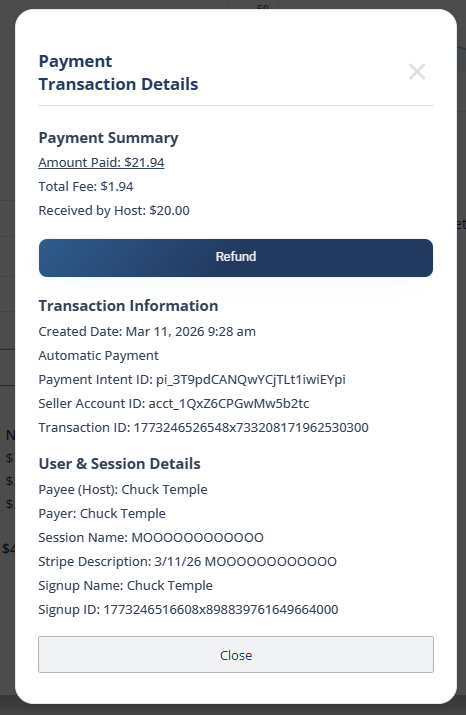
Click any transaction in the list to open its Transaction Details, which holds a lot of useful data in three groups.
Payment Summary
The top shows Amount Paid, Total Fee, and Received by Host. If the payment was refunded, the refund shows here, and clicking it switches the view to the refund transaction. If there was no refund and it was an automatic payment, you'll see a Refund button to issue one right from here.
Transaction Information
This tells you when the transaction was created and whether it was an automatic or manual payment, plus three IDs:
- Payment Intent ID and Seller Account ID: these come directly from Stripe.
- Transaction ID: this is from the DailyPB database.
User & Session Details
- Payee (Host): who the money goes to.
- Payer: who actually paid for the session. This is usually the signup, but not always, which is why the signup name is also listed.
- Session Name: the session this payment is for.
- Stripe Description: the session date and name as they were when the payment was made. This is saved at the moment of the transaction and never changes.
- Signup Name and Signup ID: the attendee's name and their ID from the DailyPB database.
Initiating a refund
How do I refund a player from Finance? How do I issue a refund from the Finance dashboard? Can I refund someone after the session ended? How do I refund a player for a deleted session? Where is the refund button in Finance?
The Finance dashboard is one of the places you can issue a refund: find the transaction, open its details, and use the Refund button in the Payment Summary. This works even after a session has ended or been deleted (use the Deleted Sessions filter to find those), which makes Finance the right tool for refunding past or removed sessions.