How to Add Alternative Payment Methods to a Session
With Manual Payments, you can let players pay you directly using the methods you already use: Venmo, Zelle, Cash App, and PayPal. You choose which methods to accept right on the session, and you can save your IDs once so they auto-fill the next time.
You can set this up two ways: while creating a session, or by editing an existing one. Both are below.
Add payment methods when creating a session
How do I add payment methods when creating a session? How do I pick which payment methods to accept? How do I choose Venmo vs Zelle for a session? Where do I select payment types for a session? How do I let players pay with PayPal on my session? How do I turn on manual payment options? How do I accept Venmo or Cash App on my session?
When you create a session, you set the payment methods on the Payments step of Advanced Setup.
1 Use Advanced Setup
In Create Session, switch to Advanced Setup (the toggle at the top of the form).
2 Go to the Payments step and add a fee
Go to step 3, Payments. Enter a session fee in "How much does the session cost?" (the manual payment options only appear once the session has a fee).
3 Choose Manual Payments
Under How would you like to handle payments?, select Manual Payments.
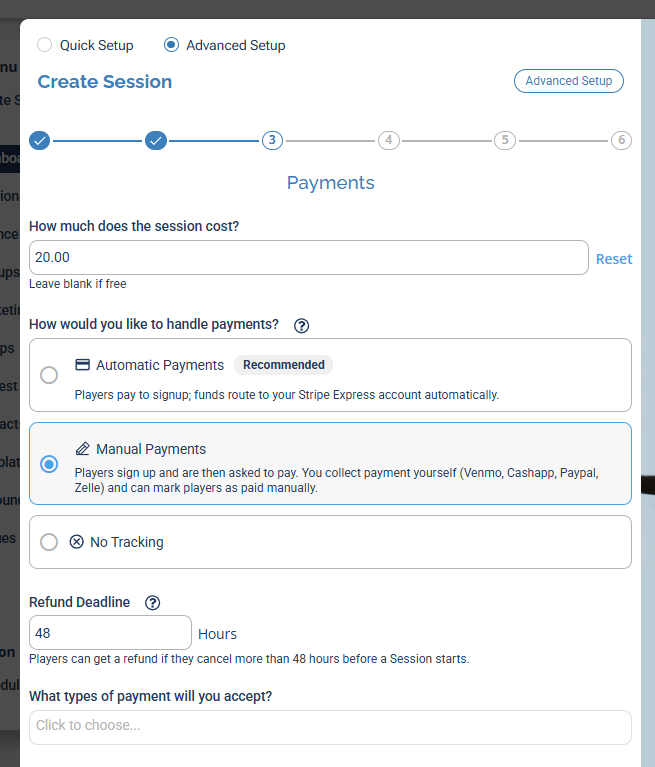
Set a fee, then choose Manual Payments to reveal the payment-type options.
4 Pick your payment types and enter your IDs
In What types of payment will you accept?, use the multi-select dropdown to choose any of Cash App, Venmo, Zelle, and PayPal. For each one you pick, a field appears to enter your ID. Each field has a Help link (explaining where to find that ID and the exact format) and a Test link to check it works before you save.
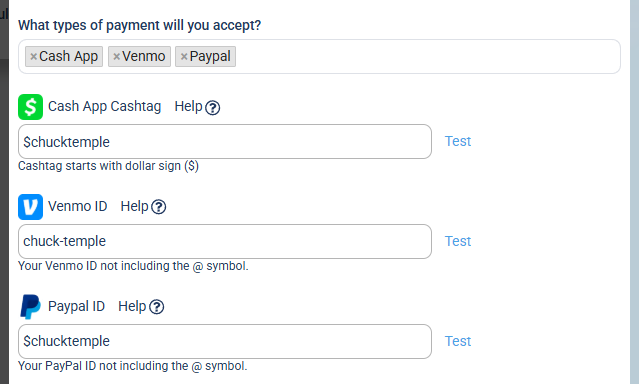
Each method you choose gets its own ID field, with Help and Test links to make sure the ID is right.
Once set, players see your chosen methods and instructions when they sign up, and pay you directly. You then mark them as paid in DailyPB.
Add or change payment methods on an existing session
How do I change the payment methods on a session I already created? How do I edit payment methods on an existing session? Where is the Financial tab? How do I add Venmo to a session I already made? How do I update the payment types on a session? How do I get to Edit Session?
Already created the session? You can add or change payment methods from the Financial tab in Edit Session.
1 Open Tools and click Edit Session
On the session, scroll to Tools and click Edit Session.
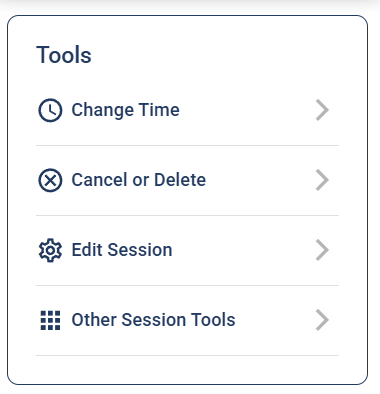
Under Tools, click Edit Session.
2 Open the Financial tab
Click the Financial tab. Here you'll find the Session fee, the Refund Deadline, How would you like to handle payments?, and, at the bottom, What types of payment will you accept?
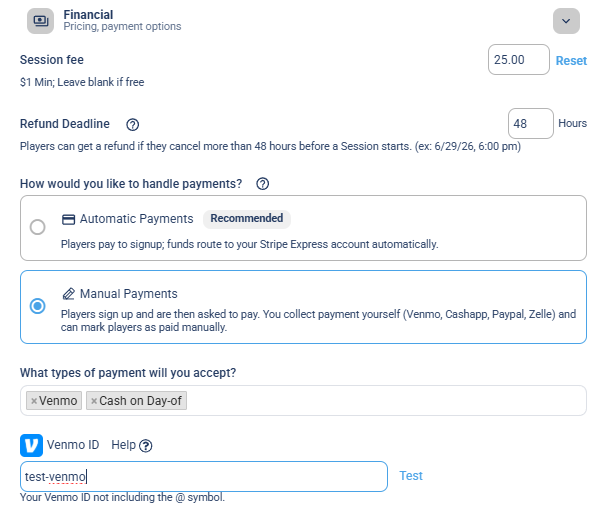
The Financial tab: session fee, refund deadline, how you handle payments, and the payment types you accept.
3 Choose your methods and save
With Manual Payments selected, use the What types of payment will you accept? dropdown to pick your methods. If you've saved your IDs in your profile, they auto-fill here; you can change any of them. When you're done, click Save Changes.
Save your payment method IDs once
How do I save my Venmo for sessions? Where do I add my Zelle or PayPal ID? How do I set up alternative payment methods so they reuse? Where do I store my Cash App? How do I add my payment IDs so they auto-fill?
To avoid re-entering your IDs every time, save them once in your profile and they'll auto-fill on future sessions.
1 Open Monetization in your Profile
Click your name in the top-right corner, then click Monetization → Manual Payments.
2 Enter your payment IDs
Fill in the IDs you want to use: Cash App Cashtag, Venmo ID, Zelle ID, and/or PayPal ID. As on the session, each field has a Help link explaining the format and a Test link to check it works. Then click Save Manual Payment IDs.
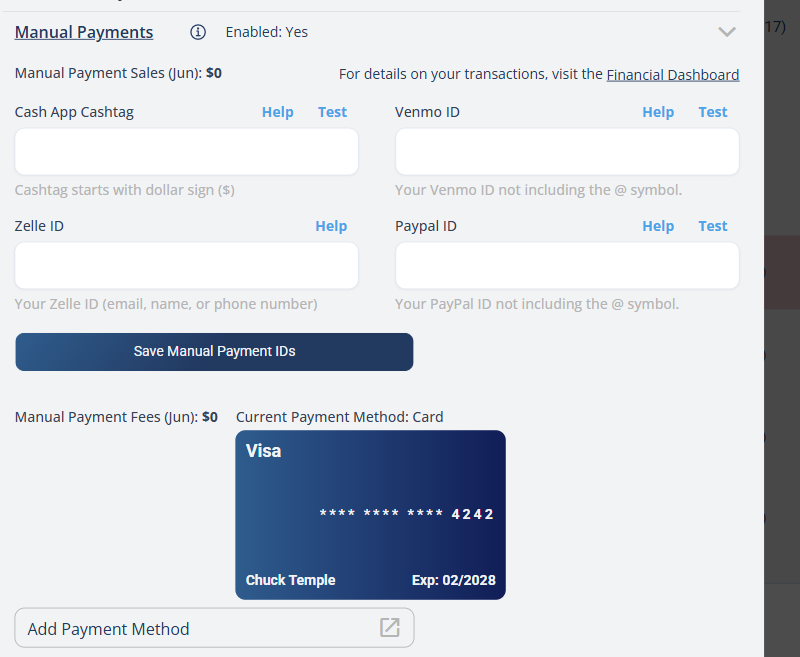
Profile → Monetization → Manual Payments: save the IDs once and they auto-fill on future sessions.
Changing a saved ID in your Monetization settings does not automatically update it on sessions you already created. If you change an ID, update it on any existing sessions manually.