Refunds
Learn how refunds work in DailyPB and how to issue them in different situations.
Jump to:
- Refund a Current Attendee
- Refund a Removed Player
- Refund After Session Deleted
- Refund All Fees via Stripe
- Payments When You Cancel a Session
- FAQ
How to Issue a Refund to a Current Attendee
How do I refund a player? How do I issue a refund? How do I give someone their money back? How do I issue a refund to an attendee who paid? Where is the Refund button? How do I refund a player who is still in the session? How do I return a payment in DailyPB? How much does the player get refunded? Does a refund include the fees? Does the player get the DailyPB fee or Stripe fee back?
- You must be the host of the session.
- The player must have a Paid status. The Refund button only appears for players who have already paid.
- Refunds are deducted from your Stripe account balance.
- The standard refund returns the session fee only. For example, on a $21.94 charge the player gets back the $20.00 session fee, not the $1.00 DailyPB fee or the $0.94 Stripe processing fee. To return those too, see How to Refund a Player's Fees Through Stripe.
1 Open the Session
Go to your Dashboard and click on the session that contains the player you want to refund.
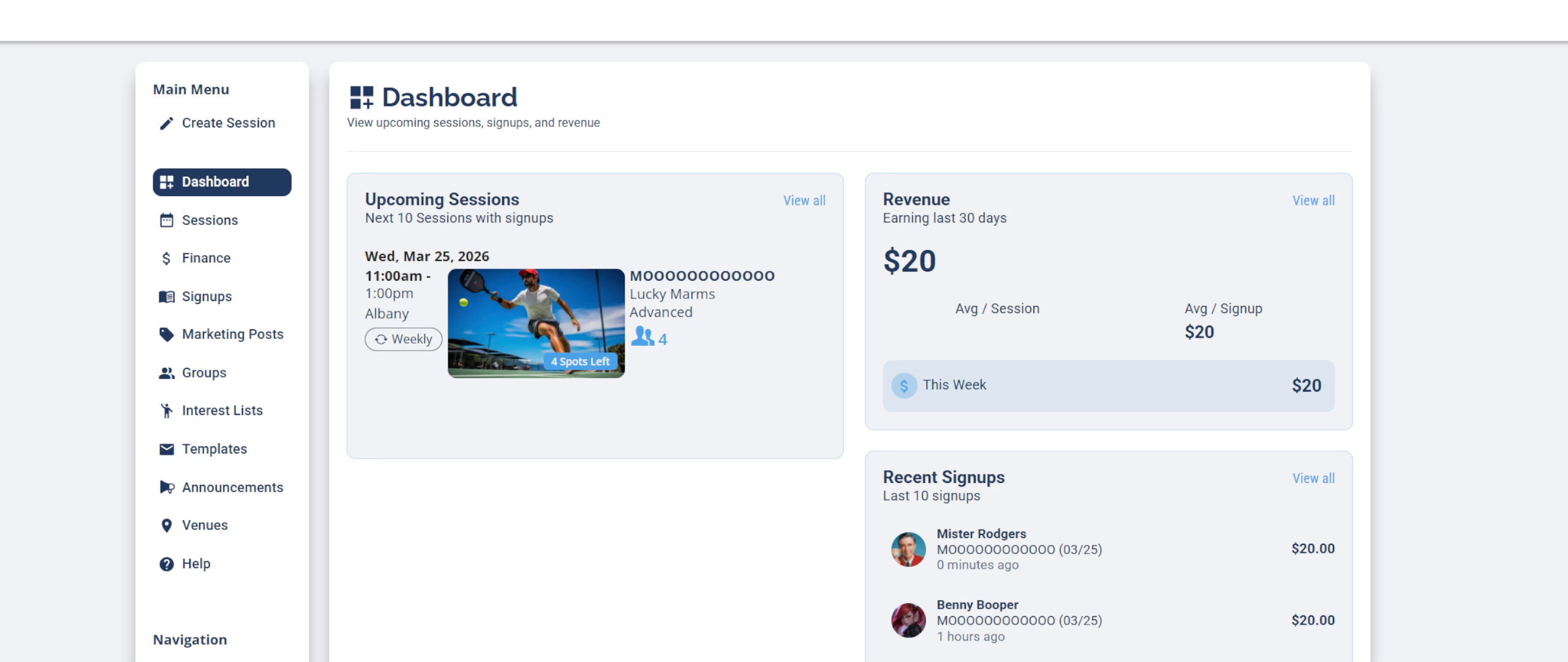
The Dashboard, your starting point in DailyPB.
2 Click "View Attendees"
On the session, click the View Attendees button to open the Signups panel.
3 Find the Player
The Signups panel lists everyone signed up with their payment status. Scroll to find the player you want to refund.
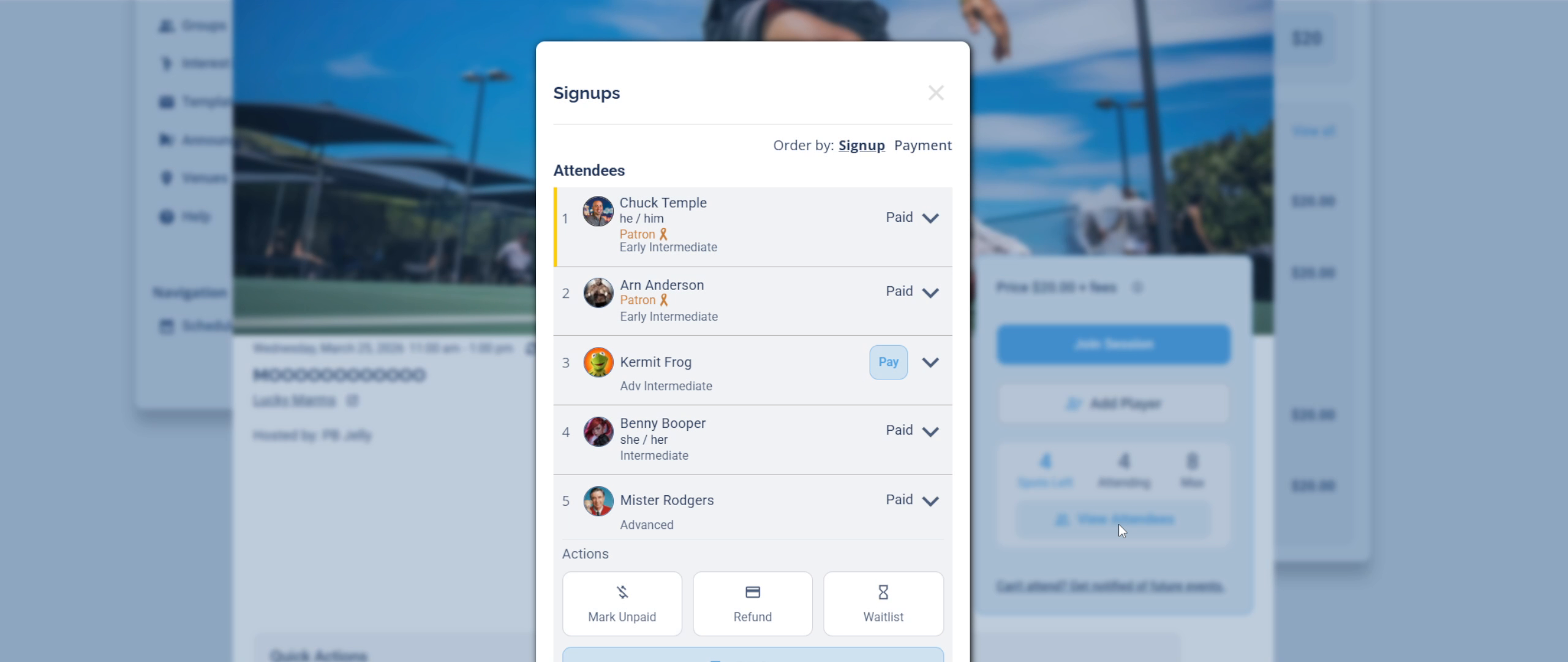
The Signups panel: each player shows either Paid or a Pay button.
4 Expand the Player's Row
Click the down arrow (▼) to the right of their name to expand their row and reveal the Actions panel.
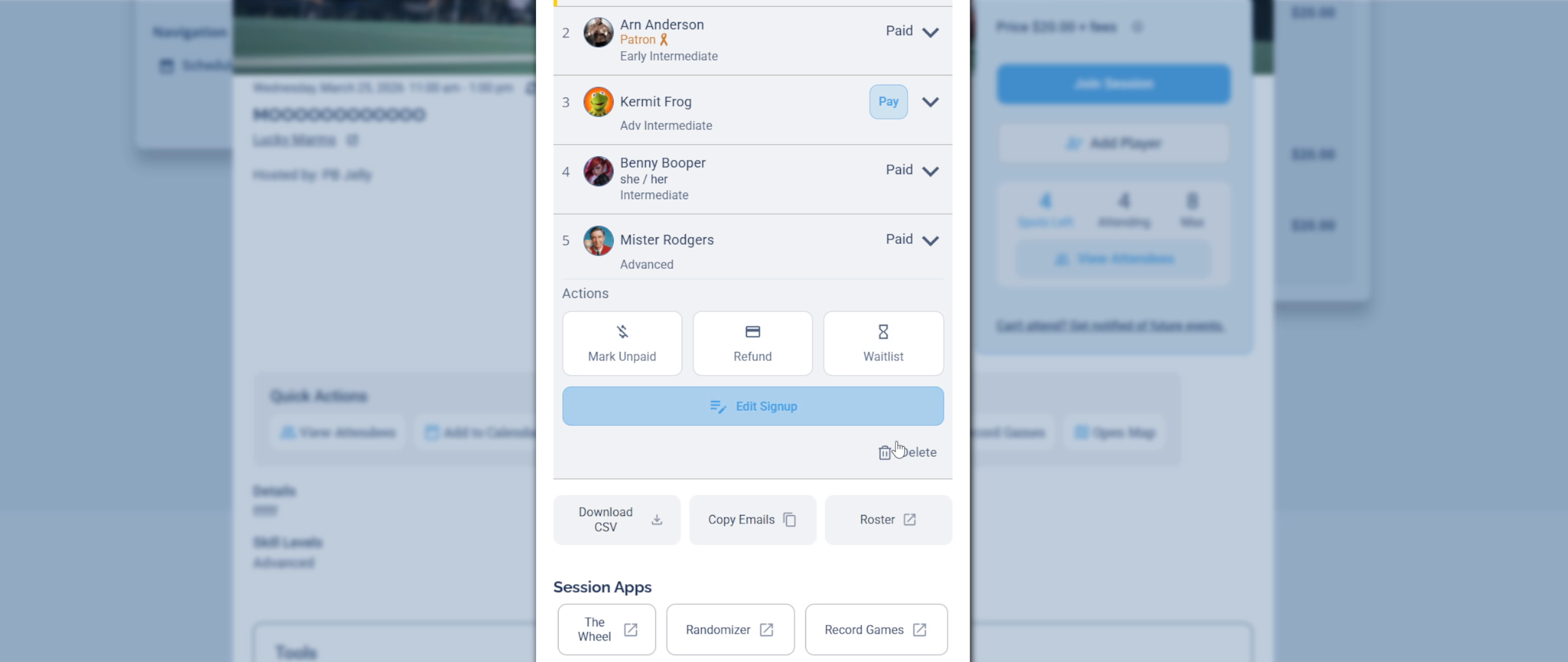
Click the arrow to expand the player's row and reveal their action buttons.
5 Click "Refund"
In the Actions panel you will see three buttons: Mark Unpaid Refund Waitlist
Click the Refund button.
- Mark Unpaid changes the player's status but does not send money back.
- Waitlist moves them to the waitlist without removing their payment.
- Only Refund returns money to the player.
6 Confirm the Refund
A confirmation box will appear. Click Yes to confirm.
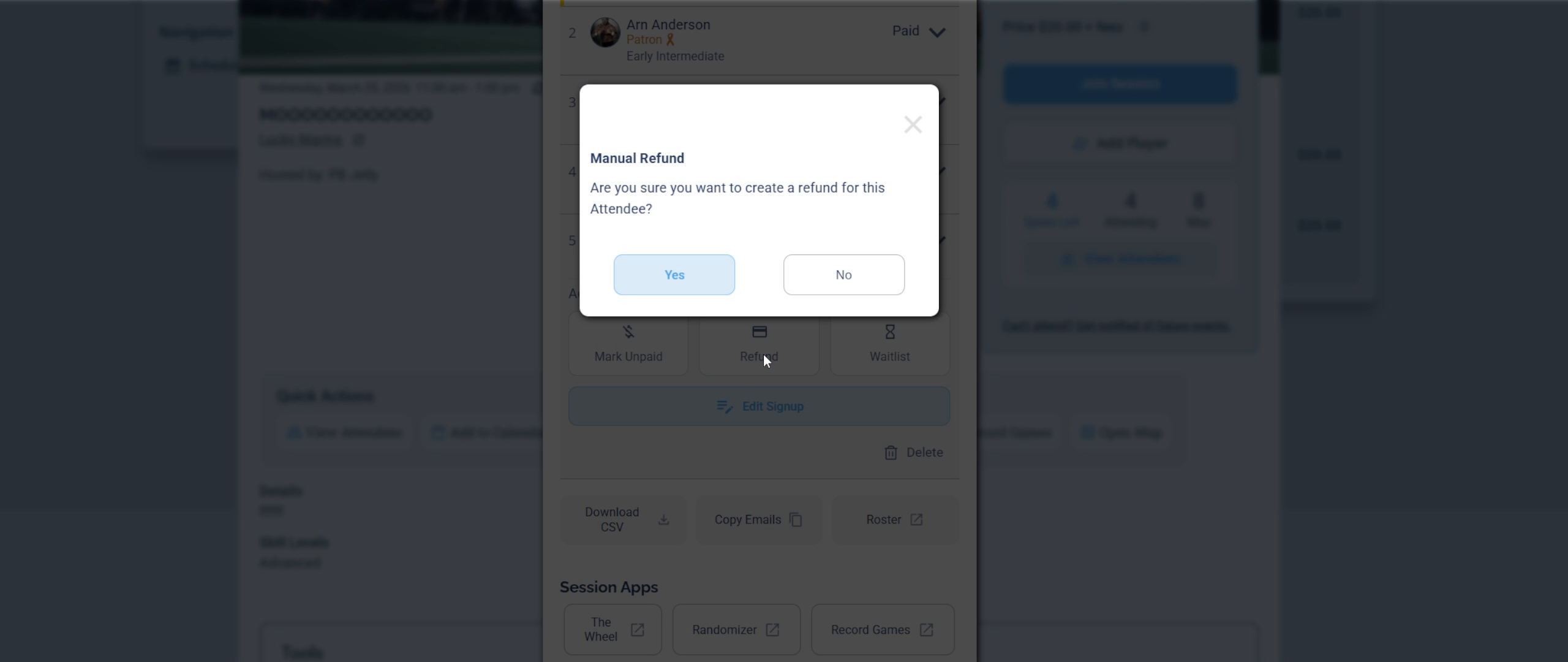
Click Yes to confirm the refund, or No to cancel.
Once confirmed, a refund cannot be reversed in DailyPB. Make sure you have the correct player selected before clicking Yes.
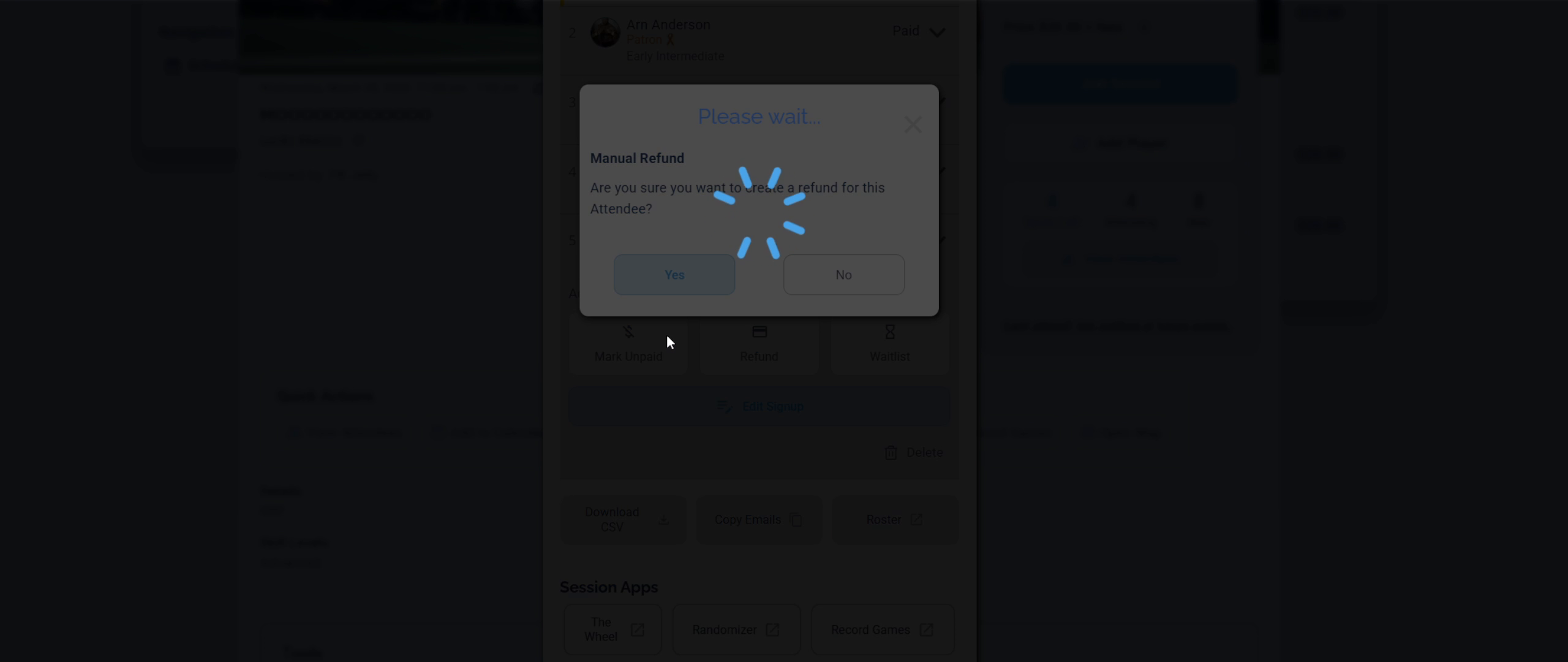
7 Wait While It Processes
You'll briefly see a "Please wait..." message. This usually takes just a few seconds, so don't close the window or click anything else.
8 Refund Complete
The Signups panel will reload. The player's status will change from Paid to showing a Pay button, and the Refund option will be replaced by Mark Paid. This confirms the refund has been recorded in DailyPB.
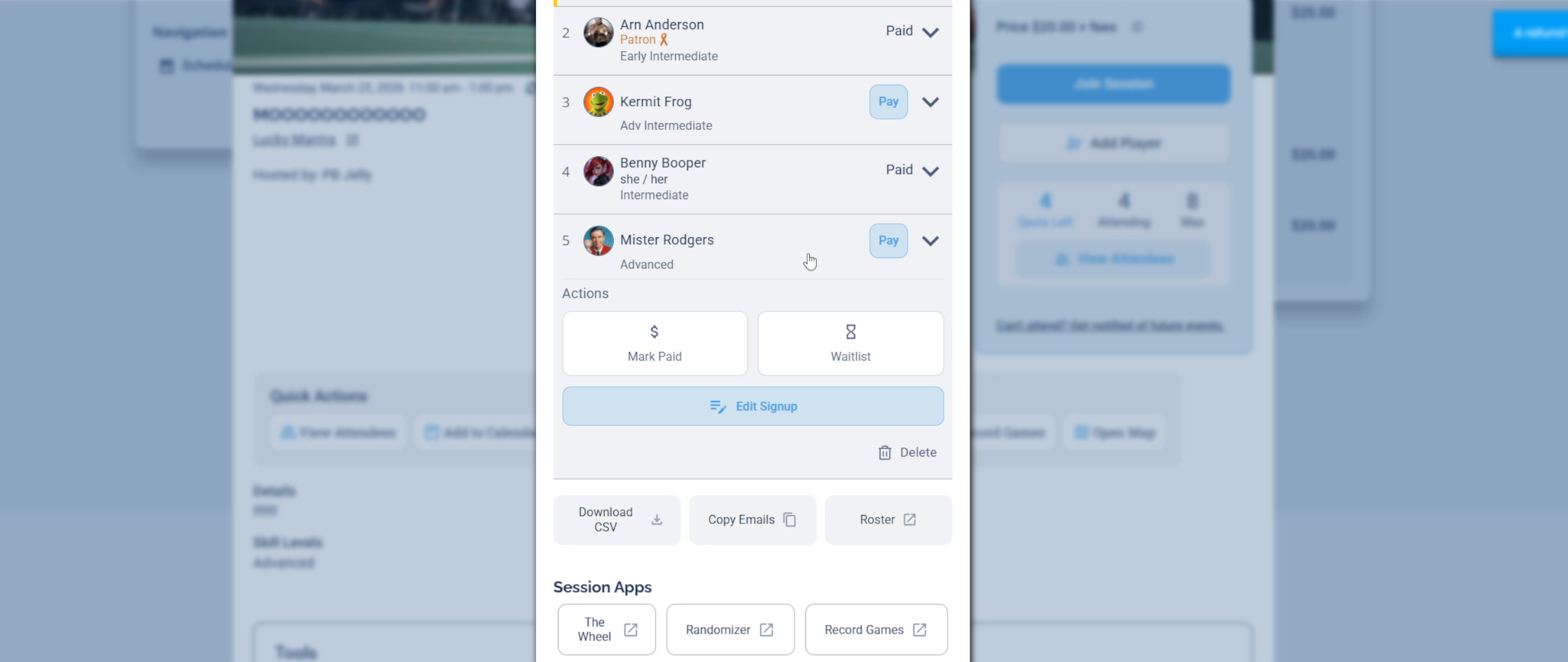
After the refund, the player's status changes and the Refund button is replaced by Mark Paid.
Both you and the player will receive an email confirmation when a refund is issued.
How to Refund a Player Who Was Removed from a Session
How do I refund someone I removed from the session? How do I refund a player who cancelled? How do I refund a removed attendee who already paid? Can I refund someone after taking them off the list? Where do I find a removed player's payment to refund it? What does the pink or red highlight on a signup mean? Where do I find removed players in the Host Dashboard? How do I use the Signups tab to refund a removed player? Where is the payment icon in the Paid column?
When a player is removed from a session, by themselves or by you, DailyPB flags their signup with a pink/red highlight. If they had already paid, you can still issue a refund from their payment record.
You find and refund a removed player from the Host Dashboard, using the Signups tab. Make sure you're in the Host Dashboard before you start.
1 Spot the Removed Player
On your Host Dashboard, removed players appear in the Recent Signups section with a pink/red highlight, a quick signal that someone was removed and may need a refund.
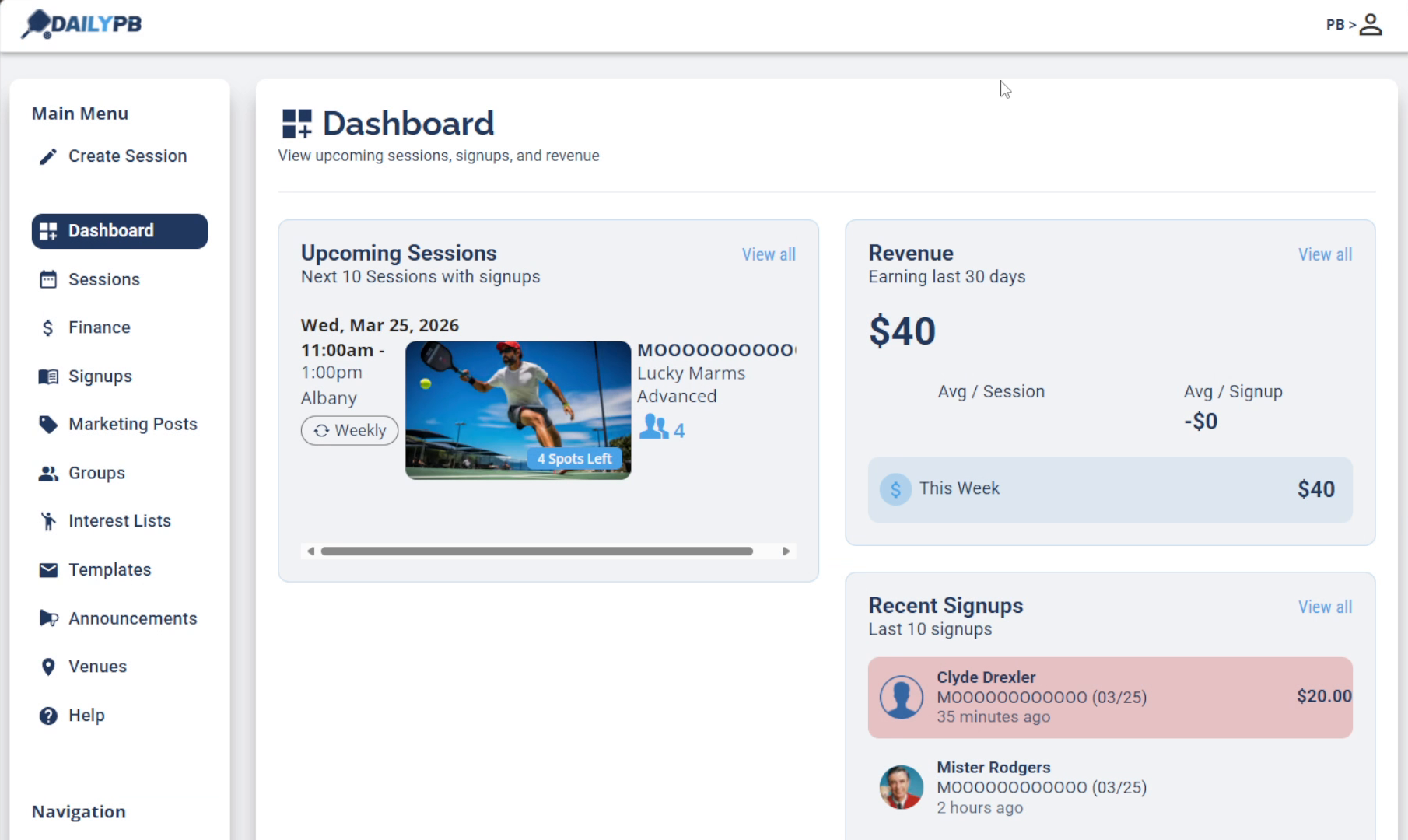
The pink/red highlight in Recent Signups flags a removed player.
2 Open the Signups Tab and Find the Player
Click Signups in the left-hand menu to open the Signups tab. Use the search bar to type the player's name and filter down to their record. The removed player appears highlighted in pink/red.
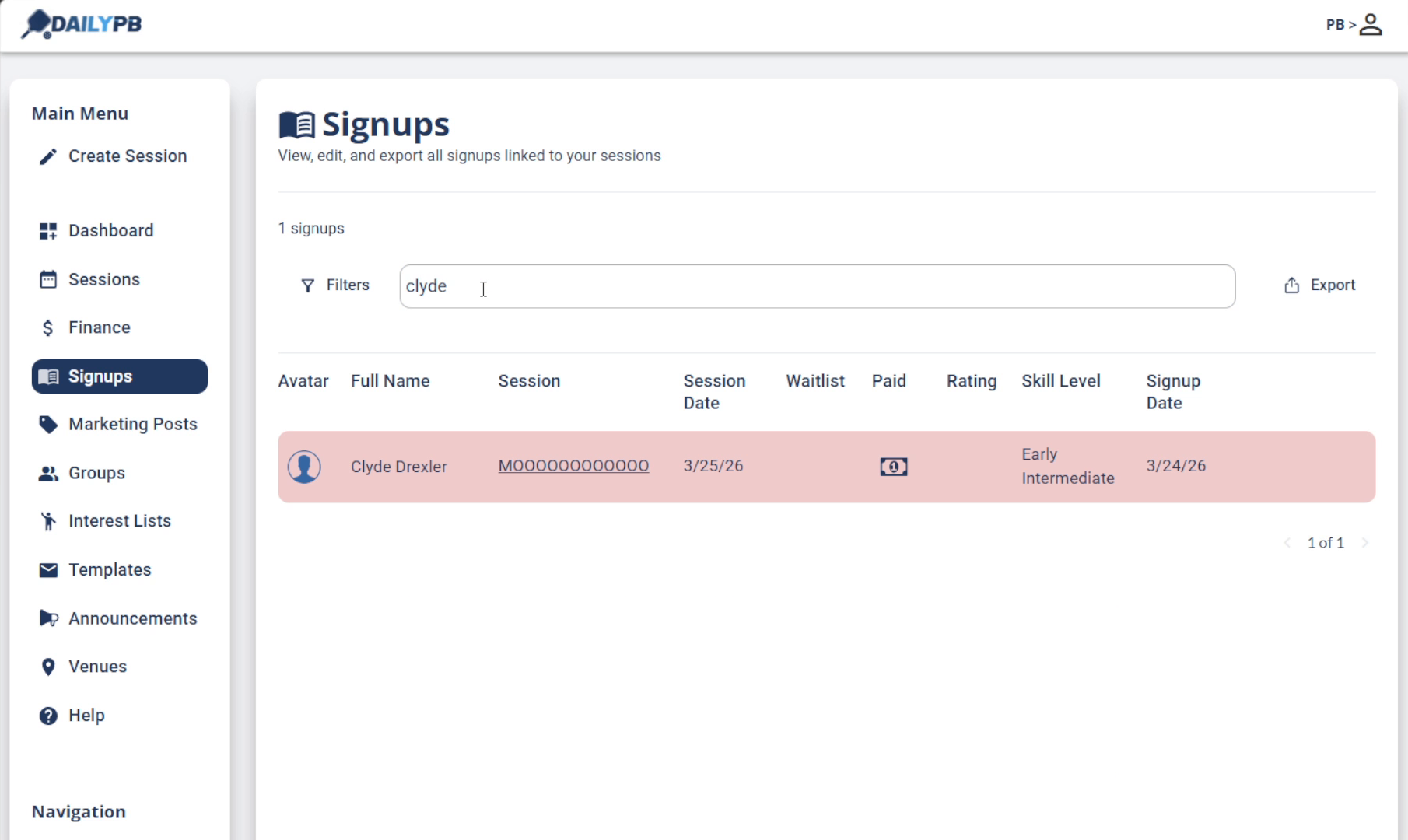
In the Signups tab, search the player's name. Their removed signup shows highlighted in pink/red.
3 Click the Payment Icon
In the player's highlighted row, click the payment icon in the Paid column to open their payment record.
4 Review the Payment and Click "Refund"
The Payment Transaction Details panel will open showing the full payment breakdown. Click the Refund button when you're ready.
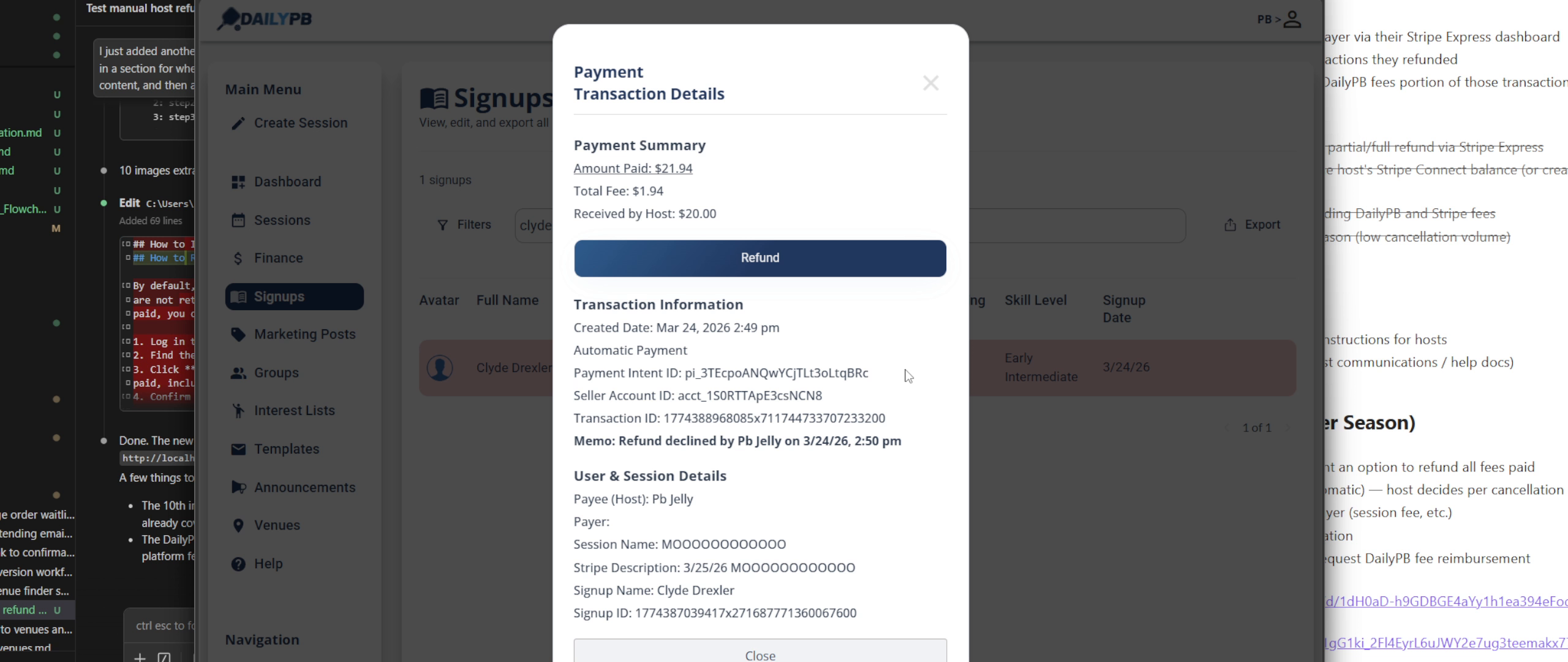
The Transaction Details panel, review the amounts, then click Refund.
5 Confirm the Refund
A confirmation box will appear. Click Yes to issue the refund, or No to cancel.
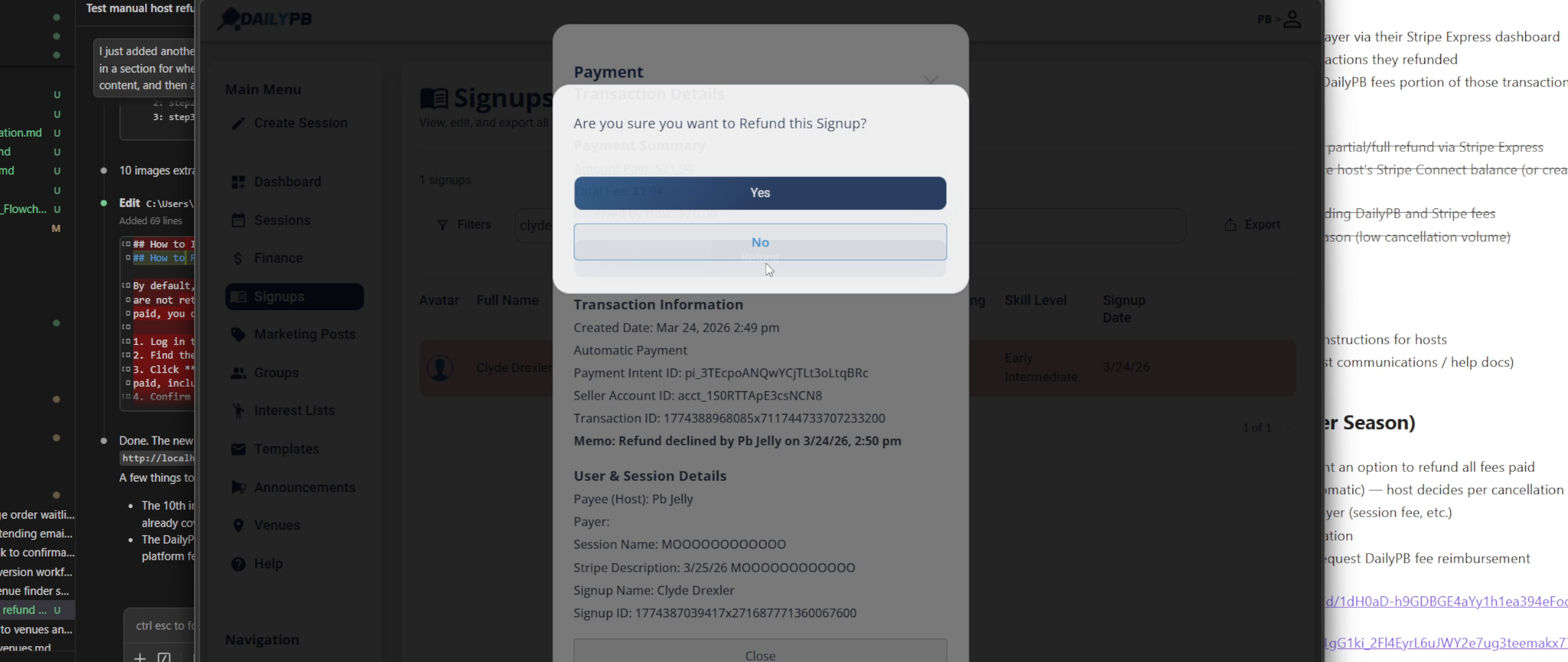
Click Yes to confirm the refund.
How to Issue a Refund After a Session Was Deleted
How do I refund someone after I deleted the session? How do I refund a player when the session no longer exists? Where do refunds for deleted sessions live? How do I find a transaction from a deleted session? Can I still refund after deleting a session? Why don't I see my deleted session? How do I set the date range to find a deleted session? Where is the Deleted Sessions checkbox?
Even after a session is deleted, its transactions are still reachable from the Financial Dashboard so you can refund a player.
1 Open the Financial Dashboard
Go to your Financial Dashboard.
2 Set the Date Range
Set the date range to include the start date of the deleted session you're looking for. Deleted sessions only appear once the date range covers when they were scheduled.
3 Check the "Deleted Sessions" Box
Check the Deleted Sessions box to show transactions from deleted sessions in your selected date range.

4 Find the Transaction
Click anywhere on the transaction line item for the player you want to refund.
5 Refund and Confirm
Click Refund and confirm.
This video shows both scenarios, refunding removed attendees and refunding attendees from deleted sessions:
How to Refund a Player's Fees Through Stripe
How do I refund the fees too? How do I give a full refund including the processing fee? How do I refund the Stripe and DailyPB fees? How do I do a complete refund? Can I refund the whole amount the player paid, fees included? How do I refund fees for a weather cancellation?
By default, the DailyPB refund returns only the session fee. The Stripe processing fee and DailyPB platform fee are not included. Players agree to this when they sign up.
If you cancelled the session for reasons outside the player's control (like bad weather), you may want to also refund the fees. This requires a second step through your Stripe dashboard.
The DailyPB refund handles automated actions (emails, session updates, and record keeping). The Stripe step below is a supplement only. Do not skip the DailyPB refund.
Understanding the Fees
Every transaction includes two fees on top of the session price. You can see the exact amounts by clicking the ⓘ icon next to the price on the session page.
| Example | |
|---|---|
| Player paid (total) | $21.94 |
| You received (session fee) | $20.00 |
| DailyPB platform fee | $1.00 |
| Stripe processing fee | $0.94 |
When DailyPB issues the standard refund, the player gets back $20.00. To refund the remaining $1.94 in fees, use the steps below.
The Full Workflow
- Issue the refund inside DailyPB first, returns the session fee and handles all automated actions.
- Use Stripe to refund the fees, returns the Stripe and/or DailyPB fee to the player (steps below).
- Request reimbursement for the DailyPB fee, email refunds@dailypb.com and we'll credit it back.
1 Go to Your Dashboard
Log in to DailyPB and go to your Dashboard.
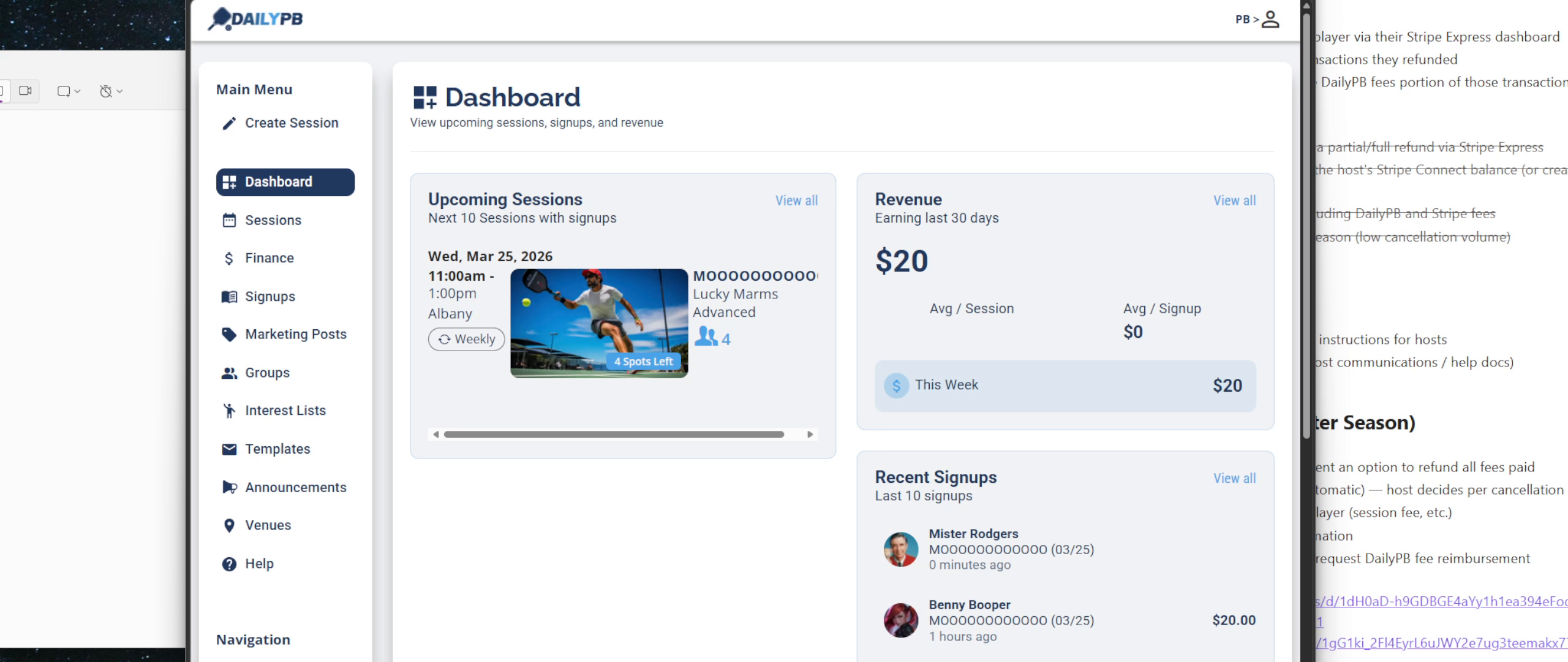
2 Open Your Profile Menu
In the top-right corner, click your profile icon (your initials). Click Monetization from the menu.
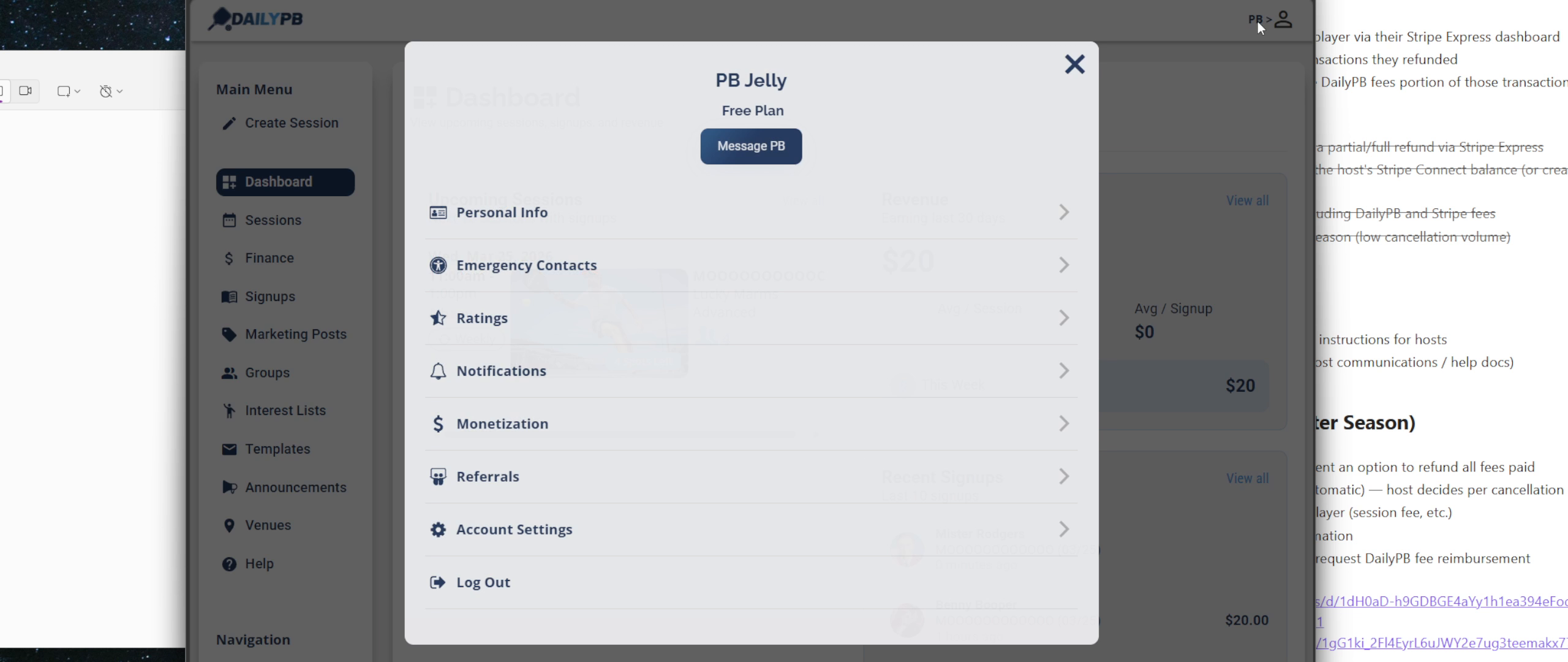
Click your profile icon, then select Monetization.
3 Expand Automatic Payments
Click Automatic Payments to expand it.
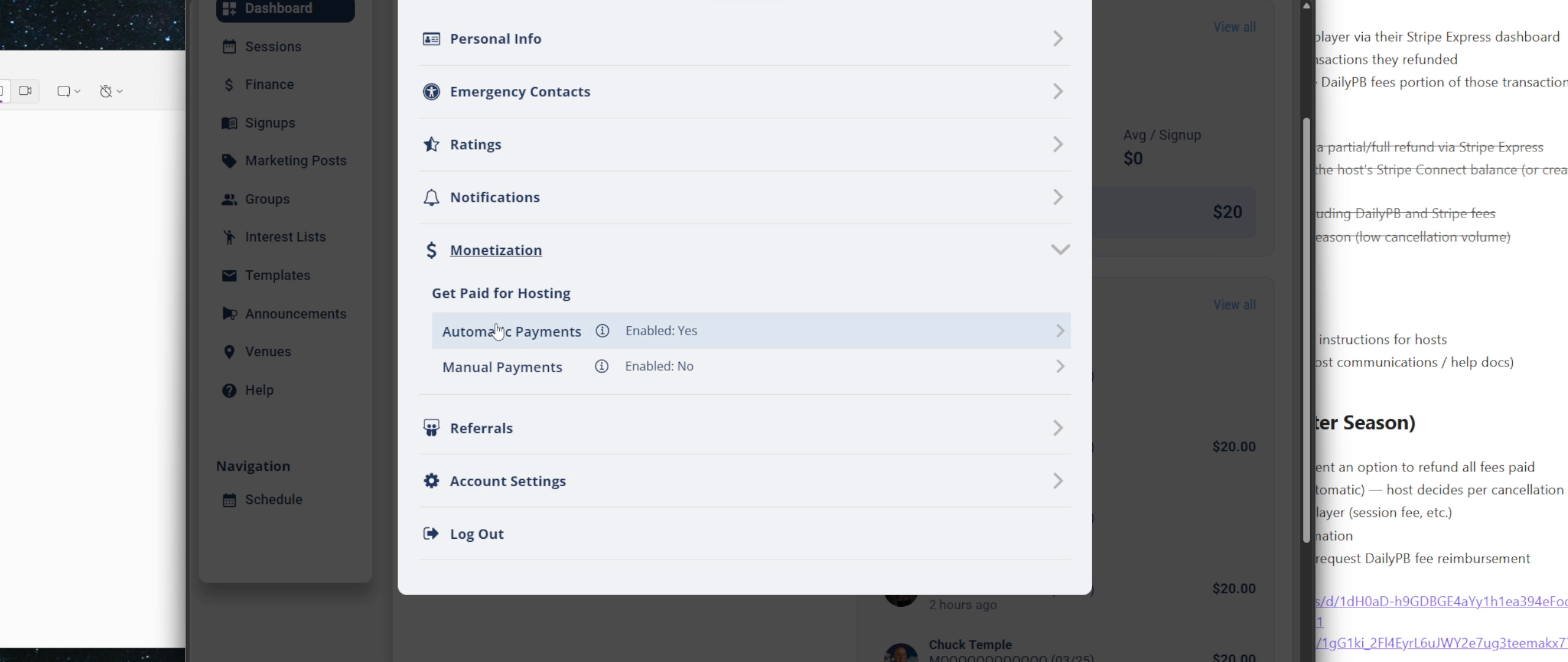
4 Click "Stripe Account Dashboard"
Click the Stripe Account Dashboard button to open Stripe in a new tab.
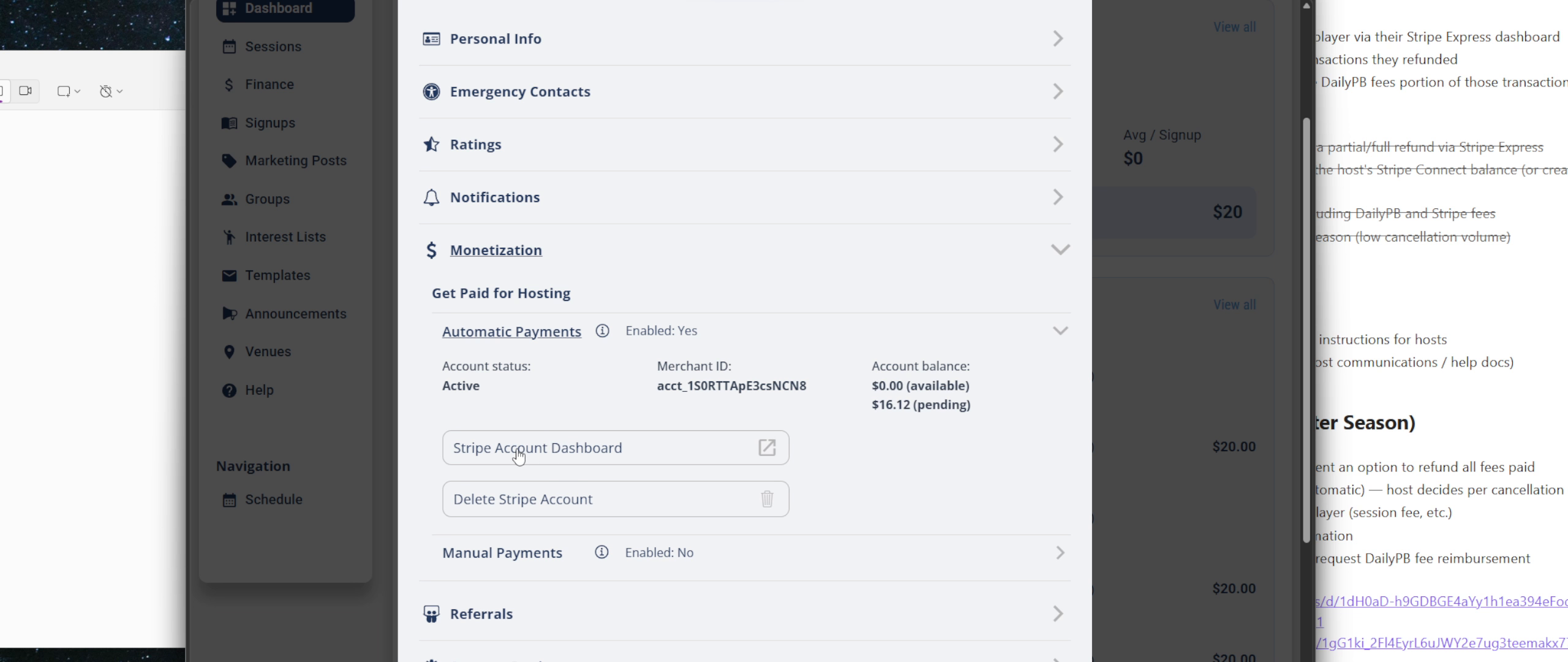
Click Stripe Account Dashboard to open your Stripe Express account.
5 Find the Payment
In your Stripe Express Dashboard, find the payment in the Recent Payments list and click on it.
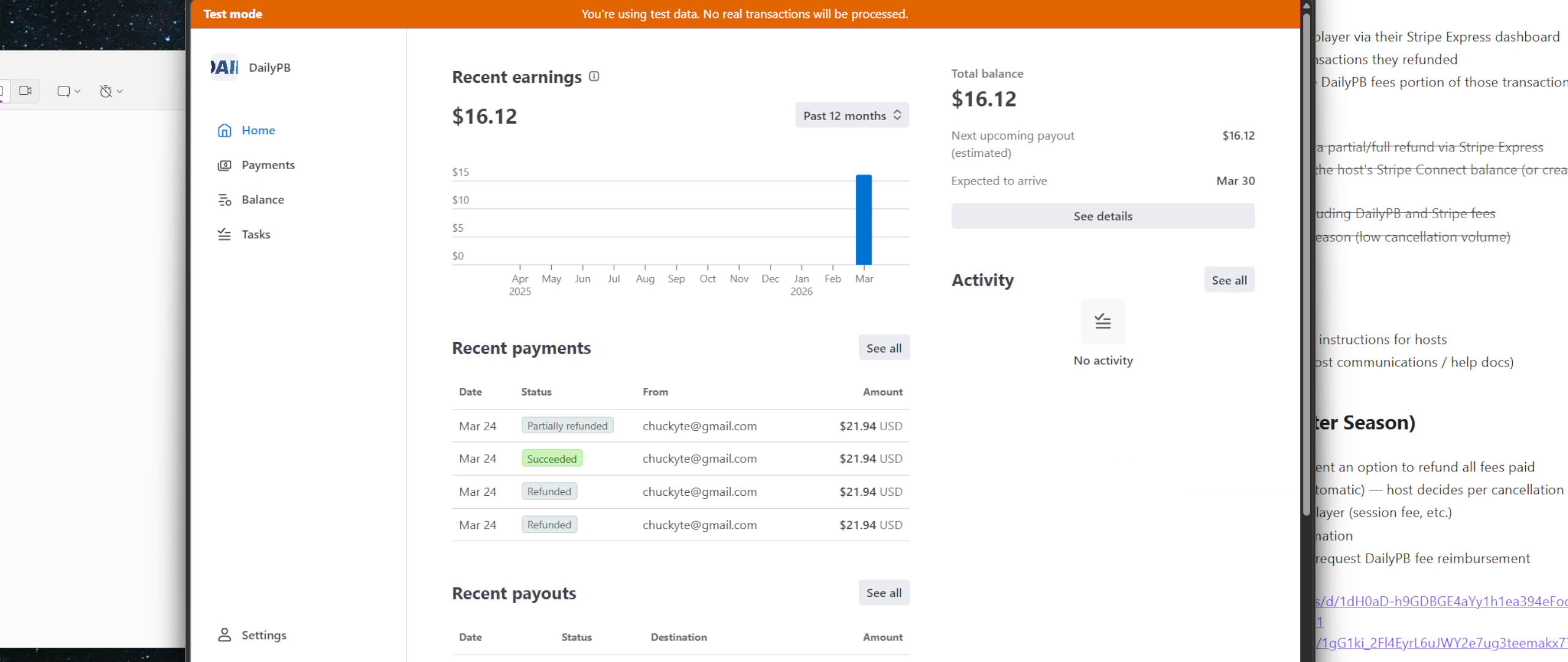
Find the payment in the Recent Payments list. Status badges: Succeeded = no refund yet, Partially refunded = DailyPB refund already issued, Refunded = fully returned.
6 Click "Begin Refund"
The payment detail panel shows the full breakdown. Click the Begin refund button.
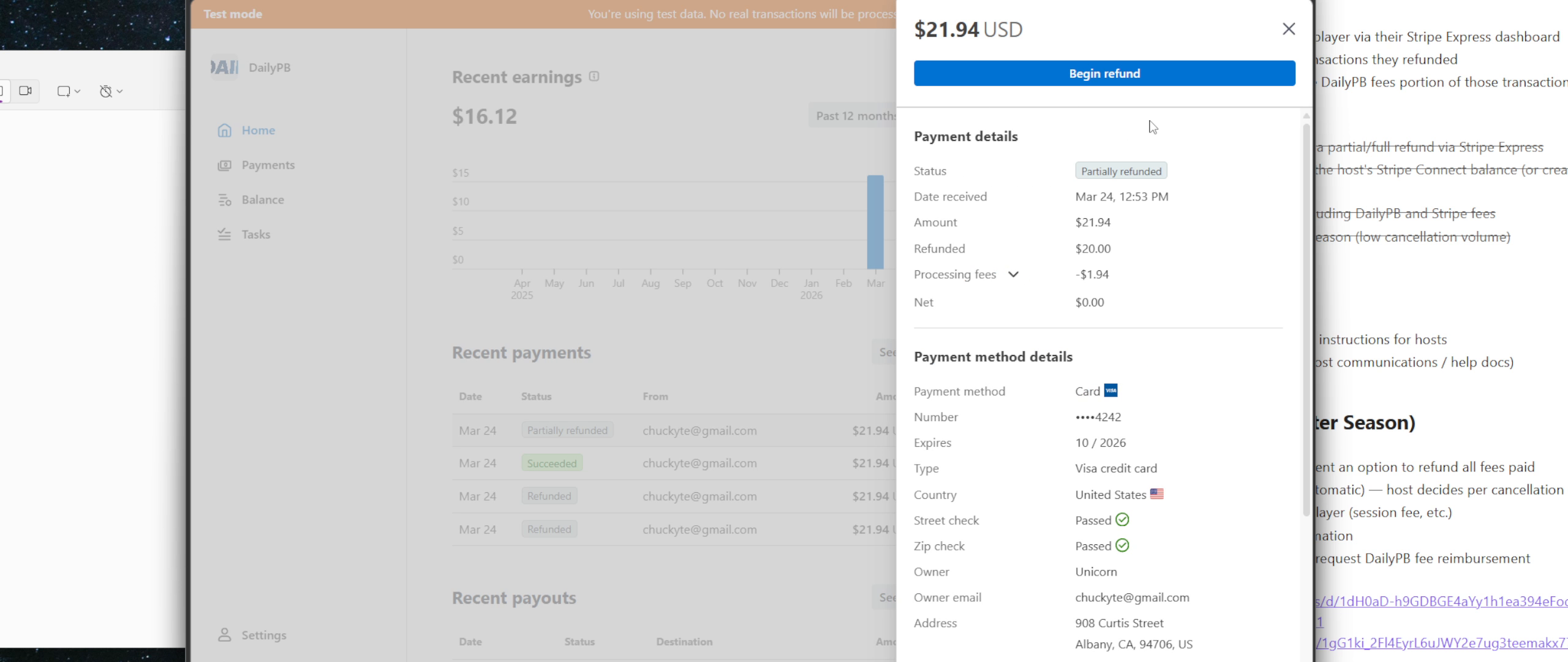
The payment detail panel: click Begin refund to proceed.
7 Enter the Fee Amount
In the Send refund panel, enter the fee amount you want to return. Check the ⓘ pricing info on the session page for exact amounts. Select a Reason from the dropdown, then click Refund.
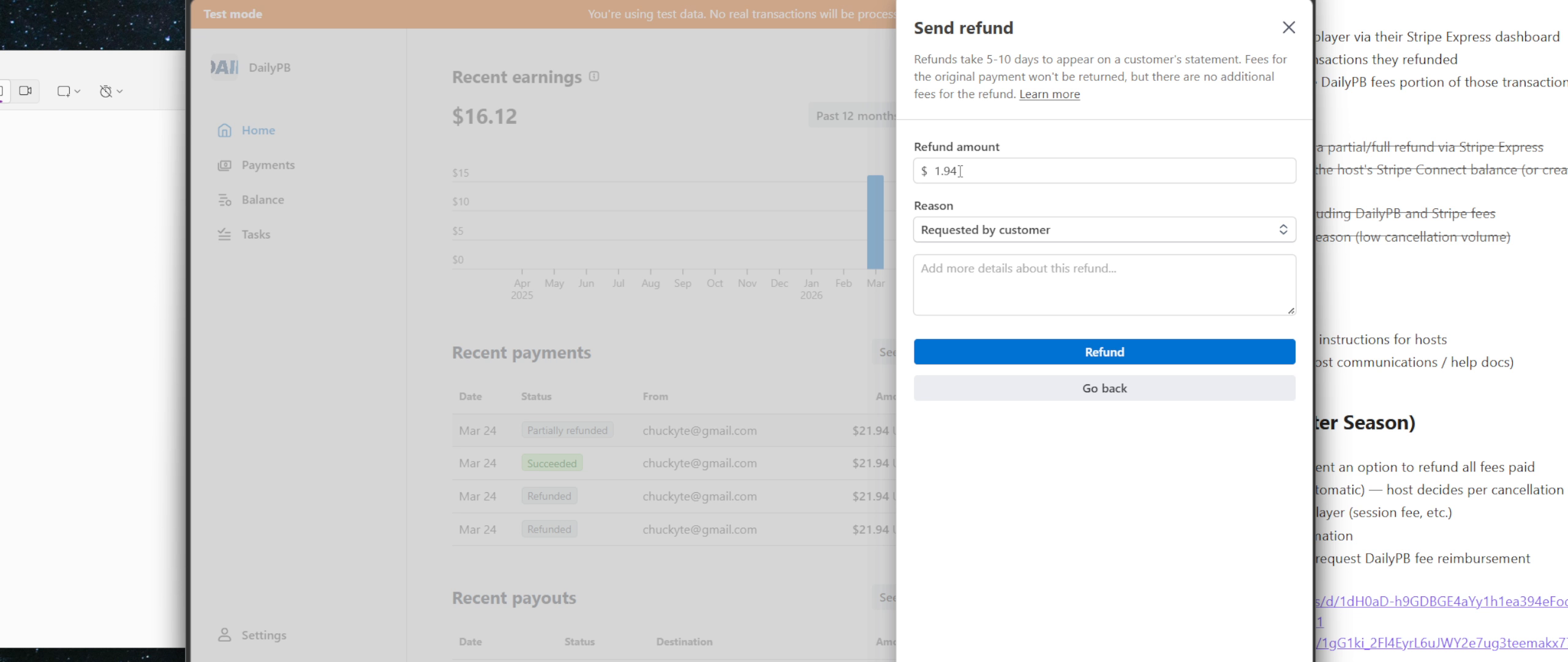
Enter the fee amount and select a reason, then click Refund.
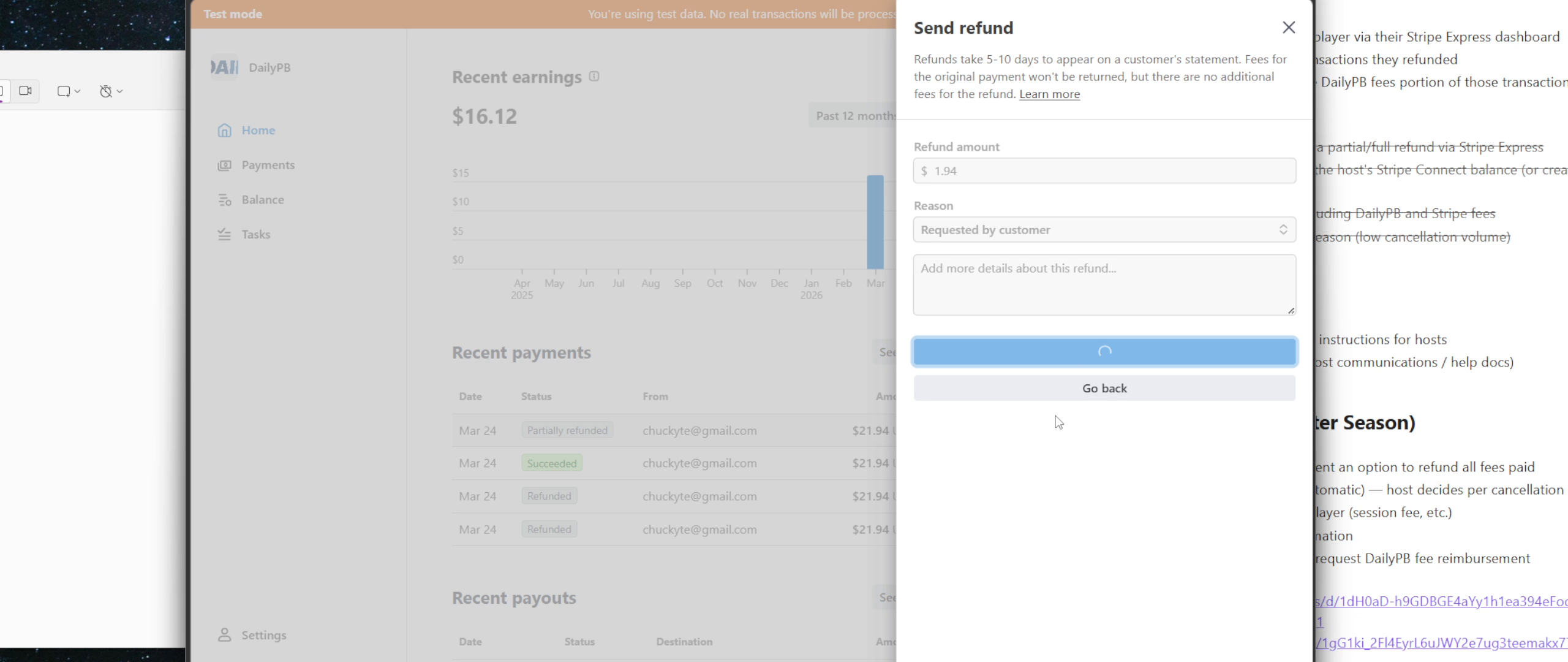
8 Wait While It Processes
The button will show a loading spinner briefly. Don't close the window.
9 Confirm the Refunded Status
Once complete, the payment will show Refunded if you returned all remaining fees.
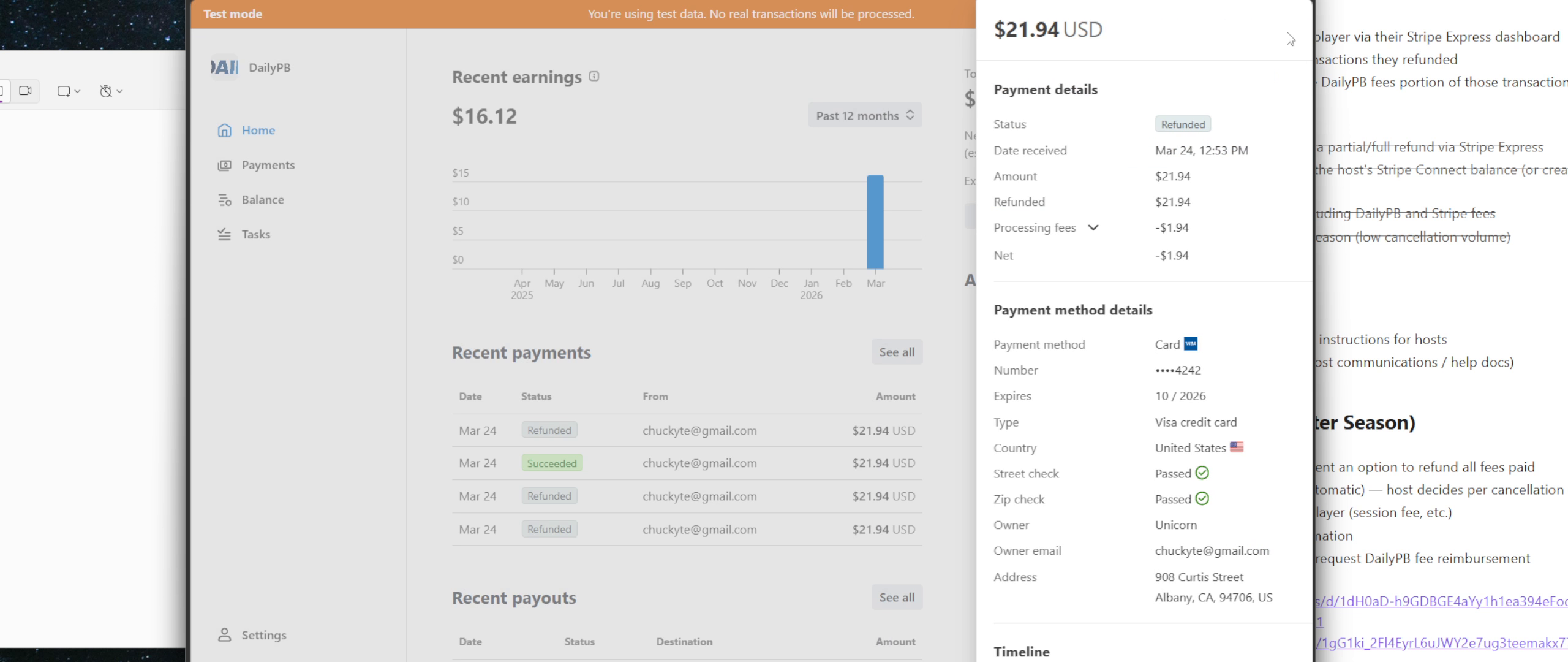
The payment now shows Refunded. The player has received their full payment back.
If you refunded the DailyPB platform fee to the player, email refunds@dailypb.com with a list of the transactions and we'll credit that amount back to your account. Note: the Stripe processing fee is not reimbursable.
What Happens to Payments When You Cancel a Session?
How do refunds work when I cancel a session? If I cancel a session, do players get their money back automatically? Do I have to refund players when I cancel my session? Are refunds automatic when a session is cancelled? I cancelled my session, how do I give everyone their money back? Does cancelling a session refund the players? Do players get refunded when the host cancels a session?
Cancelling a session does not refund anyone automatically. Cancelling keeps the session and its signups (and their payments) intact — you issue the refunds manually.
- Cancel the session — see Cancelling a Session.
- Refund each paid player using the normal flow: open the session, click View Attendees, expand the player's row, and click Refund. Full steps in Refund a Current Attendee.
- Optionally return the fees too. If you cancelled for reasons outside the players' control (like weather), you may also want to refund the Stripe and DailyPB fees — see How to Refund a Player's Fees Through Stripe.
This section is about the host cancelling the whole session. When an individual player cancels their own signup before the Refund Deadline, that refund is processed automatically (see the FAQ below).
FAQ
Can I undo a refund? Does refunding remove the player from the session? Will the player get an email about the refund? Why don't I see a Refund button? Do I have to refund manually when someone cancels? Can I turn off the automatic refund and keep the payment?
Can I undo a refund once it's been issued? Once confirmed, a refund cannot be reversed in DailyPB. You would need to ask the player to sign up and pay again.
Will the player receive a notification? Yes, both you and the player will receive an email when a refund is issued through DailyPB. For fee refunds processed directly through Stripe, the player will receive a notification from Stripe.
Does issuing a refund remove the player from the session? No. Issuing a refund changes the player's payment status but they remain on the attendee list. If you also want to remove them, use the Delete button in their Actions panel.
What if I don't see a "Refund" button for the player? The Refund button only appears for players with a Paid status. If the player hasn't paid yet, this option won't be visible.
Do I need to manually process refunds when a player cancels? Not if they cancel before the Refund Deadline; those are processed automatically. You only need to act manually if the player canceled after the deadline, or if you want to issue a full-fee refund.
Can I keep a player's payment instead of refunding it? Yes, you have full control over refunds in both directions. When you remove a paid player, the Remove Player screen lets you turn off the automatic refund so the payment stays put (handy when you're moving them to another session: keep the payment, then Mark as Paid on the new one instead of refunding and recharging). The Refund Deadline only sets the suggested default; you can refund a player who'd get nothing automatically, or keep the payment of a player who'd otherwise be refunded.