Manual Payments
Manual Payments lets you collect money yourself using the methods you and your players already use: Venmo, CashApp, Zelle, PayPal, or cash. DailyPB doesn't process the payment; it just tracks who has paid, so you and your players always know where things stand. You get instant access to your funds and a lower fee than Automatic Payments.
Why use Manual Payments?
Why use Manual Payments? What are the benefits of Manual Payments? Can I collect with Venmo or Zelle? Do I need a Stripe account? Why are Manual Payment fees lower? Can I use cash? Do I get paid instantly?
- Instant payouts: you receive payments directly from players the moment they pay you.
- Lower fees: Manual Payments cost 5% per signup (minimum $1), versus 2.9% + $0.30 (Stripe) plus 5% (DailyPB) with Automatic Payments.
- No Stripe account required: perfect if you'd rather not set up Stripe.
- Full Pro feature access: reminders, text messaging, rosters, round robins, interest lists, and more all work with Manual Payments. (Available features may change.)
- Easy tracking: mark players as paid right inside DailyPB so everyone knows who's settled up.
- Reach unpaid players: bulk-message everyone who hasn't paid yet to remind them.
How does DailyPB collect the Manual Payment fee?
How does DailyPB collect the manual payment fee? Who pays the manual payment fee? When am I charged the manual payment fee? How is the manual fee billed? Is the manual fee included in the player's price? When does DailyPB charge my card for manual payment fees?
The DailyPB service fee is already included in the price players see before they sign up. You collect the full payment directly from players using your chosen methods (Venmo, PayPal, cash, etc.). DailyPB tracks the signups and charges the card you have on file at the end of each month for the total accumulated fees.
How to set up Manual Payments
How do I set up Manual Payments? How do I enable Manual Payments? Where do I add a payment method? How do I save my Venmo or Zelle ID? Where is Monetization? How do I turn on Manual Payments?
You need a payment method on file with DailyPB to use Manual Payments. This is the card that's charged for the monthly fees (5% of your Event Fee per signup, $1 minimum).
1 Open Monetization in your Profile
Click your name in the top-right corner to open your profile, then click Monetization.
2 Choose Manual Payments
Under Get Paid for Hosting, click Manual Payments to expand it.
3 Add a payment method
At the bottom of the Manual Payments screen, click Add Payment Method to save the card DailyPB will use to charge the monthly fees. Optionally, save your alternative payment IDs (Venmo, Zelle, Cash App, PayPal) here too, and they'll auto-fill when you create future events, saving you time.
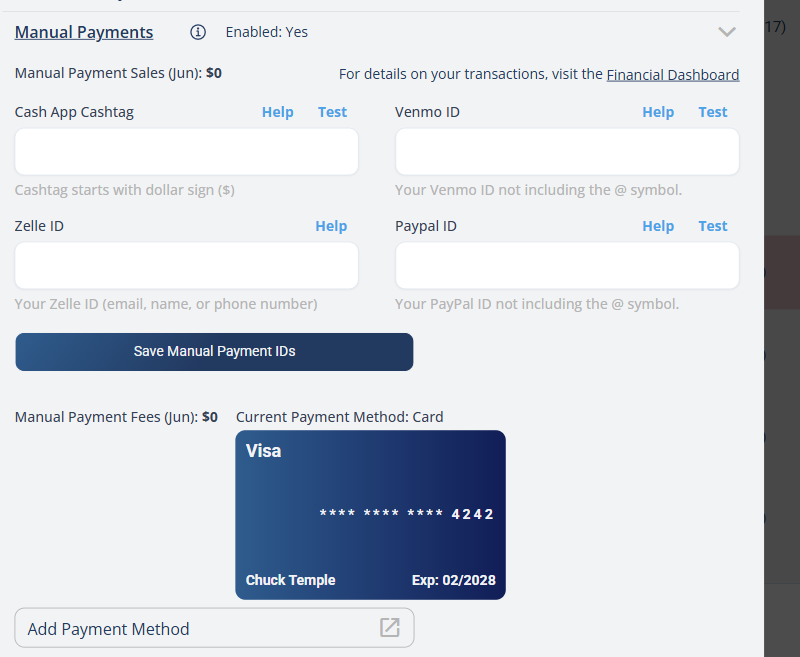
Profile → Monetization → Manual Payments: save your payout card and your alternative payment IDs here.
How players pay you
How do players pay me with Manual Payments? How do players see my Venmo or Zelle? Where do players find my payment instructions? How does a player pay for a manual session?
When players sign up, they see your preferred payment methods and instructions, and pay you directly through the platform of their choice (e.g. Venmo). Once you've received the payment, you mark them as Paid in DailyPB.
How to manually mark players as paid
How do I mark a player as paid? What is Mark as Paid? Where is the Mark as Paid button? How do I track who has paid? How do I show a player has paid? How do I confirm payment? How do I manually mark a player paid? Does marking paid email the player? How do I tell if a player is marked paid? How do I undo marking a player paid?
Once a player has paid you (through Venmo, Zelle, cash, etc.), mark them as paid in DailyPB so you both have a record.
1 Open the session and click "View Attendees"
Open the session and click View Attendees to see everyone signed up.
2 Open the player's Actions menu
Find the player and click the down arrow (▼) next to their name to expand their row and open the Actions menu.
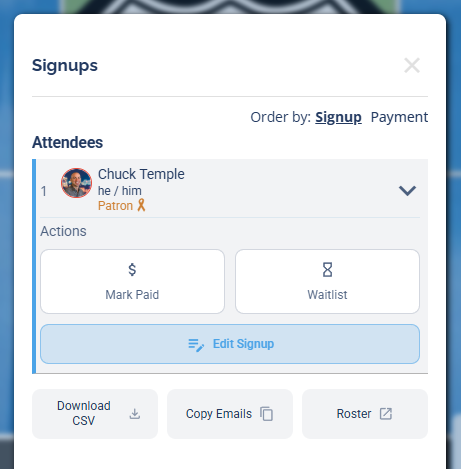
Expand the player's row to reveal the Mark Paid button.
3 Click "Mark Paid"
In the Actions menu, click Mark Paid.
4 Confirm, and choose whether to email the player
A Mark player as paid? box appears. It explains that this will display a public Paid label next to their name and, if you leave Email Notification checked, email the player (and CC the hosts) about the new payment status. Uncheck Email Notification if you'd rather not notify them, then click Confirm Paid.
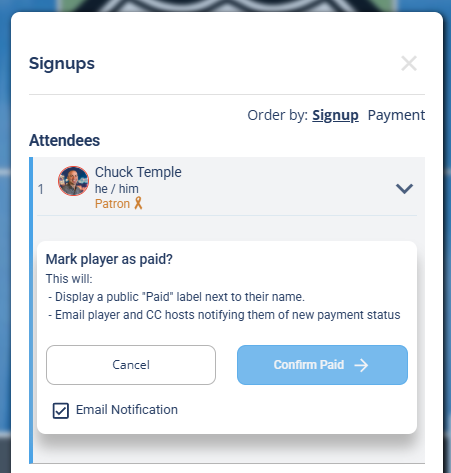
Confirm the player is paid. Keep Email Notification checked to email them, or uncheck it to mark them paid quietly.
5 Verify they're marked paid
The player now shows a Paid label next to their name, and their action changes to Mark Unpaid (so you can reverse it if needed). That's how you know it worked.
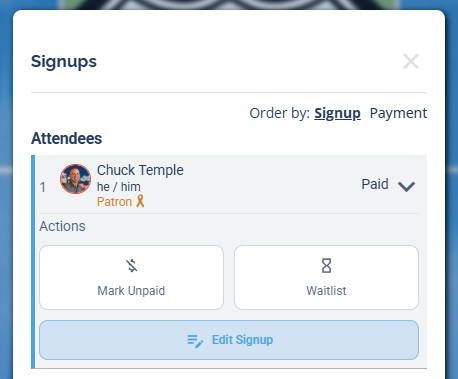
A Paid label by their name and a Mark Unpaid action confirm the player is marked paid.
DailyPB reminds players to pay when they sign up. You can also message unpaid players yourself from the attendees screen, where there's an option to text all "unpaids" at once. Use the player list to see each person's payment status at a glance.
Fees for Manual Payments
What are the fees for Manual Payments? How much does Manual Payments cost? What's the minimum fee? When is the fee charged? How is the manual fee calculated? Does cancelling avoid the fee?
The Main Host is assessed the DailyPB fee based on the number of attendees in the session at the time the session starts. Marking attendees as paid or unpaid has no effect on the fee.
- 5% of the Event Fee per signup, with a $1 minimum per signup.
- End-of-month billing: fees are charged at month's end if your total balance exceeds $10. Keep a payment method on file to handle these.
- Session cancelled or deleted before it starts: no fees apply.
- Player cancels before the session starts: they're not counted in the fee calculation.
You can review your fees in two places: the Finance tab in your host console, or your profile under Manual Payments, which shows your total fees for the month.
Things to keep in mind
What are the downsides of Manual Payments? What should I consider before using Manual Payments? Do players always pay on time? Can I switch back to Automatic Payments? What if someone doesn't pay?
- Manual tracking takes effort: you (or another host) mark each player paid, which is more hands-on than Automatic Payments.
- Players may forget to pay after signing up, so occasional reminders help.
- Make sure players are comfortable with the payment options you offer.
Common questions
Can I switch between Manual and Automatic Payments? Yes, switch anytime by editing your session's payment settings.
What happens if someone doesn't pay? Follow up using DailyPB's messaging feature. If they still don't pay, you can cancel their registration. If you cancel before the session starts, you won't be charged the fee for that signup.
Is there a limit on payment methods I can use? No, add any combination of Venmo, CashApp, Zelle, PayPal, and cash so players have flexibility.
Also see: How to Add Alternative Payment Methods to a Session · Manual vs Automatic Payments