Changing the Time or Date of a Session
How do I change the time of my session? How do I move my session to a different day? How do I reschedule a session? How do I update the date of an event? Can I change the start and end time? How do I push a session to a later time? How do I reschedule and notify everyone who signed up? Can I change the time instead of cancelling and remaking the event?
If a session gets rained out, change its time or date and notify your players instead of cancelling and rebuilding it. This keeps all your Signups intact. (Shoutout to Katya for this idea.)
How to Change a Session's Time or Date
How do I change the time of my session? How do I move a session to a new day? How do I edit a session's start and end time? How do I reschedule a session? Where is the Change Time button? How do I change the time for just one session or for the whole recurring series? How do I update all future session times? How do I change the time for every recurring session at once? How do I reschedule my whole weekly series? How do I update all upcoming sessions in one step? How do I change the start or end time for all future sessions in my event?
1 Open the Change Time tool
Open the Session, scroll down to Tools, and click Change Time.
2 Update the Start and End Time
In the Edit Session window, update the Start Time and End Time. Each has its own date, so you can change the date here too, not just the time. If you leave Until Sunset checked, the session ends at sunset and the End Time's time field is hidden.
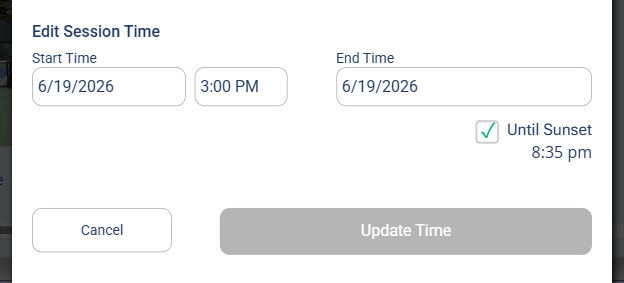
The Edit Session window. With Until Sunset checked, the End Time shows only a date.
3 For a recurring series, choose how far the change applies
As soon as you change a time or date on a session that's part of a recurring series, an Apply changes to choice appears with two options:
- This session (the default) changes only the session you opened. The rest of the series keeps its original time.
- This and following sessions changes this session and every future session in the series to the new time.
If it's a one-off session (not part of a series), this choice doesn't appear.
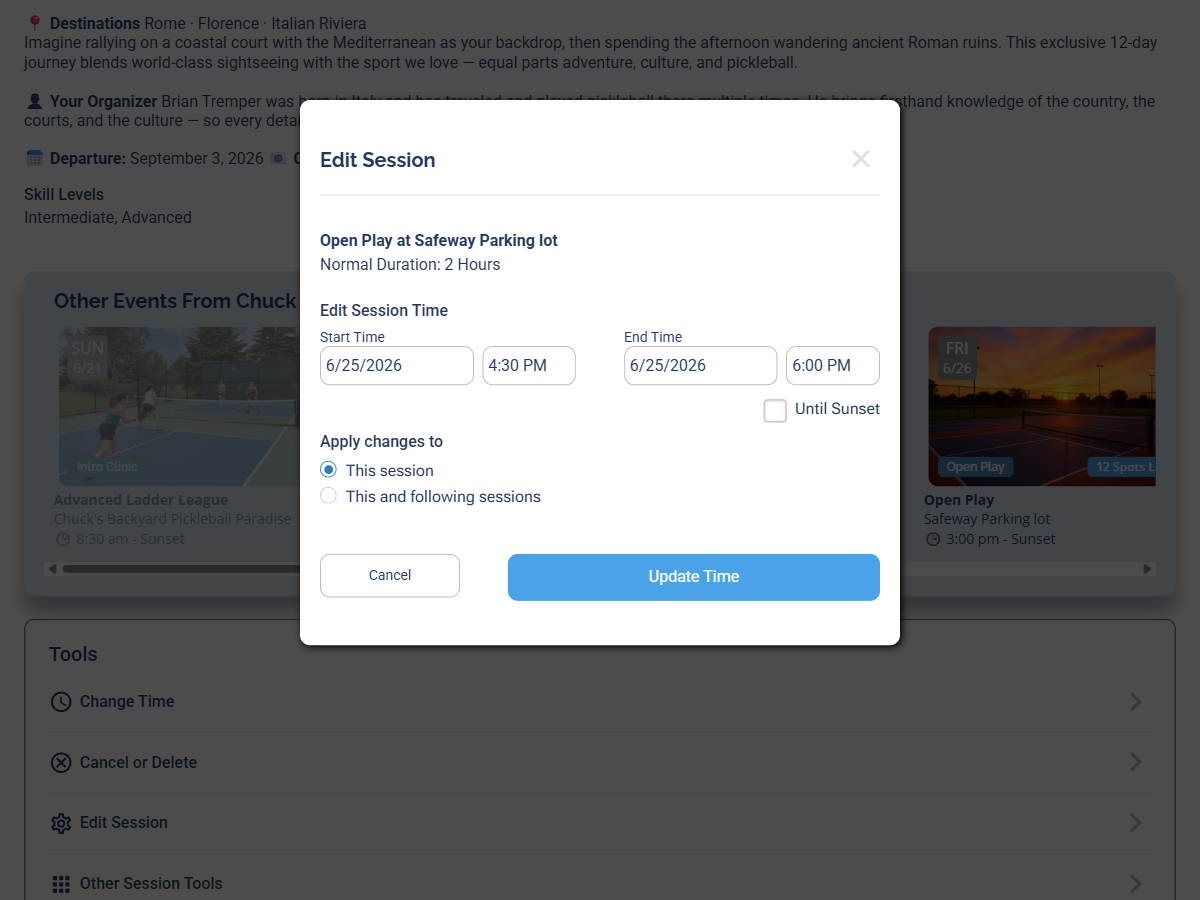
The Apply changes to choice appears after you change a time or date on a recurring session.
If you pick This and following sessions, a few more controls appear so you can confirm the change:
- Apply changes to recurring days shows a row of day buttons (Mon through Sun). The days your series already runs on are highlighted and selected; the other days stay greyed out. Leave the highlighted days selected to update every one, or click a day to remove it from the change.
- A summary line and a Start Time / End Time confirm exactly what's about to happen, for example: "Updating all (Friday, Thursday) sessions from 4:30 pm - 6:00 pm, starting June 25, 2026."
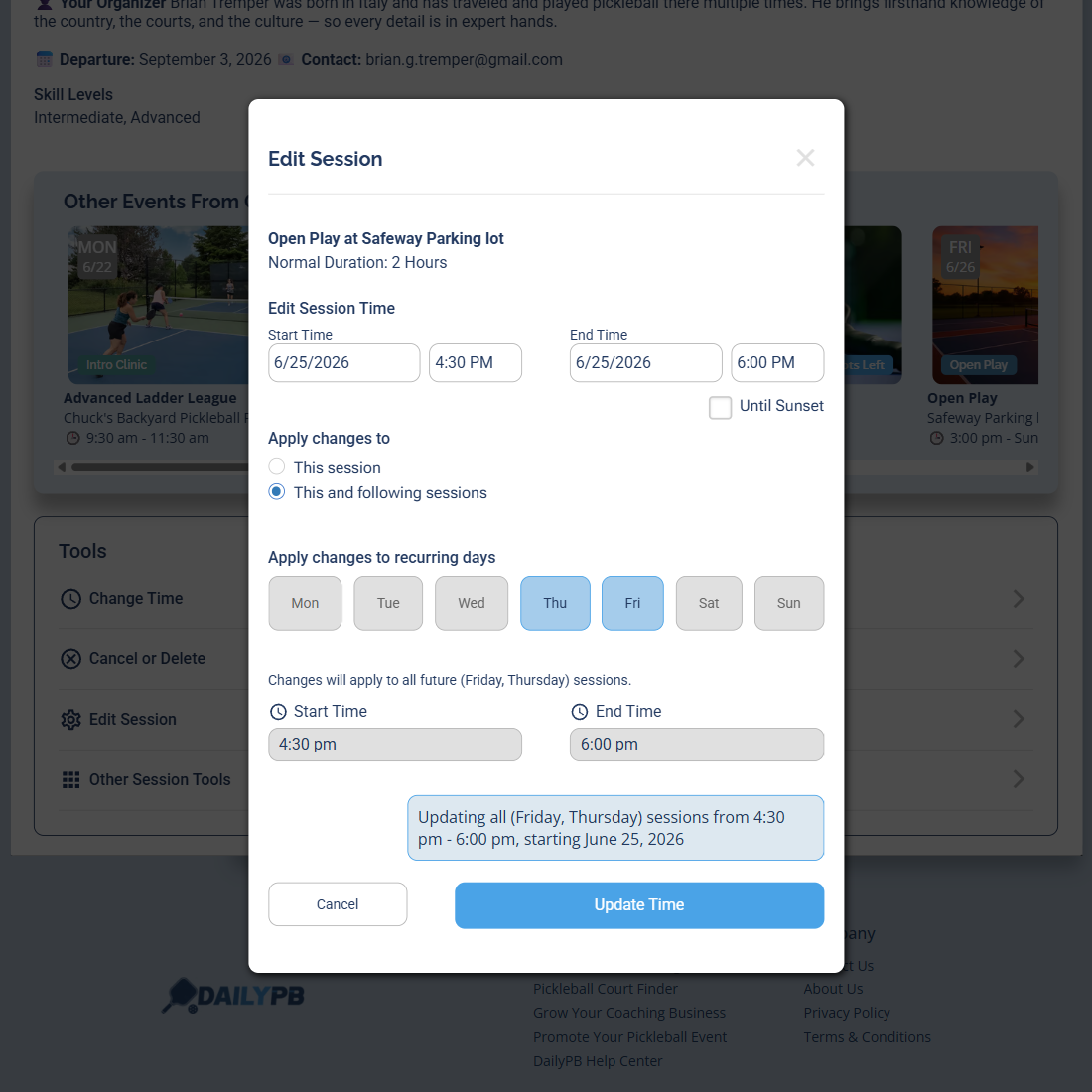
Picking This and following sessions reveals the recurring-day buttons and a summary of the change.
If the new time overlaps another of your sessions, a Potential Overlap Issue notice appears with a Show Overlap button so you can check the conflict before saving.
4 Choose whether to notify your players
If the session has players signed up, a checkbox appears letting you email them about the change. No signups means no checkbox, since there's no one to notify.
If you chose This and following sessions in step 3, the notify email goes only to the signups on this session. Players signed up for the future sessions in the series are not emailed about the time change.
5 Click "Update Time"
When you're done, click Update Time to save. The change applies based on the Apply changes to option you picked in step 3.
Any 2 and 24 hour reminders and any Pre or Post email templates attached to the Session are automatically rescheduled to match the new time. You don't need to redo them.
To move every future session in a recurring Event to a new time, you don't need a separate tool. Just open any session in the series, change the time, and choose This and following sessions before clicking Update Time.