Team Event Host Tools
Once your Team Event is live, the Host Tools tab gives you a host-only control panel for the whole event: a Teams Overview table to see every team at a glance, communication tools to download the roster and copy emails, and buttons to launch Fixed Partner Round Robin or Flex Play. This guide covers each section. For creating a Team Event in the first place, see Team Events.
How to open Host Tools
How do I open Host Tools for a team event? Where are the team event host tools? Where do I manage teams as a host? How do I see all the teams in my team event? Where is the Host Tools tab? How do I get to the team overview? I'm the host of a team event, where do I manage it?
Open your Team Event, then click Join or Create Team on the session page. In the Teams window that opens, click the Host Tools tab. This tab only appears if you're a host of the session.
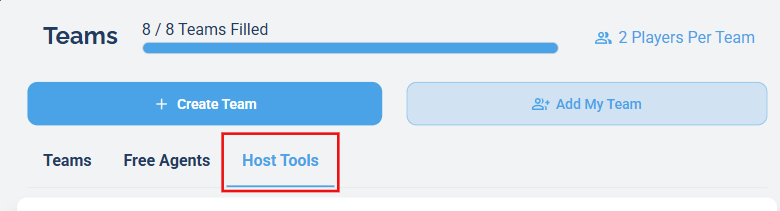
Click the Host Tools tab inside the Teams window.
Reading the Teams Overview
What is the Teams Overview? How do I see all my teams at once? How do I know which team is missing a player? What does it mean when a team is highlighted red in a team event? Which teams need more players? How do I see how many players are on each team? What does the Requests column mean? What does the Waitlist column mean? How do I jump to a specific team? Why is a team red?
The Teams Overview table is the top section of Host Tools. Each row is one team, with columns showing the team's Name, number of Captains, number Playing (in the active lineup), number on the Bench, number of pending join Requests, whether the team is on the Waitlist, and an Email Captains icon. It gives you a full picture of your event in one place: who's full, who still needs a player, and who's waiting.
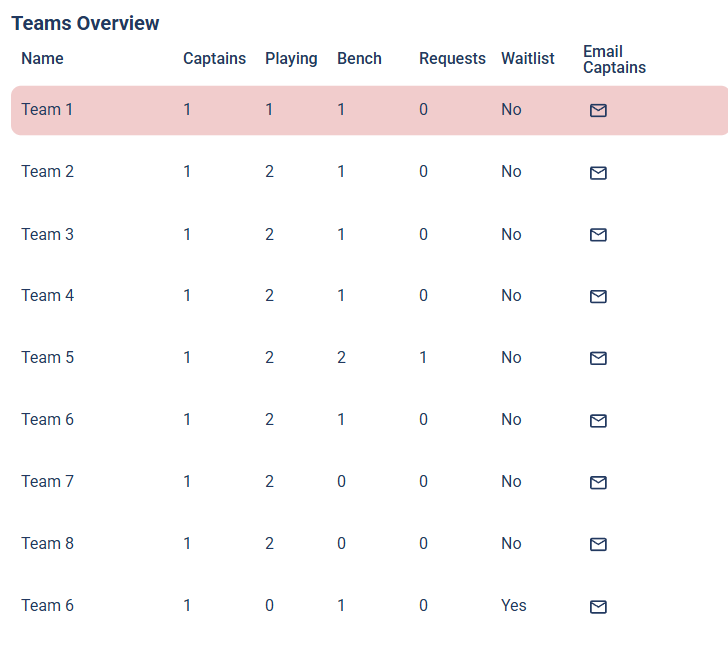
A team highlighted in red doesn't have enough active players yet.
If a team has fewer active (playing) players than your Players per team setting requires, its row is highlighted in red. This makes it easy to scan the table and spot exactly which teams still need someone in the lineup.
Click any team's row to jump directly to that team's card on the Teams tab, where you can move a benched player into the lineup. When a red team has enough active players again, its row is no longer red.
Click the envelope icon in a team's Email Captains column to copy that team's captain email address to your clipboard, ready to paste into a new email.
Downloading the roster CSV
How do I download the team event roster? How do I export all players in a team event? Can I get a spreadsheet of everyone signed up? How do I download a CSV of my teams? What's in the team event CSV? Does the export include free agents? How do I get everyone's phone number and email for a team event? How do I get DUPR IDs for my team event?
In the Communication section, click Download CSV to download a spreadsheet of everyone in the event, one row per player.
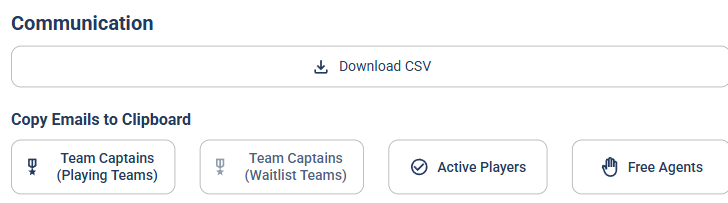
Download the full roster as a CSV, or copy a specific group's emails.
The CSV has one column for each of these fields: Name, Email, Phone, Team, Team Role (Captain or Member), Invited By, Rating, Skill Level (Rec), Competitive Category, DUPR ID, and Free Agent. Any field a player didn't fill in is left blank. It includes every active player on every team plus any free agents, so it's your one download for everyone who's actually playing.
Copying emails to clipboard
How do I copy team captain emails? How do I email all my team captains at once? How do I copy every player's email in a team event? How do I email free agents? How do I get the emails for waitlisted teams? How do I copy active player emails for a team event? Where do I copy emails to clipboard for teams?
Below Download CSV, the Copy Emails to Clipboard buttons each copy a specific group's email addresses to your clipboard, so you can paste them straight into an email. There are four:
- Team Captains (Playing Teams) copies the captains of every team that's in the event.
- Team Captains (Waitlist Teams) copies the captains of teams currently on the waitlist.
- Active Players copies every player who's in an active lineup.
- Free Agents copies everyone who has listed themselves as a free agent.
Use Playing Teams captains for game-day logistics, Waitlist Teams captains to let waiting teams know a spot opened up, Active Players to reach everyone who's playing, and Free Agents when you're trying to fill open spots.
Launching Fixed Partner Round Robin or Flex Play
How do I run a fixed partner round robin for a team event? How do I start Flex Play for my teams? Where do I launch the fixed partner round robin from a team event? How do I record scores for a team event? What are the Tools buttons in Host Tools? How do I organize games for a team event?
The Tools section has two buttons that open a scoring app for your Team Event:
- Round Robin opens the Fixed Partner Round Robin, where you set up brackets and record game scores. (The button reads "Round Robin," but this is the fixed partner format, where each team plays as a set pair.)
- Flex Play opens the Flex Play app for flexible, on-the-fly game creation and scoring.

Launch Fixed Partner Round Robin or Flex Play for your Team Event.
Each app has its own guide: see Fixed Partner Round Robin and Flex Play for how they work.
Related guides
Where do I learn how to create a team event? How do players join a team? How do captains add teammates?
- Team Events: create a Team Event and set the number of teams, players per team, and per-team price.
- How to Create a Team and Add Yourself to a Session: the player's side of joining and getting into the lineup.
- Adding Teammates: how captains add players to their team.