How to Create a Team and Add Yourself to a Session
When you want to play in a Team Session with friends or regular partners, you create a team and add yourself to it. This guide walks you through the whole process, from creating the team to getting yourself registered to play.
In a Team Session you play with pre-organized teams instead of being matched with other players. Look for the Team Event label on session cards.
How do I create a team and join a session?
How do I create a team? How do I make a team for a team session? How do I start a team in DailyPB? How do I add myself to a team session? How do I join a team event? How do I create a team and add myself? How do I sign up for a team session? How do I become a team captain? How do I join my team after creating it? Why does joining a team ask for my DUPR ID, rating, or skill level? What is Competitive Gender Category? How do I add myself from the bench to the active lineup? What is the Add to Session button? What is the Additional Info screen and what does the host see? How do I bring back a team from a previous session? What does Add My Team do?
Creating a team is a few quick steps: create it, join it, then move yourself into the session's lineup.
If you created this team in a previous session, you don't have to build it again. In the Teams modal, click Add My Team, find your team by name, and click Add. Your team is brought in and everyone lands on the bench, ready for you to add to the session.
1 Open the Teams modal
- Open the Team Session you want to play in.
- Click the Join or Create a Team button. The Teams modal opens.
- Click the Create a Team button.
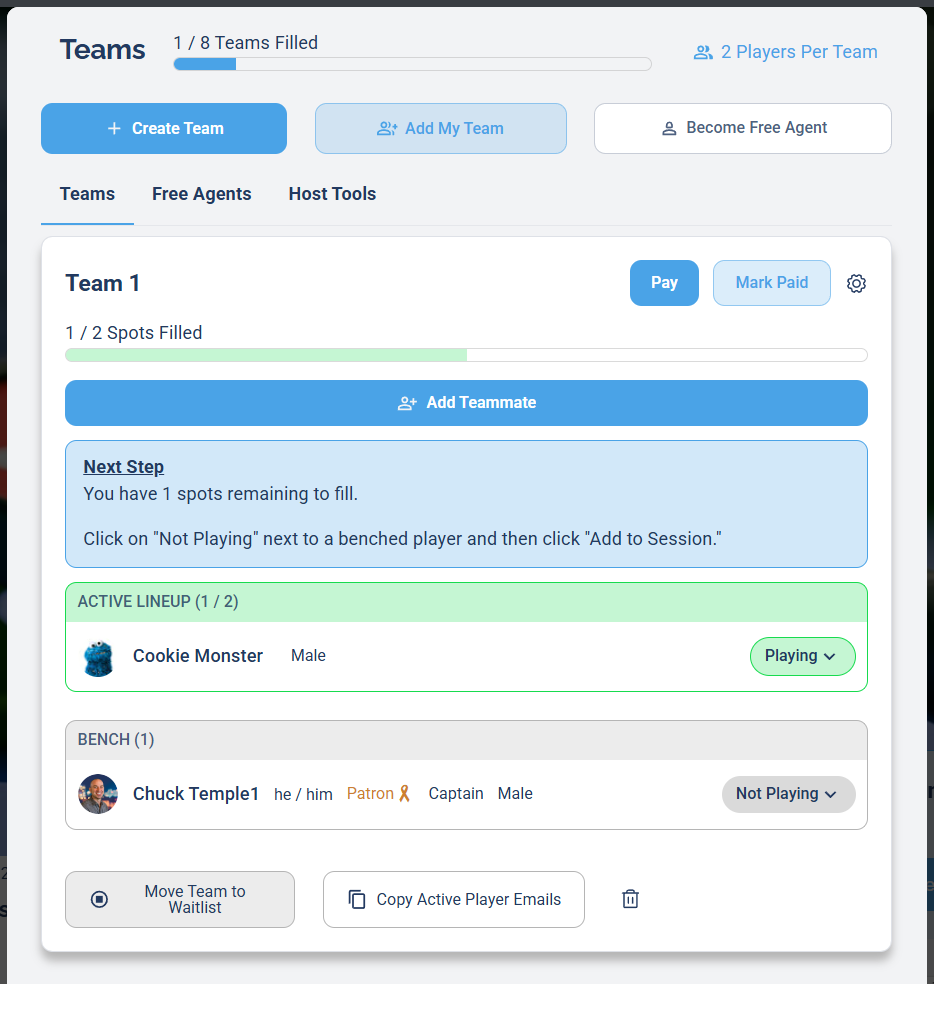
The Teams modal. Use Create a Team to start a new team, Add My Team to bring back a team from a previous session, or Become Free Agent to be matched with others.
2 Name your team
In the Create Team dialog, type a name in the Team Name field, then click Create Team.
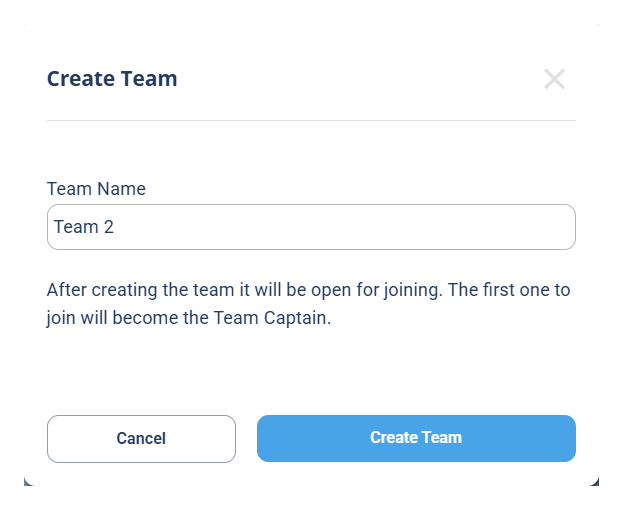
The first person to join the team becomes the Team Captain.
A team starts out empty. You must add at least one player (usually yourself) within 5 minutes, or the team is automatically removed. If that happens, you'll get an email letting you know.
3 Join your team
Creating the team doesn't put you on it. You still need to join. Find your team in the list and click Join Team.
A confirmation dialog appears. Depending on the session, you may see fields like DUPR ID, Rating, Skill Level, and a Competitive Gender Category. Some are required and some are marked Optional, so fill in what applies and click Join Team. Because you're the first to join, you become the Captain.
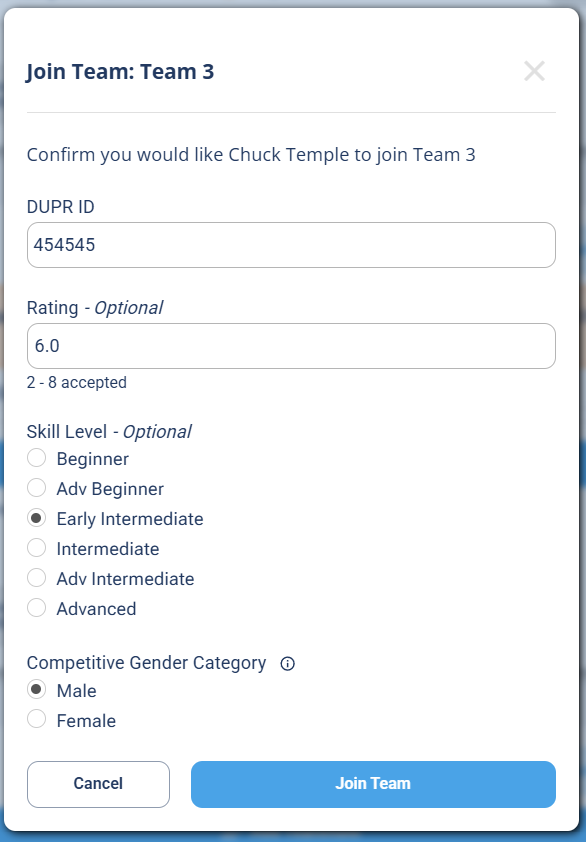
Fill in any required fields (some are optional), then click Join Team.
Once you've joined, your name appears under BENCH with a Not Playing status. You're on the team, but you're not registered to play yet.

After joining, you're on the bench with a Not Playing status. One more step to register.
4 Add yourself to the session
This is the step people miss: being on the team doesn't register you to play yet. It's a few clicks, not just one.
Click the Not Playing dropdown next to your name, then click Add to Session.
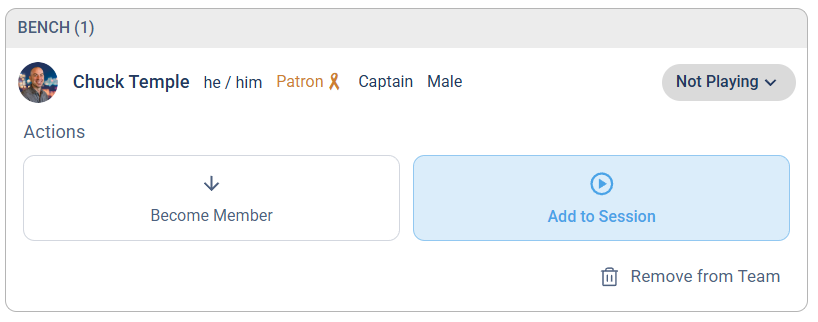
Open the Not Playing dropdown and choose Add to Session.
An Additional Info window opens. This is the information your Session Host will see, so make sure it's correct.
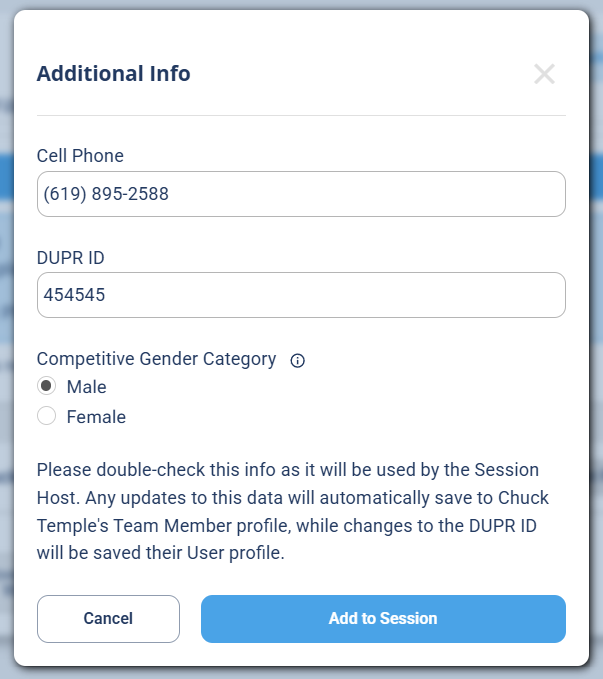
Double-check the info the host will see, then click Add to Session.
Check that everything is correct and click Add to Session. Your status changes to a green Playing, you move from BENCH to ACTIVE LINEUP, and the spots-filled counter goes up (for example, 1 / 2 Spots Filled).

You're registered: in the Active Lineup with a green Playing status.
You're registered to play when your name is in the ACTIVE LINEUP with a green Playing status and the Spots Filled counter has increased. You'll also be marked as Captain.
What happens after I create my team?
What do I do after creating a team? How do I add more players to my team? How do I fill out my team roster? Can other players join my team? How do teammates request to join my team?
Once your team exists and you've added yourself, you can fill the rest of the roster:
- Click Add Teammate to add other players (see Adding Teammates).
- Other players can find the session and request to join your team.
- Each teammate you add starts on the bench too, so remember to move them into the session with Add to Session after they join the team.
Common questions
Why did my team disappear? My team was removed, what happened? I joined the team but I'm still not playing, why? What's the difference between Bench and Active Lineup? My teammates can't find my team, what do I do? How do I register to play after creating a team? Why am I on the bench?
I created a team but it disappeared. Teams are automatically removed if no one joins within 5 minutes. After creating a team, immediately add yourself or at least one teammate. You'll get an email if the team is removed.
I joined the team but I'm not playing. Joining the team puts you on the bench. You also have to click the Not Playing dropdown and select Add to Session to register for the session.
My teammates can't find my team. Make sure they're looking at the same session. They should open the Team Session, find your team by name in the Teams tab, and join it.
What's the difference between Bench and Active Lineup? The bench holds team members who have joined the team but aren't registered for this session yet. The Active Lineup holds players actually registered to play. Always move players from the bench into the active lineup with Add to Session.