Email Templates
How do I create an email template? How do I send a custom email to players? How do I set up automated emails for my session? How do I send an email when someone signs up? What are dynamic text blocks? How do I personalize my session emails? How do I link a template to my event?
Email templates let you write custom emails and have DailyPB send them automatically at key times: when a player signs up, a set number of hours before a session starts, or after it ends.
How to create a template
How do I make an email template? How do I create a new template? Where do I write a custom email? How do I add admins to a template? How do I save a template? Where is the template editor?
1 Open Templates and start a new one
On your Host page, click Templates, then Create New Template. Give it a Template name, optionally Assign to Groups and add Admins who can edit it, then click Create Template.
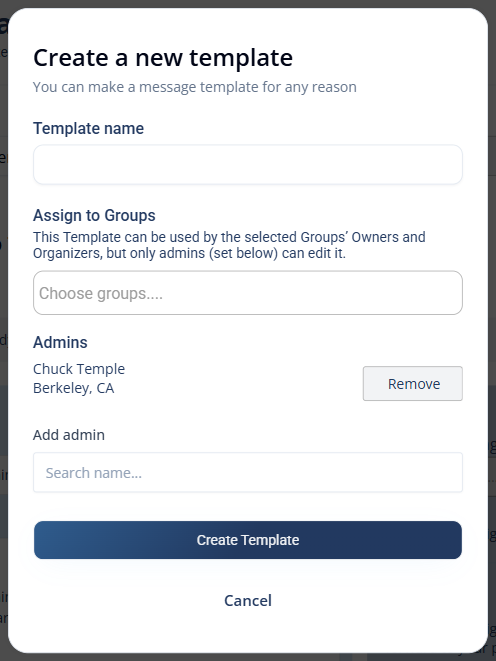
Name your template and choose who can edit it.
2 Write your subject and message
In the Edit Template area, write your Subject Line and Message Body. Click Save Template frequently as you go.
3 Preview and send a test
Use the Preview Message area to see how your email will look for a specific session and player. At the bottom you can Send Test Message to email yourself a test.
Click Click here to show dynamic text blocks to personalize emails automatically. Drop a block like [name] or [session name] into your template, and DailyPB fills it in per player and session. Watch the Preview Message area to see exactly what each recipient will get.
How to link a template to your event
How do I attach an email template to my event? How do I make my template send automatically? Where do I link a signup email to a session? How do I schedule a template to send before or after a session? Where do I set which template emails my signups?
Creating a template doesn't send it on its own — you link it to an event so DailyPB sends it automatically.
1 Open the session editor
Open the session, scroll to Tools, and click Edit Session.
2 Open the Automation section
If this is a recurring session, set the Apply changes to dropdown to This and ALL following sessions — email templates are a session-wide setting, so they apply across the series. (On a non-recurring session this dropdown doesn't appear; just continue.) Open Session-Wide Settings, click Unlock to Edit, and open Automation.
3 Choose a template for each send time
Under What templates should we use for emailing signups?, pick a template from the Template to use dropdown for any of the three send times:
- As soon as they sign up for a session — this is the signup confirmation email each player gets when they register.
- A set number of hours before a Session starts — type the number of hours into the field.
- A set number of hours after a Session ends — type the number of hours into the field.
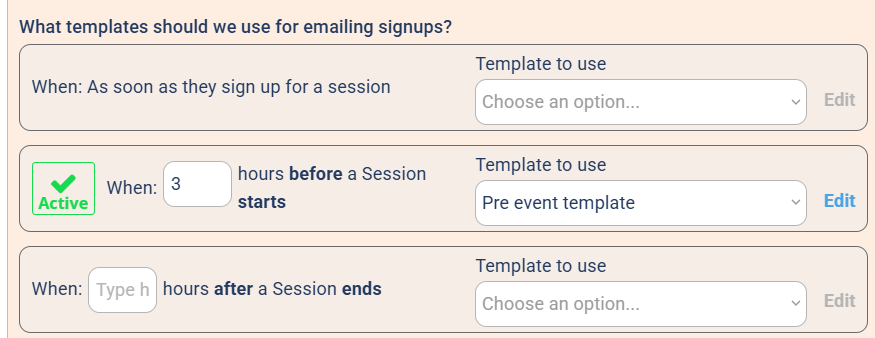
A linked, working send time shows a green Active checkmark — like the "hours before" slot here.
4 Save
Click Save Changes.
Once a send time has a template linked and everything's set correctly, a green Active checkmark appears next to it. If that checkmark doesn't show up, something is off — for example, you picked a template but didn't fill in the number of hours — and that email won't send.
Click the Edit link next to any send time to jump straight to the Templates tab on your Host dashboard with that template preloaded, ready to edit.