Clone Session
How do I clone a session? How do I clone an event? How do I duplicate a session? How do I copy a session to a new date? How do I reuse a session's setup? Can I make a copy of an event? How do I avoid building the same session from scratch?
What cloning does
What does cloning a session do? What happens when I clone a session? Does cloning copy the whole setup? Does cloning copy the signups? Where does a cloned session show up? Does cloning carry over my settings?
Cloning makes a copy of an existing session — all of its setup — so you can reuse it instead of building a new one from scratch. When you clone, you give the copy a new date and time, and it's added to the main schedule, your Host Dashboard, and any linked group.
The clone copies everything except the signups — you start the new session with an empty roster.
You can only clone an event that has a single session. Recurring events can't be cloned — to add another occurrence to a recurring event, use Add Session instead (under the session's Other Session Tools), which adds a session to the existing event.
How to clone a session
Where is the clone button? How do I start cloning a session? Where do I find Clone Session? How do I copy a single-session event? Where is Session Options?
1 Open Session Options
Open the session, scroll down to Tools, and click Other Session Tools to open the Session Options panel.
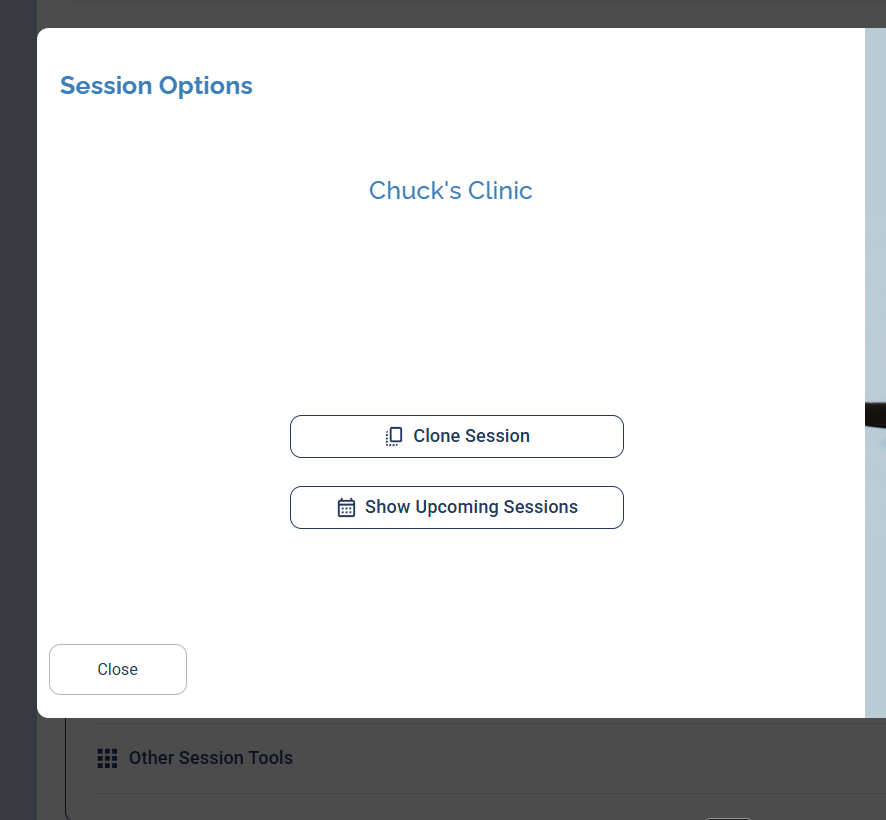
Session Options — click Clone Session. (This appears only for single-session events.)
2 Click Clone Session and confirm
Click Clone Session. A confirmation appears letting you know you'll set the new date and time next. Click Yes to proceed.
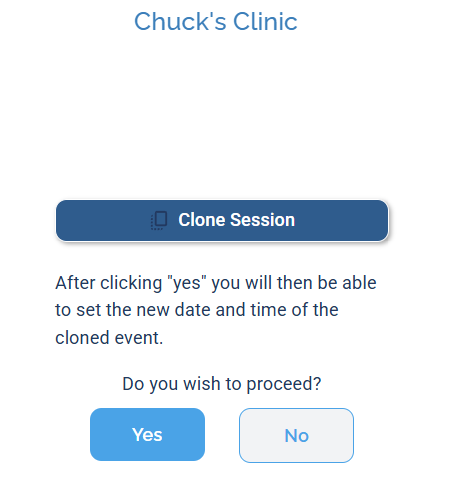
Confirm to continue — you'll set the new date and time on the next screen.
3 Set the new date and time
Give the cloned session a new date and time, then save it. The copy now appears on the schedule, your Dashboard, and any linked group.
After you confirm, you have to add a date and time to the copy. If you don't, or you cancel out of that screen, the cloning process has to be started over.