Custom Fields
How do I add custom questions to my signup form? How do I collect extra info from players when they sign up? Can I ask a custom question at signup? How do I add a team name field? Where are custom form fields? How many custom questions can I add? How do I ask players something specific when they join?
You can ask up to three custom questions on your signup form to collect extra information from each player — for example, "What is your team name?"
Responses show up in the signup confirmation email, on the session's attendee list, and in the CSV export. They're visible only to hosts.
How to add custom questions
How do I add a custom question? Where do I set up custom form fields? How do I edit the signup questions? Where is the Custom Questions setting? How do I turn on a signup question? How do I delete or remove a custom question? How do I turn off a signup question?
1 Open the session editor
Open the session, scroll to Tools, and click Edit Session.
2 Open Custom Questions
Open the Custom Questions section.
Custom questions apply across a whole series. On a single session you just open Custom Questions and the boxes are right there. If your session is recurring, you'll first set Apply changes to → This and ALL following sessions, scroll to Session-Wide Settings, and click Unlock to Edit before the section opens.
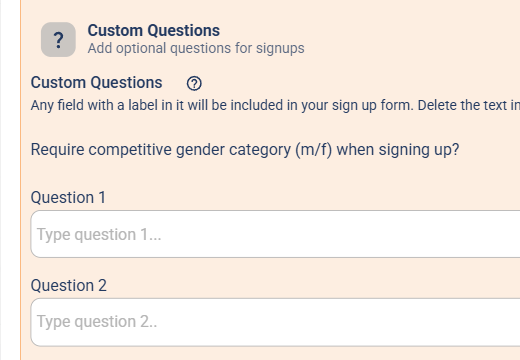
The Custom Questions section, where you type your signup questions.
3 Type your questions and save
Type a question into any of the numbered question boxes (you can add up to three) and click Save Changes.
Any box with text in it becomes a question on your signup form. To remove a question, just delete its text and save. Answering custom questions is optional for players.
Where responses show up
Where do I see the answers to my custom questions? Do custom question answers go in the export? Can players see other players' answers? Who can see custom question responses?
Once players answer, you'll find their responses in three places:
- The signup confirmation email.
- The session's attendee list (open View Attendees).
- The CSV export — one column per question.
Responses are only ever visible to hosts, not to other players.