How to Change Event Image
How do I change my event image? How do I update the photo on my event? How do I change the event thumbnail or banner? How do I upload a new picture for my session? Where do I set the event photo? Can I use a stock image for my event? What size should my event image be? Can each session have a different image?
Your event image is the photo players see on your event card and session page. You can swap it for a stock image or upload your own.
How to change the image
How do I change the event image? Where do I update the event photo? How do I upload my own event picture? How do I pick a stock image? How do I replace the current event thumbnail? Where is the image setting in the editor? Does changing the image affect all sessions or just one? Can I use a different image for each session?
1 Open the session editor
Open the session and scroll down to the Tools section (it sits near the bottom of the session popup), then click Edit Session.
2 Choose the scope (recurring sessions only)
If this is a recurring session, an Apply changes to dropdown appears. Choose how widely the new image applies:
- This session ONLY — change the image on just this one session, leaving the rest of the series as-is.
- This and ALL following sessions — change it on this session and every future one. (It does not change past sessions.)
For a non-recurring (single) session, this dropdown doesn't appear at all — just move on to the next step.
3 Open Audience & Display
Open the Audience & Display section. At the top you'll see the current Image.

The event image lives at the top of the Audience & Display section.
4 Pick or upload an image
Click the image. A Choose an image window opens. Either pick one of the Stock Images, or click Upload Image to use your own.
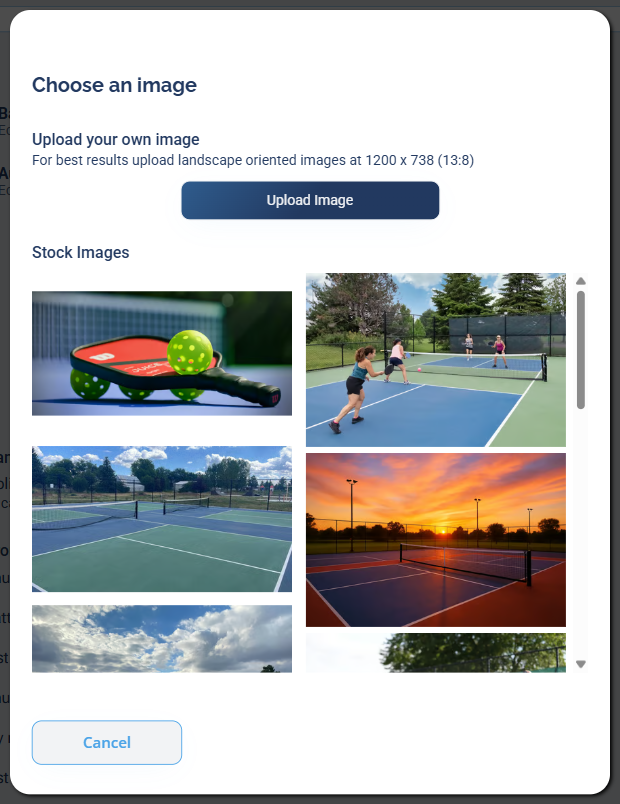
Choose a stock image or upload your own.
For best results, upload a landscape image at 1200 x 738 (a 13:8 ratio). The upload window shows this guidance too.
5 Save
Click Save Changes. Your new image now appears on the event card and session page.
Standard image formats work: JPG/JPEG, PNG, WEBP, SVG, and HEIC. AVIF files are not supported — if your image won't upload, convert it to a JPG or PNG first.