How to Add a Profile Photo
Add a photo to your DailyPB profile so other players and hosts can recognize you.
Why add a profile photo?
Why should I add a profile photo? What does my profile photo do? Who sees my profile picture? Where does my profile photo show up? Does my photo show in groups and teams? Can people in my sessions see my photo? Do I need a professional photo for DailyPB? What kind of photo should I use for my profile?
Your profile photo appears next to your name everywhere you show up on DailyPB: your public profile, the groups and teams you're on, the sessions you've joined or are waitlisted for, and anywhere you host or admin. Adding a photo helps the community put a face to your name, and makes it easier for hosts to recognize you when you arrive to play.
A simple headshot or any photo where your face is easy to see is perfect. You don't need a professional photo.
You must be signed in to your DailyPB account, and have a photo saved on your computer or phone (JPG or PNG format works best).
How do I add a profile photo?
How do I add a profile photo? How do I upload a profile picture? How do I change my profile photo? Where is the profile image upload? How do I put a picture on my DailyPB profile? How do I set my profile picture?
1 Click the profile icon in the top-right corner
From any page on DailyPB, look for the round profile icon in the upper-right corner of the navigation bar, next to your location. Click it to open your profile menu.
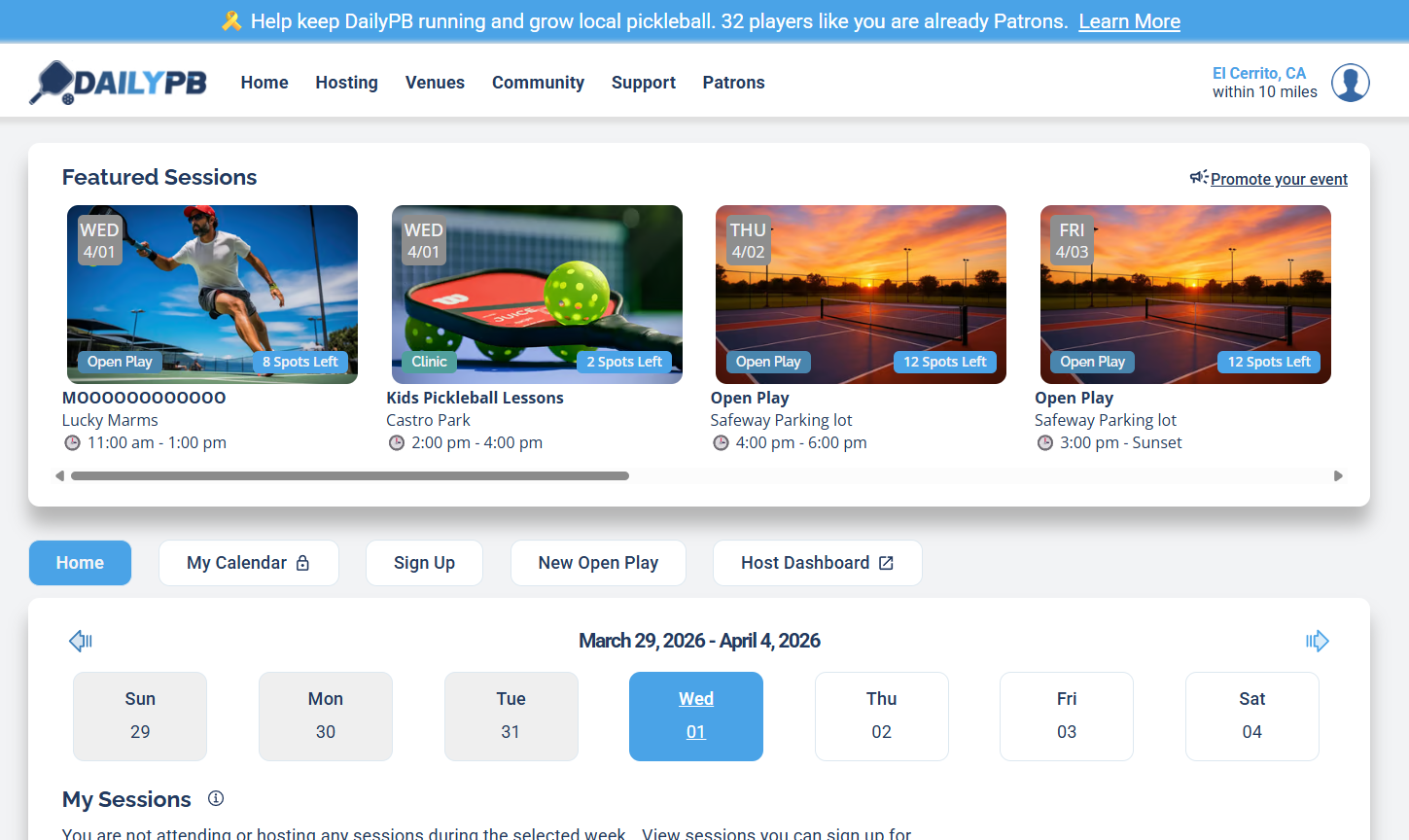
The profile icon is the small round icon in the top-right corner of the navigation bar.
2 Select "Personal Info" from the menu
A menu appears showing your name and several options. Click Personal Info to expand that section.
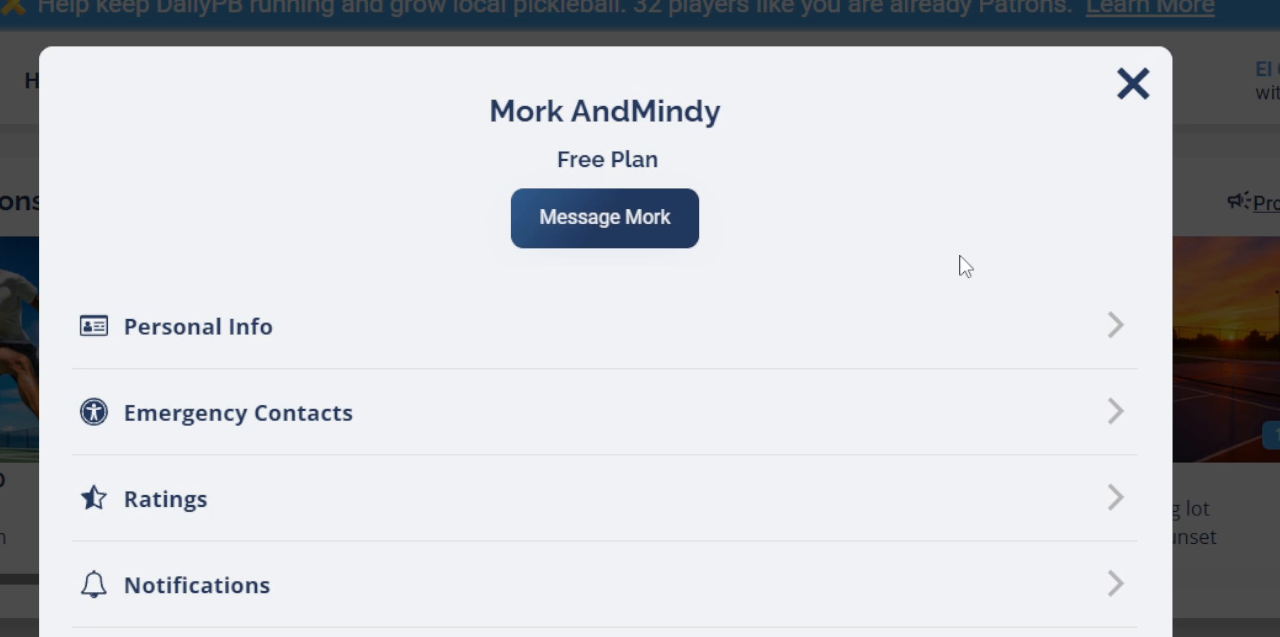
Click "Personal Info" to open your personal information and profile photo settings.
3 Find the Profile Image section
The Personal Info section expands to show your name, contact details, and other fields. Scroll down slightly until you see the Profile Image box.
4 Click the "Click to upload" box
In the Profile Image area, you'll see a box that says Click to upload. Click anywhere inside that box to open your file browser.
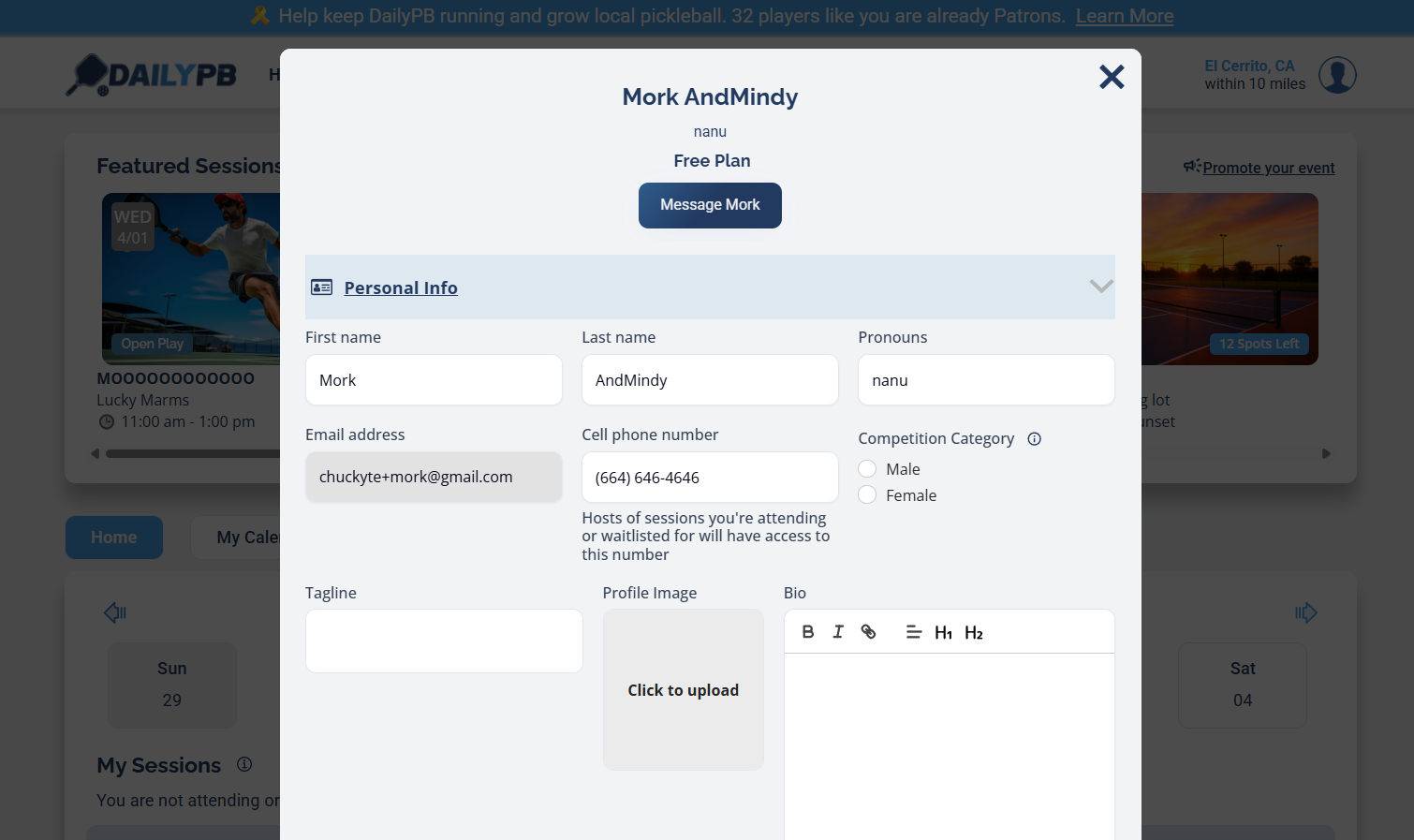
Click anywhere in the dashed box to open your file picker.
On a computer, your photos are most likely in your Pictures folder or Downloads folder. On a phone, your photo library will open automatically.
5 Select your photo
On a computer, navigate to the folder where your photo is saved, click the photo once to select it, then click Open. On a phone, your photos appear and you can tap the one you want.
6 Confirm your photo appears in the upload box
Your photo appears as a preview inside the Profile Image box. Take a moment to make sure it looks the way you want.
Just click the Profile Image box again to open the file picker and choose a different photo before saving.
7 Click "Save Personal Info"
Scroll down to the bottom of the Personal Info section and click the Save Personal Info button to save your changes.
Your photo isn't saved until you click Save Personal Info. If you close the menu before saving, you'll need to upload your photo again.
8 Confirm your photo is saved
After saving, your profile refreshes and your photo appears in a circle at the top of the profile panel. You'll also see it in the profile icon in the top-right corner of the navigation bar.
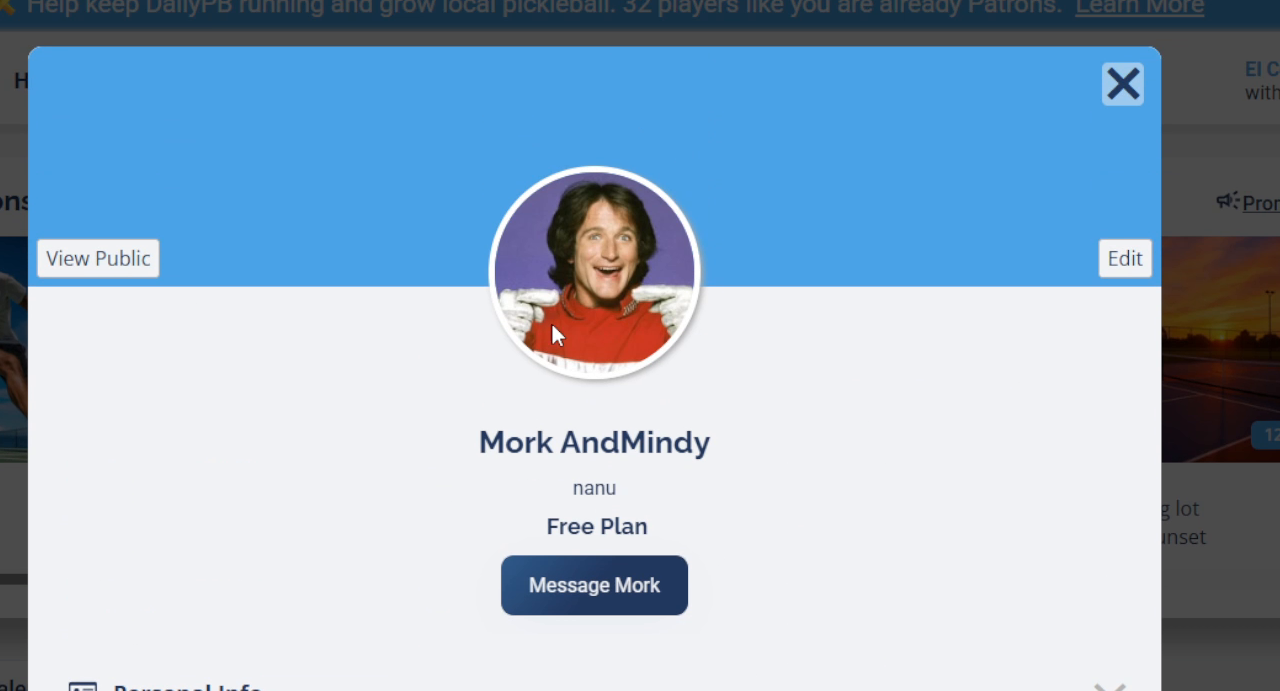
Your profile photo is now saved and will be visible to hosts and other players across DailyPB.
Common questions
What file type should my profile photo be? How big can my profile photo file be? Why isn't my photo showing up after I saved? Can I remove my profile photo? Who can see my profile photo? Where does my profile photo appear? Does my photo show to my groups, teams, or sessions? Can hosts and venue admins see my photo? My profile picture won't upload, what do I do?
What type of photo file should I use? JPG and PNG files work best. Most photos taken on a phone or camera are already in one of these formats, so you don't need to do anything special.
How big can my photo file be? Most standard photos from a smartphone or camera work fine. If you have trouble uploading, try a photo that's smaller in file size.
Why isn't my photo showing up after I saved? Make sure you clicked Save Personal Info before closing the menu. If you did save and the photo still isn't showing, try refreshing the page.
Can I remove my profile photo? You can't remove a profile photo, but you can replace it at any time by following these same steps and uploading a different photo.
Who can see my profile photo? Your photo shows up anywhere you're connected to something on DailyPB. That includes groups you join, teams you're on, sessions you've signed up for or are waitlisted on, any session you're hosting, and anywhere you're a group admin or venue admin. In short, whenever you're signed up to or involved in anything, the people who see that thing can see your photo next to your name.