Profile
Your DailyPB profile is where you manage everything about your account, organized into sections you expand one at a time. Open it by clicking the profile icon in the top-right corner of the screen.
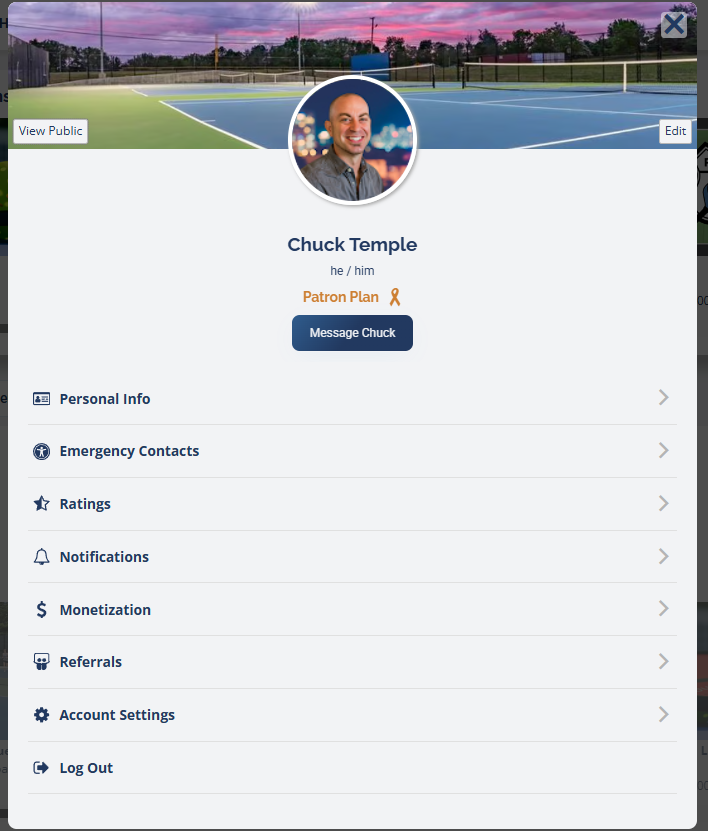
Your profile opens to a header and a stack of sections you can expand: Personal Info, Emergency Contacts, Ratings, Notifications, Monetization, Referrals, Account Settings, and Log Out.
Each section of your profile saves separately. When you change something in a section, scroll to the bottom of that section and click its Save button (for example, Save Personal Info or Save Ratings). Changes in one section are not saved by editing another.
Your profile header and public profile
What's at the top of my profile? How do I see my public profile? What do other players see on my profile? How do I preview my public profile? What does my profile look like to others? Where is the patron ribbon on my profile?
The top of your profile shows your background image, profile photo, name, preferred pronouns, and your Patron Plan status if you have one. There's also a Message button so people can contact you.
Use View Public to preview exactly what your profile looks like to other players. The public profile shows your name, photo, location, member number, ratings, sessions attended, and your primary emergency contact, but not your private details like your cell phone number.
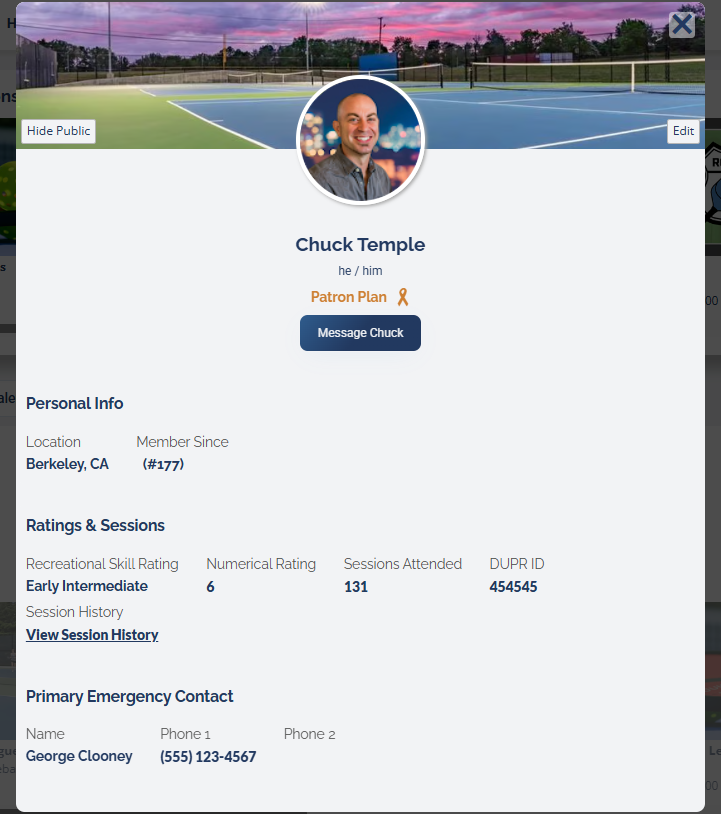
Click View Public to see your profile the way other players see it.
Change your background image
To change the banner behind your photo, click Edit in the top-right corner of the profile header. You can choose a background image or set it to a solid color, then click Save.
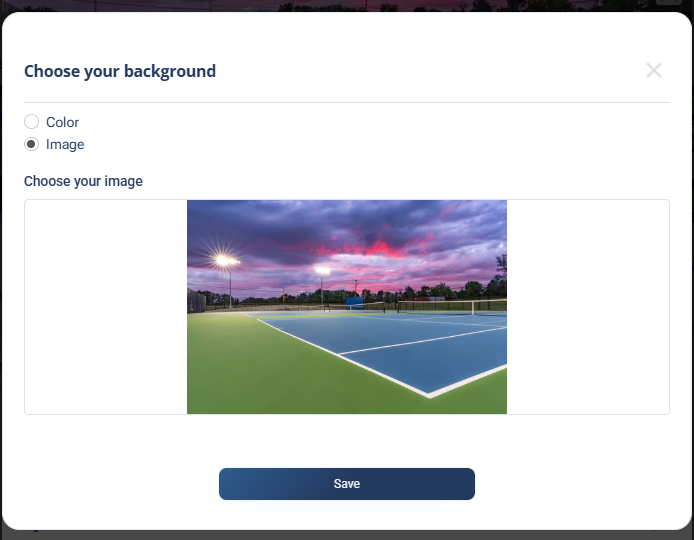
Pick a background image or a solid color for your profile banner.
Personal Info
How do I edit my personal info? How do I change my name or pronouns? How do I add a tagline or bio? Who can see my cell phone number? Is my phone number private? What is the competition category? Why does DailyPB need my phone number?
Expand Personal Info to edit the details people see when they click your profile. It's mostly self-explanatory: you can edit your First name, Last name, Pronouns, Tagline, Bio, and Profile Image, set your Cell phone number and Competition Category, and see your Email address.
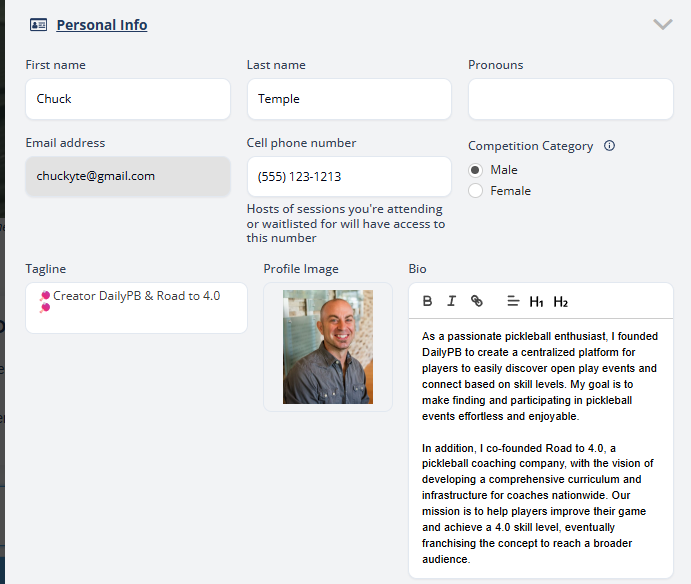
The Personal Info section holds the fields shown on your public profile, plus private details only certain people can see.
What's public. These fields appear when someone clicks your profile:
- First name
- Last name
- Pronouns
- Tagline
- Bio
- Profile image
What's private. Your cell phone number is kept private from other players. As the field's helper text says, hosts of sessions you're attending or waitlisted for can access it, along with the hosts, organizers, and admins of any groups or interest lists you've signed up for. A working number matters because it's used for critical session info, like notifying you of a waitlist bump.
Competition Category (Male or Female) is only shared with session hosts who asked for it during signup. It's used for sessions and games that are split by category.
Remember to click Save Personal Info at the bottom of the section.
Emergency Contacts
How do I add emergency contacts? Who can see my emergency contacts? How do I add a primary and secondary contact? Are emergency contacts public? How do I save emergency contacts? Who do I list in case I get hurt playing?
The Emergency Contacts section stores who to reach if you're injured while playing, so a session host or others can get help to you. You can add a Primary Contact and a Secondary Contact, each with a Full name, a Primary phone number, and a Secondary phone number. Click Save Emergency Contacts when you're done.
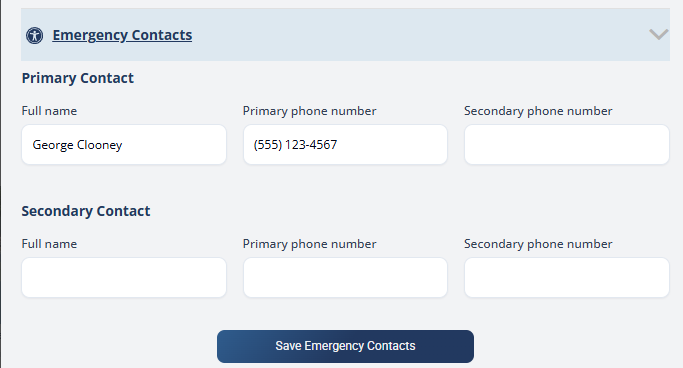
Add a primary and secondary emergency contact in case something happens on the court.
Your emergency contact information appears on your public profile, so others can reach your contacts if you're hurt. Only list information you're comfortable being visible.
Ratings
How do I set my rating and skill level? How do I add my DUPR ID? What is recreational skill level? How do I update my DUPR rating? Where do I enter my pickleball rating? How does DailyPB know my skill level? Why does my rating pre-fill when I sign up?
The Ratings section records your skill so it can pre-fill when a session asks for it.
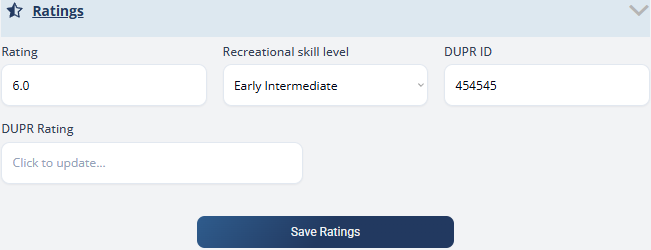
Your ratings pre-fill the skill fields when a session asks for them at signup.
The fields are:
- Rating: your numeric rating.
- Recreational skill level: a dropdown from beginner through advanced.
- DUPR ID: your DUPR identifier, used by sessions that run in DUPR Game Mode.
- DUPR Rating: click to update it.
These fields are really helpful because they're pre-filled when a session host asks for a rating at signup, so you don't re-enter it every time. And any time you sign up and enter something new, these fields update to match. Click Save Ratings to store them. See also Skill Level / Rating Requirements.
Notifications
What's in the Notifications section of my profile? What notification settings can I change from my profile? How do I stop signup confirmation emails? What is the Weekly Court Report? How do I get text reminders instead of email? When do session reminders go out?
The Notifications section controls which emails and texts you get. There are five settings, split into Player Notifications and Host Notifications.
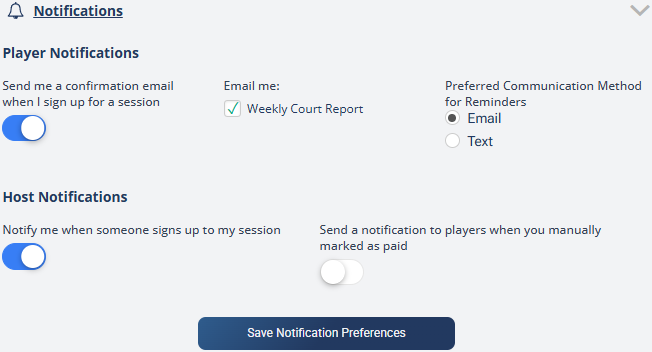
Five notification settings, split into Player Notifications and Host Notifications.
Here's what each one does:
- Send me a confirmation email when I sign up for a session: you get a confirmation email each time you sign up. It's on by default and recommended, but if you sign up for a lot of sessions and don't want the emails, you can turn it off.
- Weekly Court Report: a weekly email, sent Tuesdays at 9:00 a.m., listing what's coming up in the next eight days that you can sign up for near you (usually within 10 to 15 miles).
- Preferred Communication Method for Reminders: reminders are sent by Email by default. Patrons can switch this to Text. These are the 2-day and 24-hour reminders before your session.
- Notify me when someone signs up to my session (a host setting): get an email when a player signs up for a session you host. High-volume hosts who get many signups may want to turn this off (you can always filter these in your email program instead).
- Send a notification to players when you manually marked as paid (a host setting): check this and save if you want players emailed when you mark them paid by hand.
Click Save Notification Preferences after changing anything here.
If you unsubscribe from the Weekly Court Report using the link at the bottom of the report email, the checkbox here is automatically unchecked for you. It's a dynamic, two-way connection, so the report and this setting always stay in sync.
Monetization
What is the Monetization section of my profile? Where do I get paid as a host in my profile? How do I manage how I collect money? Where is my Stripe account on DailyPB?
The Monetization section is where you sign up for and manage automatic and manual payments, so you can get paid when you host.
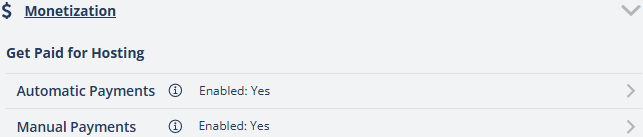
Set up and manage how you collect money as a host from the Monetization section.
You can reach both payment areas from here. For the full setup and management details, see Automatic Payments and Manual Payments.
Referrals
What is the Referrals section of my profile? Where do I find referrals in my profile? How much do I earn for referrals? Where do I see how many people I've referred? How much commission have I earned?
The Referrals section lets you refer people to DailyPB and earn 10% of the DailyPB fees for every host you refer (indefinitely, for now). It gives you a referral link you can copy to your clipboard, and it shows how many people you've signed up and how much commission you've earned this month.
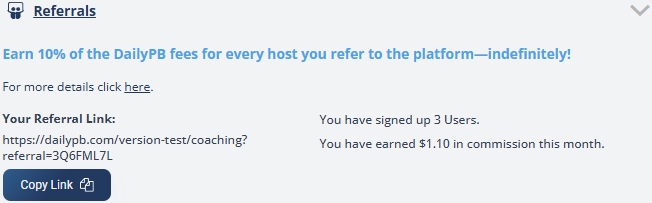
Copy your referral link and track how many people you've referred and your commission this month. (The link in this example shows a test URL; your real link uses dailypb.com.)
For the full details, see the Referral Program.
Account Settings
How do I manage my membership? How do I downgrade or pause my Patron plan? How do I change my email? How do I change my password? Where do I delete my account from my profile? Why can't I edit my email? How do I update my login email?
The Account Settings section is where you manage your membership and login.
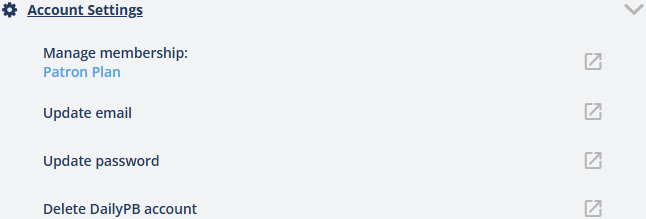
Manage your membership, update your login, or delete your account here.
- Manage membership: if you're a Patron, you can currently downgrade or pause your membership from here. (Upgrading isn't available here right now.)
- Update email and Update password: if you log in with an email and password (not Google), you can change your login email or password here.
- Delete DailyPB account: permanently delete your account. See Deleting Your Account.
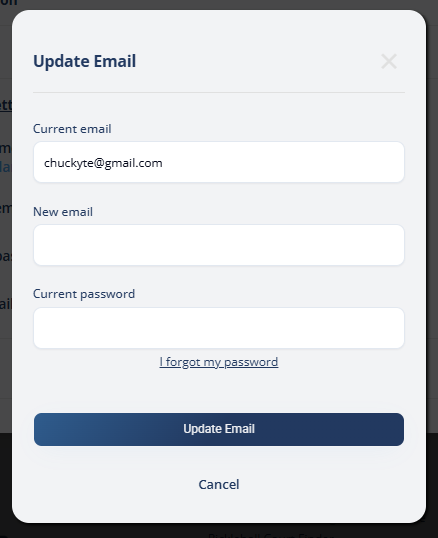
Updating your email asks for your new email and your current password.
If you sign in with Google, your email is managed by your Google account, so you can't change it inside DailyPB.
Log Out
How do I log out of DailyPB? Where is the log out button? Does logging out ask for confirmation? How do I sign out?
The Log Out option at the bottom of your profile signs you out immediately. There's no confirmation, so a single click logs you out.