Filtering the Schedule to Find Sessions
The Home page shows every public session near you, which is great for browsing but a lot to scroll through when you're after something specific. The Filter menu narrows the schedule down to exactly what you're looking for: lessons, competitive events, a single venue, or sessions matched to your skill level.
Filters control what kind of sessions you see. Your Location and Search Radius control where DailyPB looks. If the schedule is showing the wrong city or missing sessions you expected, see Location and Search Radius.
Opening the Filter Menu
Where are the filters on DailyPB? How do I filter the schedule? How do I filter the schedule for a specific kind of session? Where is the Filter button? How do I use the Filter menu to search the schedule? Can I filter the schedule instead of scrolling through everything?
The Filter button sits on the right side of the date bar on the Home page, right next to the day you're currently viewing.

The Filter button lives on the right of the date bar, next to the day you're viewing.
Click Filter and the filter panel opens underneath, with three groups of controls:
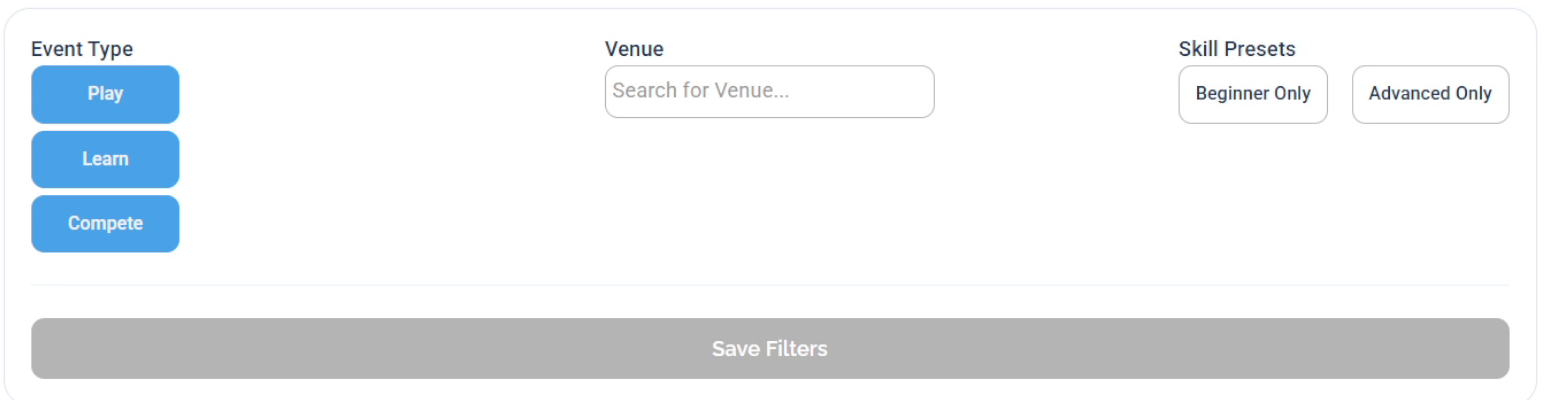
The filter panel: Event Type, Venue, and Skill Presets, with Save Filters along the bottom.
- Event Type — Play, Learn, or Compete
- Venue — narrow to a single court or park
- Skill Presets — Beginner Only or Advanced Only
You can combine these in any way you like. Whatever you pick, click Save Filters to apply it.
Your choices don't take effect until you click Save Filters at the bottom of the panel.
Filtering by Event Type: Play, Learn, and Compete
What is Event Type on the DailyPB schedule? What's the difference between Play, Learn, and Compete? How do I only see one type of session? How do I filter the schedule by event type? What do the Play Learn and Compete buttons do? How do I hide open play from the schedule? How do I see only one kind of pickleball event? How do I find competitive events? How do I see competitive events on the schedule? Where are the competitive sessions? How do I find tournaments and round robins on the schedule? How do I filter the schedule to Compete events? How do I find league play or team events to join? How do I see only compete events?
Sessions on DailyPB are grouped into three Event Type categories: Play, Learn, and Compete. When you open the Filter panel, all three start selected, which is why the schedule shows everything at once.
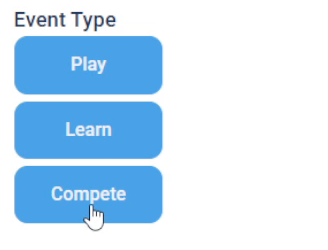
Play, Learn, and Compete all start selected. Deselect the ones you don't want.
Each category groups together several of the session types a host can choose from:
- Play — casual, drop-in play. Open Play is the most common session type on DailyPB and lands here, along with formats like Club Play.
- Learn — coached sessions. This is where Clinic, Intro Clinic, Drilling Group, and Private Session live, so it's the category to use when you're looking for a lesson.
- Compete — competitive formats, including Tournament, Round Robin, League Play, and Team Event.
To see just one type, click Filter on the Home page date bar, deselect the ones you don't want so only your choice stays highlighted, then click Save Filters. To see only competitive events, for example, deselect Play and Learn so only Compete is selected, then save. The schedule redraws with only competitive sessions.
Event Type is a grouping of the individual session types a host picks when creating a session. For what each one means, from Open Play to Team Events to Virtual Events, see Session Types Explained.
A session only shows up under the right Event Type if its host chose the matching session type when they created it. If something seems to be missing from a filtered view, try clearing your filters and browsing the full schedule.
Finding Lessons, Clinics, and Drilling Sessions
How do I find a lesson on DailyPB? How do I find pickleball lessons? Where are the lessons on the schedule? How do I see what lessons are available this week? How do I find a clinic? How do I find a drilling session? How do I filter the schedule to lessons? What lessons are happening next week? How do I see coaching sessions on DailyPB?
Lessons live under the Learn event type. To see every lesson on the schedule:
- Click Filter on the Home page date bar.
- Deselect Play and Compete so only Learn stays highlighted.
- Click Save Filters.
The schedule now shows only lessons, clinics, and drilling sessions for the week you're viewing. The whole week's lessons appear at once, so you can see everything available without stepping through day by day. To check another week, click forward to the next week and the results update to match.
Finding a Coach
How do I find a coach on DailyPB? How do I find a pickleball instructor? Where do I look for coaching? How do I find someone to teach me pickleball? Is there a coaching directory on DailyPB? How do I find a coach who teaches near me? Where do I find private coaching? How do I find someone who gives pickleball lessons?
DailyPB doesn't have a separate coach directory. You find a coach by finding the sessions they teach, which means the Learn filter is the main way to do it.
Filter the schedule to Learn using the steps above, and you'll see the coached sessions on the schedule: clinics, intro clinics, drilling groups, and private sessions. Each one is run by the coach teaching it, so browsing a few weeks of Learn sessions shows you who's actively coaching.
Two things that help:
- Look across several weeks. Coaches often run sessions on a regular rhythm, so a name that appears more than once is someone teaching consistently.
- Check groups and venues too. Many coaches run their sessions through a group, and a venue page lists the groups that play there. If you find a coach you like, their group page is the best way to see everything else they run.
A lot of regular coaching on DailyPB is organized through groups, where a coach posts their sessions in one place. See Basic Group Info for what a group page shows and how to join one.
Filtering the Schedule to Beginner or Advanced Sessions
How do I find beginner only sessions? How do I filter the schedule to beginner sessions? How do I find advanced only events? How do I filter the schedule to sessions for my skill level? How do I use Skill Presets? Where are the beginner friendly sessions on the schedule? How do I filter to advanced play? Are there beginner sessions this week?
Skill Presets narrow the schedule to sessions aimed at one end of the skill range. There are two presets: Beginner Only and Advanced Only.
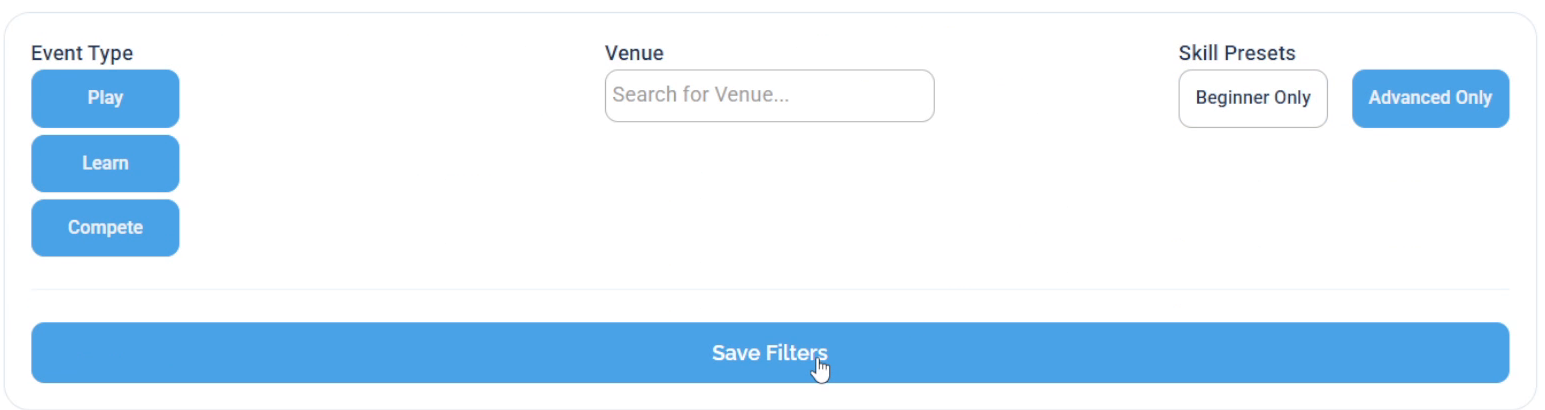
Advanced Only selected, ready to save.
Click Filter on the date bar, click the preset you want, then click Save Filters. The schedule redraws with only sessions set to that skill range for the week you're viewing.
If a week comes back sparse, click forward to the next week rather than assuming there's nothing available.
Skill Presets filter the schedule by the level a session is set to. To work out your own rating, and how DailyPB's levels relate to DUPR, see Determining Your Skill Level.
Filtering the Schedule to One Venue
How do I filter the schedule to one venue? How do I filter the schedule by venue? How do I use the Venue filter? What is the Venue Finder? How do I narrow the schedule to a single court? Can I filter the schedule to one park for the week? How do I search for a venue in the filter menu?
If you play at one regular court or park, you can narrow the schedule to just that venue and see its whole week at once.
Click Filter on the date bar, then click the Search for Venue... box in the filter panel. This opens the Venue Finder, where you can search by name, address, or host.
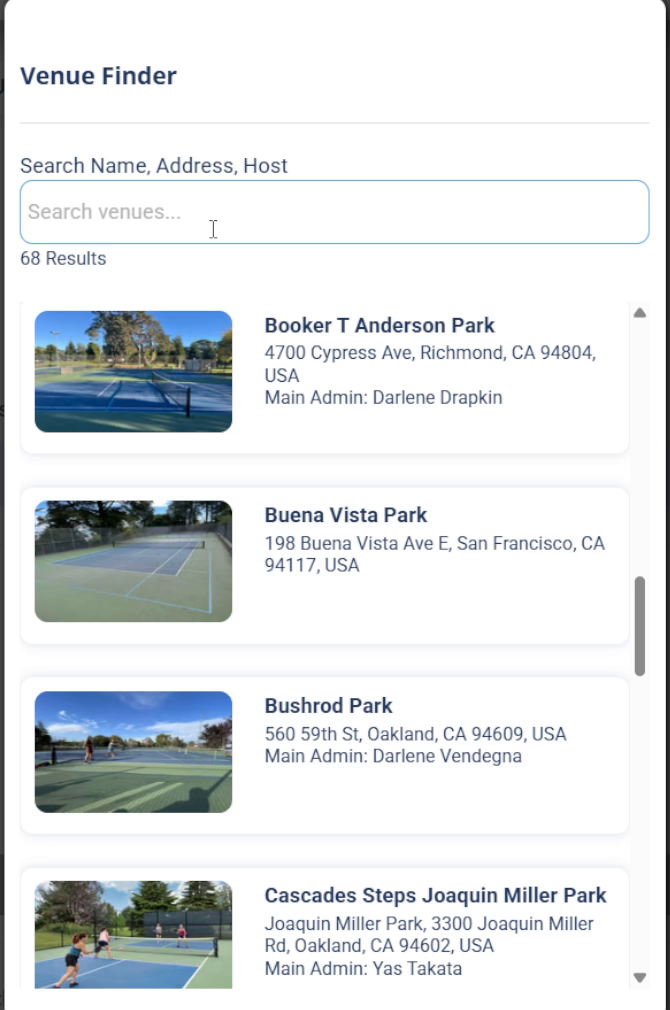
The Venue Finder searches by name, address, or host. Type in the Search venues box, then pick one from the list.
Type a venue name into the Search venues... box, pick it from the results, then click Save Filters. The schedule now shows the public sessions at that venue, and you can click through the weeks to see everything coming up there.
Filtering is the quick way to check one venue while you're already browsing the schedule. But every venue on DailyPB also has its own venue page, and if you play somewhere regularly that's the better place to look. It gives you the court's whole schedule in list or calendar view, any date range you want rather than a week at a time, plus closures, announcements, directions, groups that play there, and reviews.
To get there, click the venue name on any session, or search for the court in the Venue Finder. See Basic Venue Info for everything a venue page shows.
Why the Schedule Switches to a Whole Week
Why did the schedule change to a whole week? Why am I seeing the full week instead of one day? Why did the date change when I applied a filter? My schedule shows a date range instead of a day, why? Why does the date say Jul 19 to Jul 25? Did filtering change my date? Why is it showing seven days?
This surprises a lot of people the first time. Without filters, the Home page shows one day at a time, and the date bar reads a single date. As soon as you apply any filter, the schedule switches to showing the entire week, and the header changes to a date range instead.
Without filters you'd be checking one day at a time, so the week view means you see everything matching your filter in one pass.
While filters are active, you move through the schedule a week at a time instead of a day. Clearing your filters puts you back on the single-day view, on today's date.
Clearing Your Filters
How do I clear my filters on DailyPB? How do I reset the schedule? How do I get back to seeing all sessions? Where is the Clear Filters button? How do I undo a filter? How do I get back to today's date after filtering? How do I turn off filters? Do my filters save? Why did my filters disappear when I refreshed?
Once filters are active, a Clear Filters link appears next to the Filter button on the date bar.

Clear Filters only appears when you have filters applied.
Click Clear Filters and everything resets: all three Event Types come back on, any venue and skill preset is removed, and the schedule returns to the single-day view on today's date.
Filters aren't saved to your account. They last as long as you're on the page, but refreshing your browser or coming back later clears them, and the schedule starts fresh on today's date. Despite the name, Save Filters applies your choices to the current view rather than storing them for next time.