Session Tools
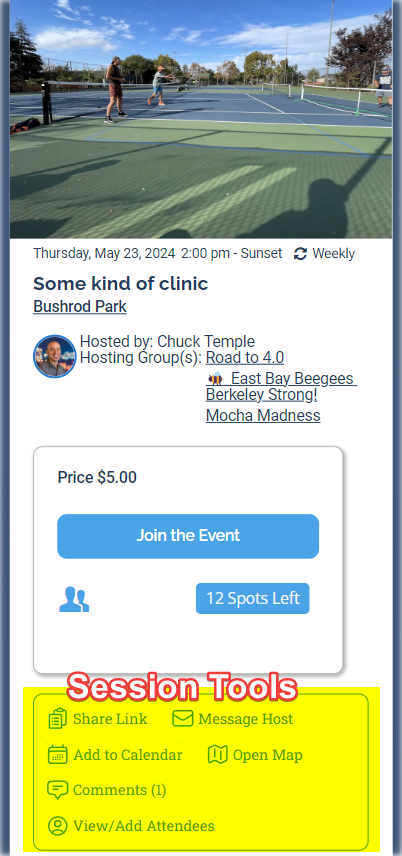
When opening the Session Details popup, you can scroll down to this area to see the Session Tools for players.
- Share Link - this will copy the direct link (URL) to your clipboard. You can then paste the link, from your clipboard, in any application for easy sharing. When someone clicks your link it will take them directly to dailypb.com and open the session you are sharing.
- Message Host - this feature allows you to directly message the host of the session you are looking at. (If there are multiple hosts, it will only message the Main Host). After typing your message it will email the host. This allows the hosts email to be kept private.
- Add to Calendar - this function allows you to add the current session as a calendar event to the calendar of your choice (Google Calendar, Outlook iCal, and Office365). It will be complete with the time, location, and details of the event.
- Open Map - this will load up the Google Maps app (if on mobile and it is installed) or link directly to the Google Maps website if on desktop. It will preload the destination as the destination of the session you are currently viewing.
- Comments - This will bring up a comments section allowing you to view other comments as well as leave your own. This option will have a parenthesis surrounding the number of current messages (it will be blank if none). Comments allows the user to use rich text including images, links, and videos in their comments.
- View / Add Attendees - this will bring up the Attendees screen so you can view who is going, manage your attendance, as well as sign up others to an event. This option is only visible if the session allows for sign ups.