How to Cancel Your Spot
There are two ways to cancel your spot in a session, and both require you to be logged in. That's the most important thing to check first, so we start there.
First, make sure you're logged in
How do I know if I'm logged in? Why can't I cancel my spot? Why don't I see a cancel button? Do I have to be logged in to cancel? How do I sign in to cancel a session? Why does it say sign in instead of my profile?
Look at the upper-right corner of the screen:
- If you see a circle with your profile photo (or a default image), you're logged in. Good to go.
- If you see Sign In, you're not logged in. Sign in first, because if DailyPB doesn't know who you are, it can't cancel your spot.
The cancel option only appears when you're logged in. If you don't see it, signing in is almost always the fix. If you still don't see your signup after logging in, you may have signed up under a different account (for example, Google one time and an email another). Check which email received your signup confirmation, then sign in with that account.
Method 1: Cancel from the session page
How do I cancel my spot from the session page? Where is the Cancel My Spot button? How do I cancel a session I signed up for? How do I drop out of a session? How do I leave a session I joined? How do I give a reason when I cancel? How do I withdraw from a session?
This is the fastest way when you're already looking at the session.
1 Open the session you signed up for.
2 In the pricing and signup area (where you see Attending Session and Add Player), click Cancel My Spot.
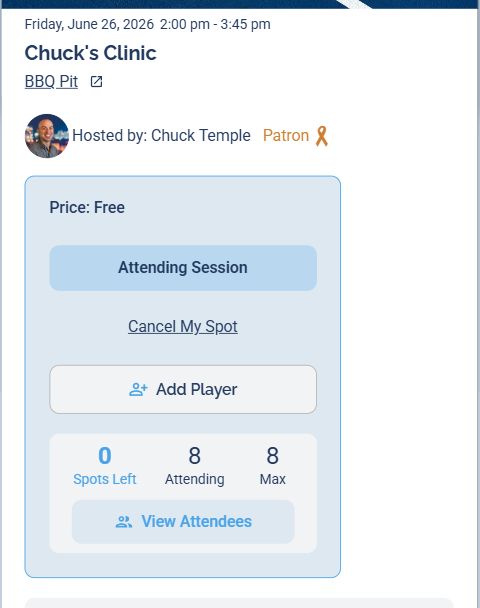
On the session page, Cancel My Spot sits right under the Attending Session button.
3 On the Cancel My Spot Confirmation screen, you can add a reason for removal if you like. This reason is sent to the host, so it's a good place to say why you can't make it. Then click Confirm Cancellation.
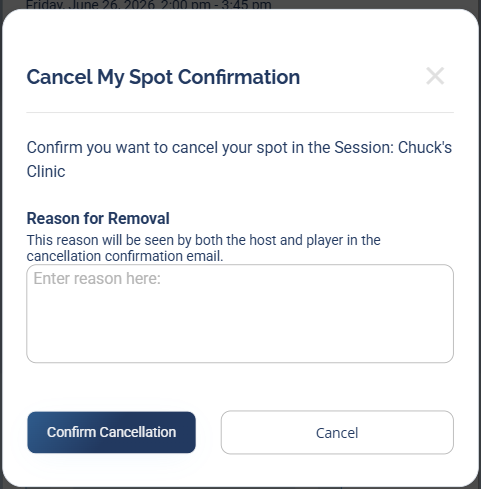
Add a reason for the host if you'd like, then confirm to cancel.
Method 2: Cancel from View Attendees
How do I cancel my spot from the attendee list? How do I remove myself using View Attendees? How do I delete my own signup? How do I cancel my spot if I don't see Cancel My Spot? How do I take myself off the attendee list? How do I remove my name from a session?
You can also cancel yourself from the attendee list.
1 Open the session and click View Attendees.
2 Find your name, click the down arrow at the right of your row to open your Actions, and click Delete.
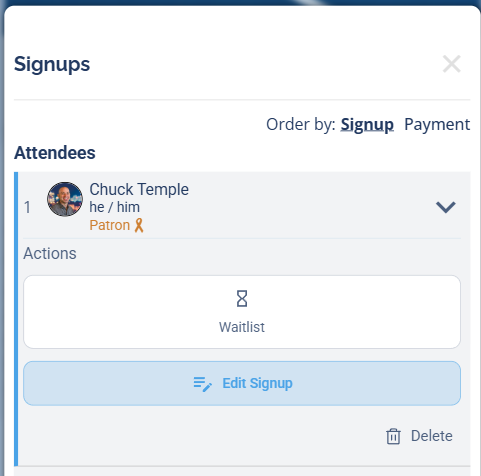
Open your own Actions in the attendee list, then click Delete.
3 The same Cancel My Spot Confirmation screen appears. Add a reason if you like, then click Confirm Cancellation.
What happens when you cancel
What happens when I cancel my spot? Does the next person on the waitlist get my spot? Does cancelling free up my spot? Will someone be moved off the waitlist when I cancel? Do I get a refund when I cancel my spot? What happens to my payment if I cancel?
When you cancel your own spot, your place opens up. If the session is full and someone is on the waitlist, the first person on the waitlist is automatically bumped into your spot. You and the host both get a confirmation that you've left.