Quick Actions
Every session has a Quick Actions bar with the tools you'll use most: share it, message the host, add it to your calendar, get directions, leave a comment, and more. Open a session and scroll to the Quick Actions area to find them.
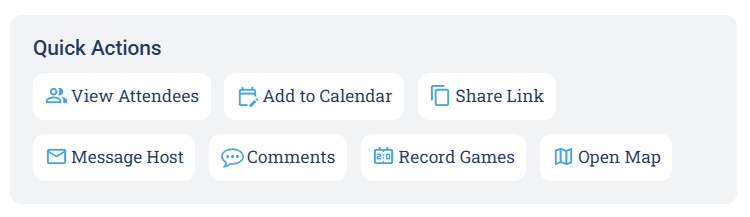
The Quick Actions bar on a session.
Share Link
What does the Share Link button in Quick Actions do? Where is Share Link in the Quick Actions bar? Is there a QR code for a session? How do I download a session QR code from Quick Actions?
Share Link opens a Share popup with the session's full link and a QR code. You can Copy Link to put the URL on your clipboard, or Download QR Code to save the code as an image. On mobile you may not see the QR code.
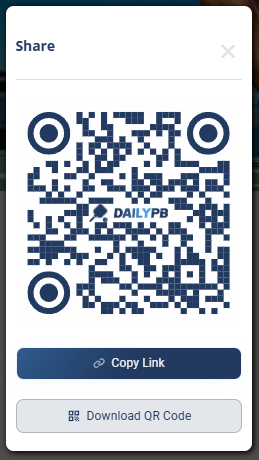
Share Link gives you the link and a downloadable QR code.
Message Host
How do I message the host of a session? How do I contact the host? How do I email the session host? Do sub-hosts get my message? Does the host see my email address? How do I reach the organizers of a session?
Message Host sends a message to the people running the session. It goes to the Main Host and CCs every sub-host, so the whole hosting team sees it. You fill in your name, email, and message, and it's delivered by email, which keeps everyone's email addresses private.
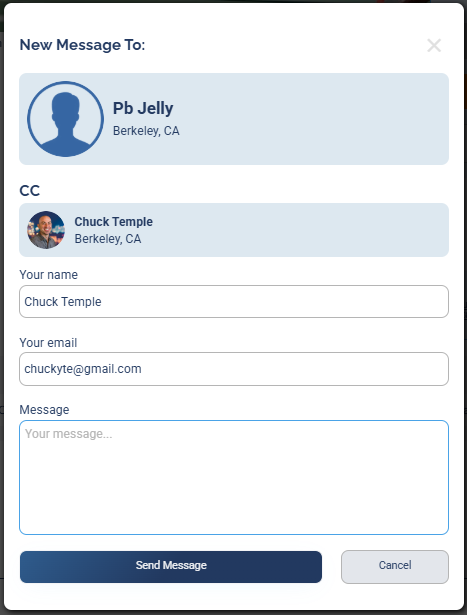
Message Host reaches the main host and CCs the sub-hosts.
Add to Calendar
How do I add a session to my calendar? How do I save a session to Google Calendar? Can I add a session to Outlook or iCal? How do I put a session on my calendar? Does the calendar event include the location and time?
Add to Calendar lets you save the session to Google Calendar, Outlook, iCal, or Office 365, with the time, location, and details filled in for you.

Add the session to Google, Outlook, iCal, or Office 365.
Comments
How do I leave a comment on a session? How do comments work on a session? Who gets notified when I comment? How do I see how many comments a session has? Do hosts see my comment? Will I get emailed about new comments? Can I add a photo or link to a comment?
Comments opens the session's comment thread, where you can read others' comments and add your own. You can format your comment with bold, italics, and links. When you post, everyone subscribed to that session's comments and the session hosts get an email, so the conversation reaches the right people automatically.
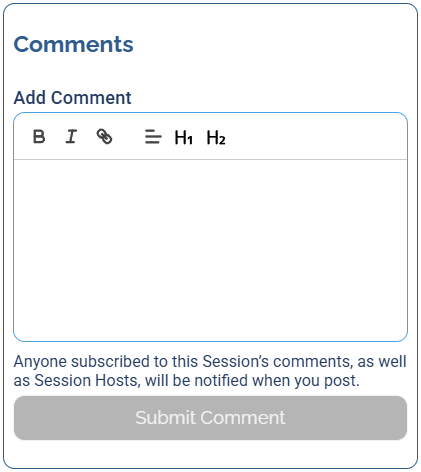
Posting a comment emails the hosts and anyone else who has commented on that session.
The number of comments shows in parentheses on the Comments button, and the button is bold when a session has comments, so you can spot active threads at a glance.

A bold Comments button with a count means the session has comments.
Open Map
How do I get directions to a session? How do I open the session location in maps? How do I find where a session is? Does Open Map use Google Maps? How do I navigate to a session venue?
Open Map opens the session's location in Google Maps with the destination preloaded, ready for directions. On mobile it opens the Google Maps app if you have it installed, otherwise the Google Maps website.
Record Games
What does Record Games do? How do I record scores for a session? How do I open Flex Play? Where do I track games and standings? How do I score a session?
Record Games opens Flex Play, where you build games, enter scores, and track live standings. See Flex Play for the full walkthrough.
View Attendees
How do I see who's going to a session? Where is the attendee list? How do I manage my own signup? How do I sign someone else up? Why don't I see View Attendees? How do I open the attendees list?
View Attendees opens the attendees screen, where you can see who's going, manage your own attendance, and sign others up. This button only appears if the session allows signups.